If you’re new to video editing, you’ve probably seen two names everywhere: Wondershare Filmora and Movavi Video Editor. The real question is, which one feels easier to use, and which one holds up when your projects get bigger?
In this Filmora vs Movavi Video Editor comparison, I’m not just listing features. I installed both on the same Windows 11 laptop, used the same clips, and checked what matters in real life: install size, export speed, RAM usage, and AI tools like subtitles, background removal, and noise cleanup. A few things didn’t go the way I expected.
Features | Filmora | Movavi Video Editor |
|---|---|---|
Drag and Drop Timeline | Yes | Yes |
Trimming | Yes | Yes |
Effects, Filters, and Transitions | Extensive Library | Moderate Library |
Support for LUTs | Yes | Yes |
Record Audio and Video | Yes | Yes |
Built-in Screen Recorder | Yes | No (Requires Movavi Screen Recorder — separate app) |
Color Adjustments | Advanced with color wheels | Basic |
Stabilization | Yes | Yes |
Chroma Key | Yes | Yes |
Motion Tracking | Yes | Yes |
AI Tools | More Advanced | Decent |
HEVC Support | Yes | Conditional (requires Windows HEC Codec/extension; export depends on system) |
Learning Curve | Small — Moderate (Advanced features take time to master) | Small (Very Beginner-friendly) |
Filmora vs Movavi Video Editor: Overview
Before we get into the details, here’s what each editor feels like in real use, and who it’s usually best for.
Wondershare Filmora
Wondershare Filmora mixes beginner-friendly editing with a bunch of tools you normally see in “serious” editors. You can do the basics fast, trim, transitions, text, and you’re done. But if you want more control later, Filmora has it. Keyframing, speed ramping, and a proper color grading panel are all there.
One small thing I noticed, Filmora’s start screen can feel a bit busy at first because it throws a lot of options at you (projects, AI tools, extras). Once you jump into a new project though, the actual editing layout is straightforward.
It also has AI helpers like Smart Scene Cut and Text to Video. Useful when you’re trying to move faster, but you still get manual controls when you need them. Read our detailed Wondershare Filmora review to learn more about the program.
Movavi Video Editor
Movavi Video Editor is built for beginners and casual creators. The interface is clean, and most tools are where you’d expect them. I didn’t have to “hunt” for basic stuff like trimming, transitions, or captions. It’s the kind of editor where you can start a first project in minutes.
Feature-wise, you still get the good stuff: Stabilization, Chroma key, and Motion tracking, plus built-in effects, transitions, and animations. Movavi also leans into AI tools like Auto subtitles and Background removal, which is nice when you just want the job done without too many settings.
What really makes Movavi stand out is the guided feel. Presets do a lot of the heavy lifting, so you spend less time tweaking and more time finishing. Read our detailed Movavi Video Editor review to learn more.
Pricing Plans
Wondershare Filmora
Filmora offers the following paid plans:
- Basic Plan: USD 49.99 per year
- Advanced Plan: USD 59.99 per year
- Perpetual (One-Time Fee): USD 79.99
Wondershare Filmora offers both a free version and a free trial with access to most editing features. However, videos exported using the free version or trial will include a Filmora watermark. To remove the watermark and access all features, you need to upgrade to a paid plan.
For the latest prices, refer to the Filmora Official pricing page.
Movavi Video Editor
Movavi Video Editor offers two main pricing options (in USD):
- 1-Year Subscription (1 PC/Mac): USD 54.95
- Lifetime License (1 PC/Mac): USD 79.95
A 7-day free trial is available, but videos exported during the trial include a watermark.
Using our Movavi Video Editor Discount Coupons, you can buy the lifetime license with up to 60% discount.
Movavi also offers Movavi Video Suite, a cost-effective all-in-one package that includes video editing, media conversion, screen recording, and CD/DVD burning tools. This option is best suited for users who want multimedia tools under a single license.
Pricing Verdict: Winner - Movavi Video Editor
From a pricing perspective, Movavi offers better value. It is budget-friendly for users who want a video editor to create professional-looking videos.
System Requirements & Installation
The system requirements and installation process mentioned below for both tools are specific to Windows OS. They are based on official specifications provided by Wondershare Filmora and Movavi Video Editor.
Requirements | Wondershare Filmora | Movavi Video Editor |
|---|---|---|
Supported OS platforms | Windows, macOS (Desktop); Android & iOS(separate mobile app) | Windows and macOS |
Supported OS version | Windows 7 and above (64-bit) | Windows 10 and 11 (64-bit) |
Processor | Intel 6th Gen, AMD Ryzen 3 1300X or higher. | Intel, AMD, or compatible dual-core processor, 1.5 GHz |
RAM | A minimum of 8 GB RAM and 16 GB is recommended for heavy editing. | A minimum of 4GB RAM |
Disk Space | At least 10 GB of free disk space is suggested for installation. | At least 400 MB of free disk space is suggested for installation. |
Note: Filmora recommends an SSD (Solid-State Drive) for a smooth HD and 4K video editing experience.
Download and Installation
Both Filmora and Movavi Video Editor are available for Windows and macOS, and you can download them from the official websites of Wondershare Filmora and Movavi Video Editor. The installation steps are similar for both. Download the setup file, run it, then follow the on-screen wizard to complete the installation.
During my test, Movavi Video Editor took about 44 seconds to complete installation, while Filmora took a few minutes. On my system, Movavi’s base installation size was around 424 MB, while Filmora used only 142 MB after the initial setup, which felt surprisingly small for a full-featured video editor. That said, once you start editing regularly (projects, cache files, extra assets), both can take up more storage over time.
System Requirements and Installation Verdict: Winner - Movavi Video Editor
Movavi’s lightweight build is a better fit for low-end systems and quick setups. Filmora runs best on stronger hardware, especially for heavier editing tasks. With lower system requirements and faster installation in my test, Movavi Video Editor leads this segment.
Filmora vs Movavi Video Editor: User Interface
A clean, intuitive interface makes video editing less overwhelming and more efficient. And both Filmora and Movavi Video Editor do a good job here. Let’s take a closer look.
Movavi Video Editor
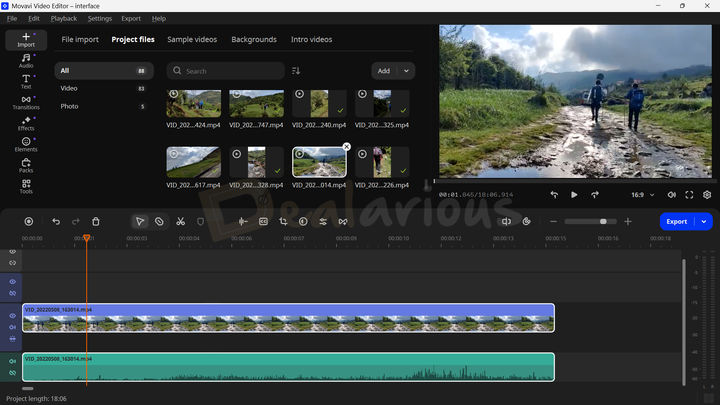
If you’ve used video editing software before, Movavi’s workspace will feel familiar. If you haven’t, the quick-start tutorial helps you get moving without much effort. The layout is clean, and most tools are easy to spot.
The main tools (effects, transitions, animations, stickers, and more) sit on the left panel. The preview window is on the right, and the timeline stays at the bottom. It’s split into three tracks:
- Titles
- Video
- Audio
To edit, you just drag and drop clips or elements into the right track and fine-tune as you go.
Wondershare Filmora
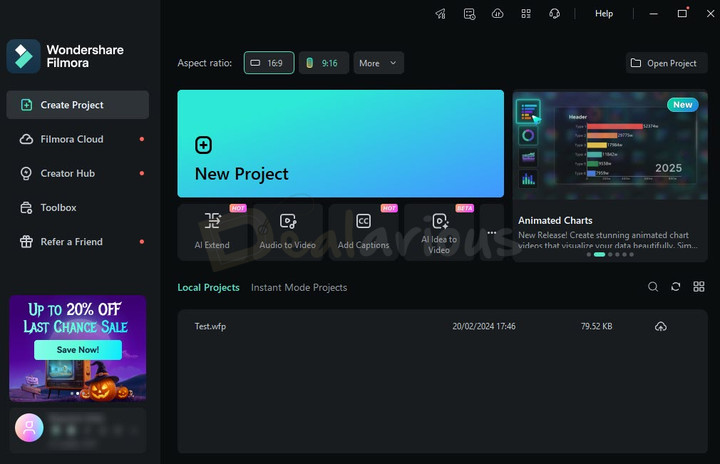
When you open Filmora, you see a dashboard. It works like a hub for starting new projects, picking up unfinished ones, and jumping into AI tools. If you want to get straight into editing, choose New Project under the Create Project tab, and you’ll land in the main workspace.
The editing layout is similar to Movavi’s, with the same drag-and-drop workflow. The difference is customization. Filmora lets you change the workspace layout (there are six options, and the Classic layout is my go-to), adjust timeline height, add multiple tracks at once, and tweak a bunch of interface elements. You can also enable video scopes in the preview panel, which is handy when you’re adjusting colors.
Interface Verdict: Draw
Filmora gives you more layout and workspace customization, while Movavi keeps everything simple and beginner-focused. In day-to-day use, both feel user-friendly and easy to operate, so this round is a draw.
Filmora vs Movavi Video Editor: Editing Workflow
Here’s how both editors feel once you start a real project and begin cutting, adjusting, and exporting.
Movavi Video Editor
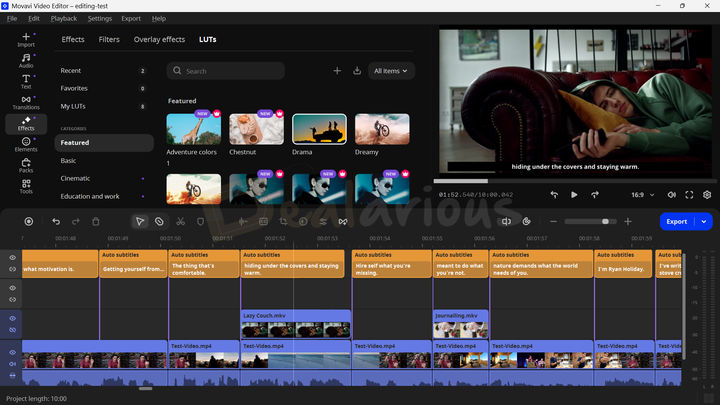
My experience with Movavi Video Editor was smooth. I was able to find the required tools in the left panel, and making basic adjustments like trimming, applying effects and transitions, and color adjustments didn’t pose any challenge for me.
Movavi’s automation features, including Scene detection, Background removal, and Auto subtitles, did most of the heavy lifting. These tools helped me save time by automatically cutting scenes from a lengthy video, automating the tedious task of subtitle creation, and removing backgrounds with ease. Using them was simple, often taking only a couple of clicks. That said, I still had to make a few small adjustments here and there for a polished result.
While Movavi’s key focus is keeping things straightforward, some tools, like Motion tracking, Stabilization, and manual animation adjustments, can still take time to master.
In short, most users can create their first simple video within minutes without needing tutorials.
Wondershare Filmora
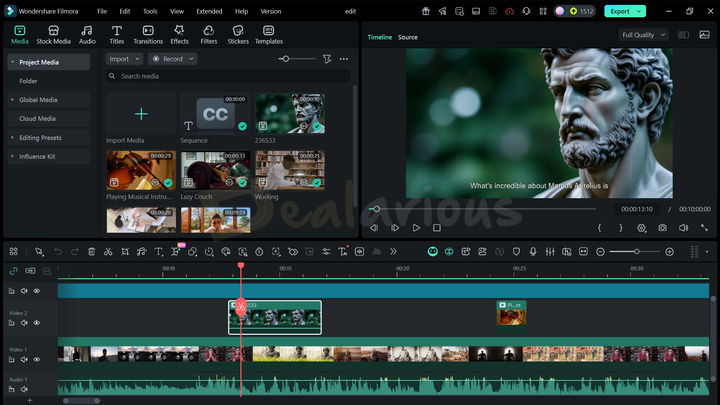
When it comes to advanced editing capabilities, Filmora is a step ahead of Movavi Video Editor. Using basic tools like trimming, applying effects, filters, and transitions is easy. However, due to Filmora’s vast customization options, going beyond the basics can feel overwhelming, especially for first-time users.
In my case, having used Adobe Premiere Pro before, switching to Filmora felt smooth. Performing basic adjustments was effortless. At the same time, switching to manual controls when needed gave me enough flexibility to tweak the project according to my creative needs.
What hooked me to Filmora was its color grading panel with color wheels and detailed color controls, keyframing for both audio and visual transitions, speed ramping for smoother motion effects, and masking tools. These options gave me the right amount of manual control instead of fully relying on automation.
In short, I found Filmora’s workflow to be geared more towards intermediate and advanced users who want editor-style control, paired with automation features for faster results. For newcomers, Filmora’s advanced features may require some initial learning. Still, once you’re familiar with them, you can create high-quality, polished videos.
Editing Workflow Verdict: Winner - Movavi Video Editor
In this Filmora vs Movavi comparison, Movavi Video Editor wins this round with its simpler, more straightforward workflow. The program is easy to pick up and beginner-friendly.
Learn some quick video editing tips and tricks to create more engaging content.
Filmora vs Movavi Video Editor: Key Features
Below, I’ve compared the similar features that both Filmora and Movavi Video Editor offer.
Basic Editing Tools
Trimming
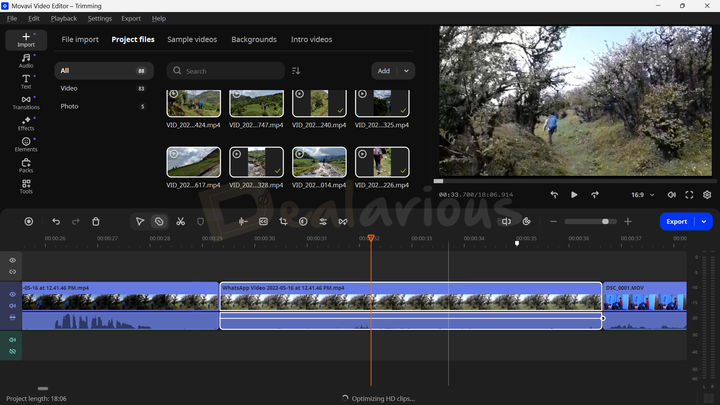
Trimming helps you cut or shorten clips, removing the unwanted section while keeping the essential moments.
Movavi Video Editor offers three ways to trim your videos:
- Drag the edges of a selected clip directly on the timeline to set new start and end points.
- Use the Split tool on a selected clip, followed by the playhead to divide it into sections.
- Use the Blade tool to make multiple precise cuts without selecting the clip. Simply hover over the spot you want to cut and click.
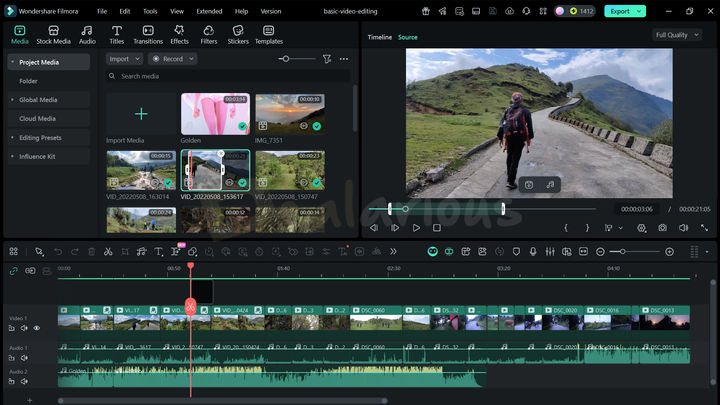
Filmora, on the other hand, includes all these trimming methods and adds Mark In and Mark Out points. It lets you mark the essential portions directly in the preview panel and add only those sections to the timeline. This reduces the need to add the entire clip into the timeline first and then make cuts afterward, which can feel more organized.
Trimming Verdict: Winner - Filmora
Filmora wins this trimming segment with Mark In and Mark Out points, which help streamline the editing process.
Transitions and Filters
After arranging your clips on the timeline, it’s time to improve the flow with smoother transitions and filters.
Both Filmora and Movavi Video Editor pack a solid library of transitions and filters. However, they differ in control and flexibility.
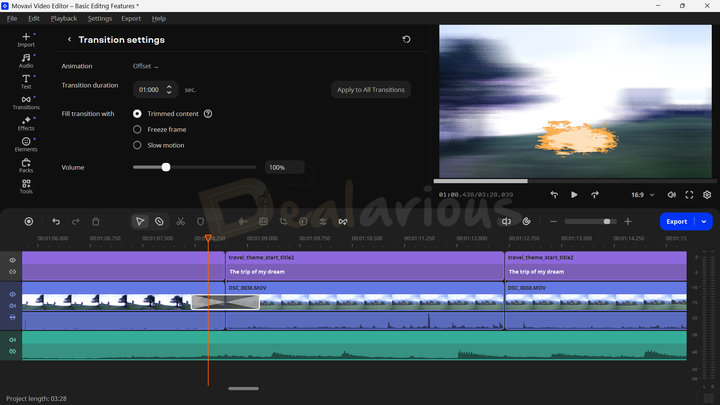
Movavi Video Editor offers more detailed control over the transition effects applied. Besides tweaking duration, you can also customize style, photo clip duration, and fill the transition with trimmed content, freeze frame, or slow motion, among other adjustments.
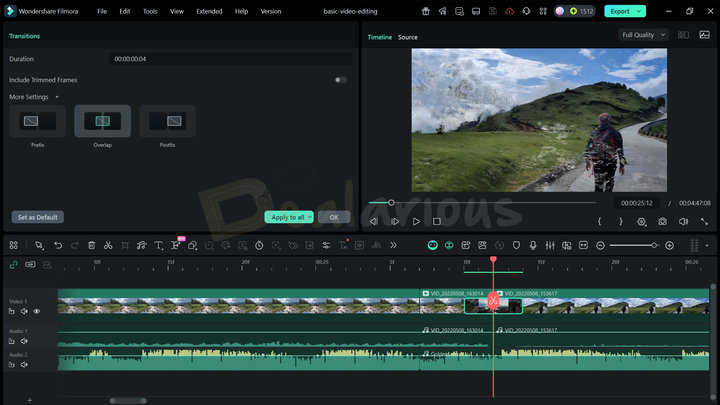
With Filmora, you can adjust transition duration and apply it as a Prefix, Overlap, or Postfix, along with a trimmed frames option. Filmora also has an edge by offering audio transitions in its collection, which Movavi lacks.
When it comes to filters, both programs let you copy and paste filter settings (like opacity) across multiple clips. Filmora goes a step further with Skin Tone Protection and keyframing options. In contrast, Movavi Video Editor is mostly limited to opacity adjustments.
Transitions and Filters Verdict: Draw
Both apps have their strengths and limitations, so this segment ends in a draw.
Color Correction and Effects
Colors and effects are two strong components in a video that influence how viewers feel and relate to your content.
Color adjustment
For color adjustment, Movavi Video Editor offers two modes: Presets and Manual. Presets include options such as Auto contrast, Auto saturation, Auto white balance, Magic enhance, and more. Manual mode lets you tweak essential parameters such as White balance, Brightness, Contrast, Saturation, Highlights, Gamma, Shadows, and more.
While these controls are beginner-friendly, they can feel limiting for anyone who wants deeper color control. To bridge that gap, Movavi Video Editor also supports LUTs. You can use LUT effects from Movavi’s built-in collection or import LUTs in .CUBE format from your local drive, then adjust intensity as needed.
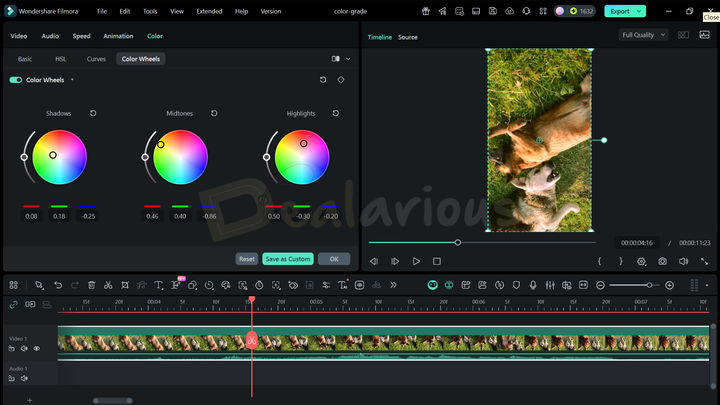
Filmora, in contrast, offers more advanced, precise control over colors. Along with basic adjustments like white balance, temperature, contrast, exposure, and saturation, it goes further with:
- Detailed HSL (Hue, Saturation, and Luminance) controls for 8 individual colors
- Curves adjustments for tonal control
- Color wheels for color grading
Effects
Similar to Movavi Video Editor, Filmora also lets you import LUTs in .CUBE and .3DL formats, along with its own built-in LUT collection.
When it comes to effects, both Filmora and Movavi Video Editor have a rich collection, but Filmora offers more variety overall. Along with visual effects, Filmora also includes audio effects, animated charts, and third-party plugins like Boris BCC and Mocha Filmora. In contrast, Movavi’s collection is simpler but still effective, and its built-in effects work well for beginners and intermediate editors.
Both programs also have dedicated effect stores: Movavi Effects Store and Filmora Creative Assets. These stores expand your options beyond the pre-installed effects, transitions, stickers, and other assets. You’ll need to purchase most packs separately.
Color Correction and Effects Verdict: Winner - Wondershare Filmora
By offering more variety in effects and more advanced color adjustment controls, Filmora takes the lead in this segment.
Audio Adjustment
Video editing isn’t just about visuals. Audio plays an equally important role in how “finished” your content feels.
Movavi Video Editor includes tools such as Sound autocorrect, equalizer, Noise removal, Silence removal, Compressor, Synchronization, Beat detection, and more to improve your audio. Most of these tools are automated and useful for quick cleanups. Movavi also lets you tweak certain settings if something doesn’t sound quite right.
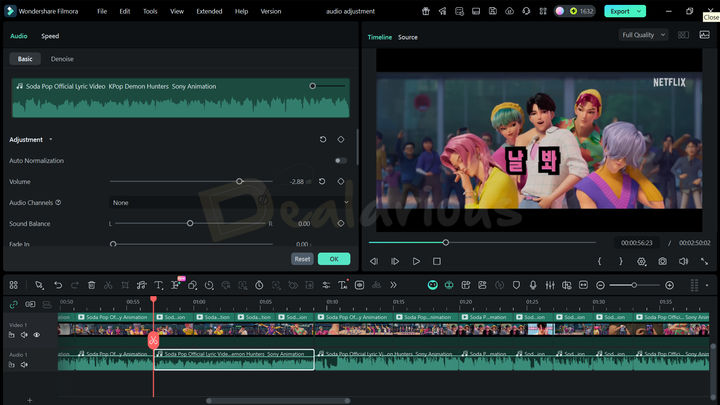
Filmora, on the other hand, provides a mix of automated and manual controls. You get tools like AI voice enhancer, Audio Ducking, AI Denoise, Equalizer, Pitch adjustment, Speed control, and more. Unlike Movavi Video Editor, Filmora doesn’t rely as heavily on automation, and it offers more granular control for fine-tuning.
Audio Adjustment Verdict: Winner - Filmora
Filmora wins this segment by offering more flexibility to tweak things around.
Advanced Video Editing
Chroma Key
The Chroma Key feature in both Filmora and Movavi Video Editor isn’t limited to removing green screen backgrounds. They also include a color picker tool to help remove specific background colors.
In addition to color picking, Movavi Video Editor offers several options to fine-tune results, including Tolerance, Noise, Edge adjustments, and Opacity.
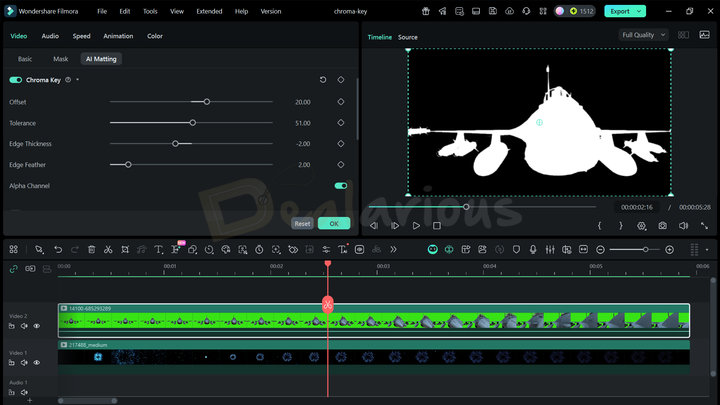
Filmora offers options such as Tolerance, Offset, Edge thickness, Edge feather, and my favorite, Alpha Channel. Enabling the Alpha Channel helps you verify the final transparency mask, making tuning easier and often resulting in cleaner output.
Chroma Keying Verdict: Winner - Filmora
Filmora wins this round with its Alpha Channel option, which makes it easier to spot and fix imperfections for cleaner chroma key results.
Motion Tracking
Motion tracking can be tricky. But thanks to automation in both Filmora and Movavi Video Editor, it becomes much easier.
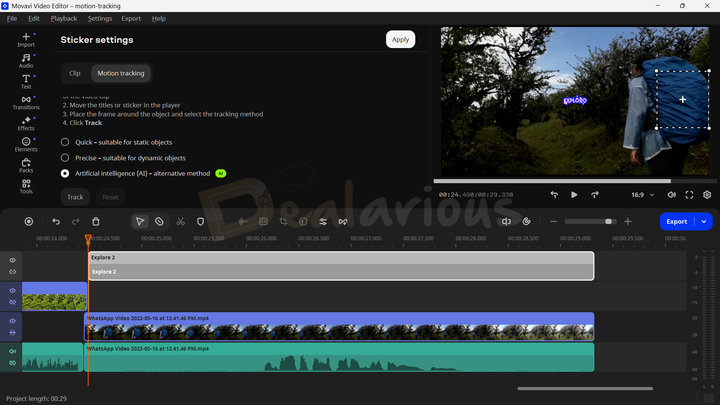
Movavi Video Editor makes Motion tracking simple in a few steps:
- Add your video clip to the timeline.
- Place the element you want to track on a layer above the clip.
- Double-click the element to open clip properties, then select Motion tracking.
- Select the object and adjust the tracking area on the clip.
- Once satisfied, choose the Artificial Intelligence option for more precise tracking.
Movavi’s automation then handles the rest to deliver a smooth result.
The feature wasn’t immediately visible and took some time to locate. I had to refer to its user guide to find it and understand how it works, which made my experience less satisfying.
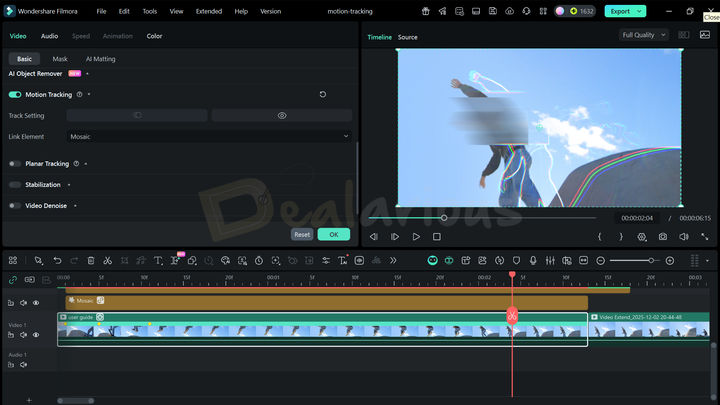
Filmora follows a similar approach but with a slightly different workflow. Instead of adding an element first, you can double-click the clip on the timeline to open Clip Settings, locate Motion Tracking, and then add the element you want Filmora to track.
This approach felt more intuitive to me. A notable advantage is that Filmora lets you refine tracking frame-by-frame, which Movavi Video Editor lacks.
Motion Tracking Verdict: Winner - Filmora
This small but useful frame-by-frame adjustment option, along with easier navigation, helped Filmora win this round.
Stabilization
Stabilizing shaky clips can be a pain. Filmora and Movavi Video Editor handle it well through automation.
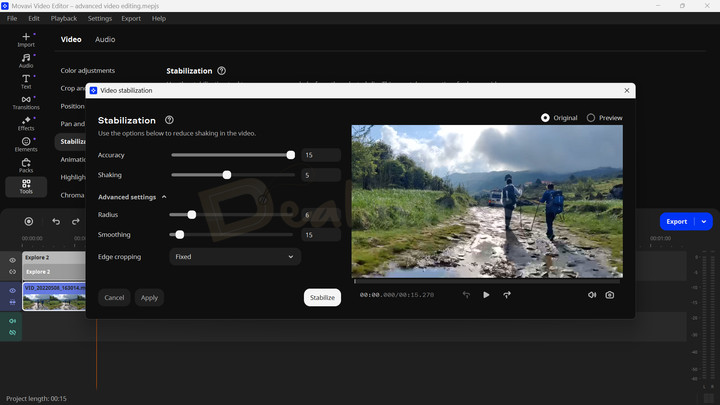
During my Filmora vs Movavi Video Editor comparison test, both programs performed well in stabilizing handheld footage. However, Movavi Video Editor offers more adjustment options than Filmora, which primarily relies on a slider to refine the result.
Stabilization Verdict: Winner - Movavi Video Editor
While both video editing apps deliver solid stabilization, Movavi Video Editor takes the lead in this segment by providing more control.
Scene Detection
Both tools work well for scene detection.
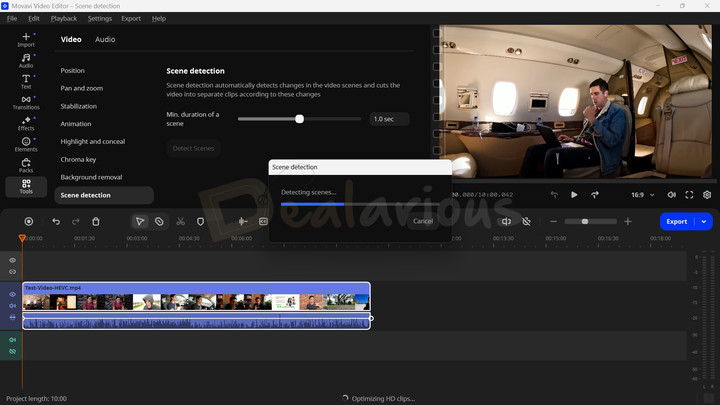
Movavi Video Editor lets you set a duration, after which the program detects scene changes and cuts the footage into separate clips in the timeline.
Filmora handles this differently. After you click Scene Detection, it automatically detects changes and displays them in a list. From there, you can review, delete, or add selected scenes directly to the timeline.
Scene Detection Verdict: Draw
Both editors use different approaches, but the results are equally effective, so this segment ends in a draw.
Animation
If you’re into animating elements like text, images, and even video by adding movement, Filmora and Movavi Video Editor both have you covered.
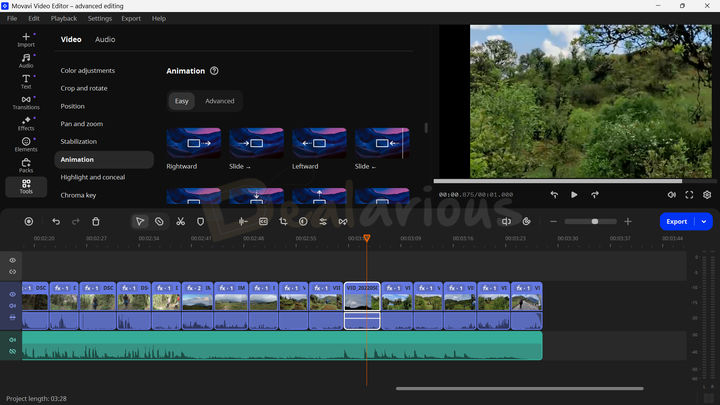
Movavi Video Editor offers a decent collection of pre-built animation styles and an advanced mode for basic tweaks. Its animations are keyframe-based but limited to opacity and element angle adjustments.
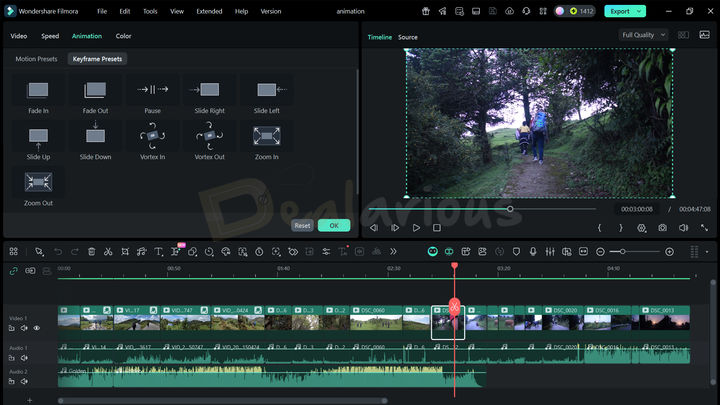
Filmora offers a wider range of pre-built animation styles to speed up your workflow. If you need more control, Filmora’s flexible keyframing lets you adjust width, scale, X/Y position, path curves, opacity, and more.
Animation Verdict: Winner - Filmora
While Movavi Video Editor keeps things simple, Filmora wins this round with more animation variety and deeper control.
AI Features
Both Filmora and Movavi Video Editor include AI tools to speed up common editing tasks. Here’s how they compare.
Background Noise Removal
Movavi Video Editor has an AI Noise Removal feature, and Filmora offers AI Denoise to reduce background noise and improve audio clarity.
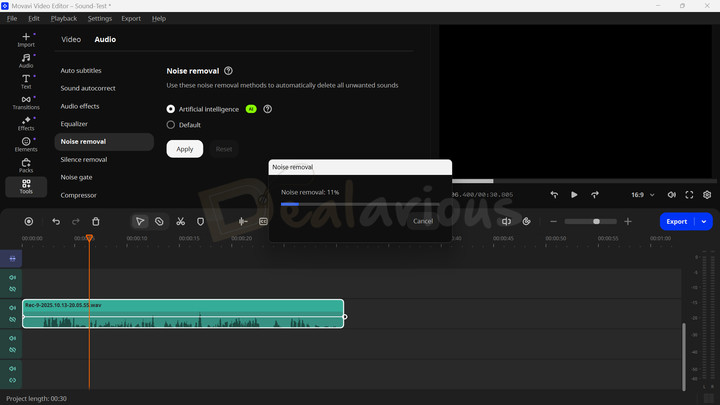
Movavi’s noise removal is fully automated and gives you two simple options: AI and Default. It’s a good fit for quick cleanups when you don’t want to tweak too much.
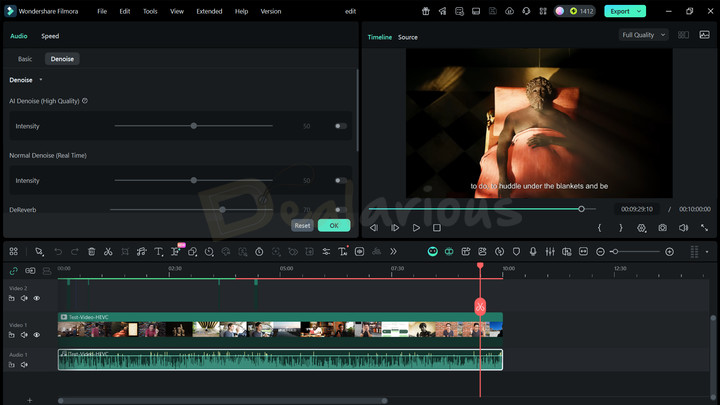
Filmora, in comparison, gives you more control in its AI Denoise panel. You can adjust Denoise intensity, DeReverb, Hum Removal, Hiss Removal, Noise Volume, and Denoise Level. This helps when you want a cleaner result instead of a one-click fix.
Background Noise Removal Verdict: Winner - Filmora
Both tools work well, but Filmora wins here because it offers more customization.
Background Removal
To quickly remove backgrounds, Filmora offers AI Smart Cutout, while Movavi Video Editor includes AI Background Removal. To test them, I used the same source video in both apps and compared the results.
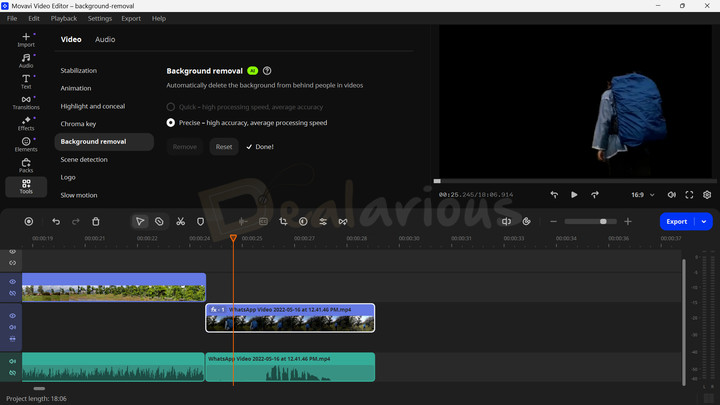
Movavi’s AI Background Removal is fast and takes only a few clicks. It lets you choose between Quick and Precise modes. I went with Precise.
The result?
It removed the background and kept the subject in focus, but I noticed rough edges at times, and there wasn’t much room to refine them.
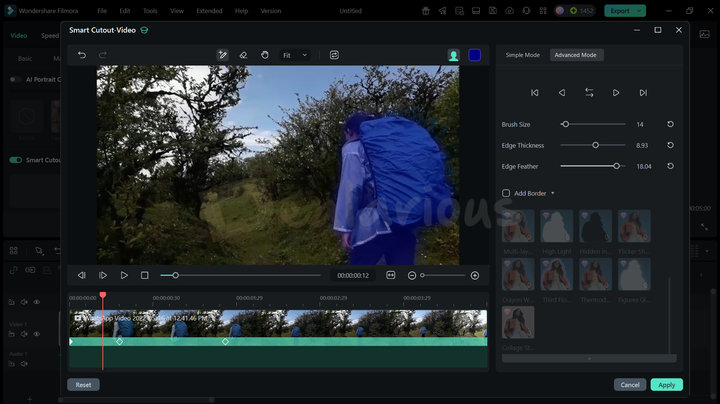
Filmora’s Smart Cutout offers two modes: Simple and Advanced. It lets you brush/mask the object you want to keep and remove the rest. This approach made more sense to me. I also liked the extra controls like brush size, edge thickness, edge feather, border options, and invert mask.
Background Removal Verdict: Winner - Filmora
Movavi leans more on automation, while Filmora gives you more control, so Filmora wins this round.
Auto Subtitles
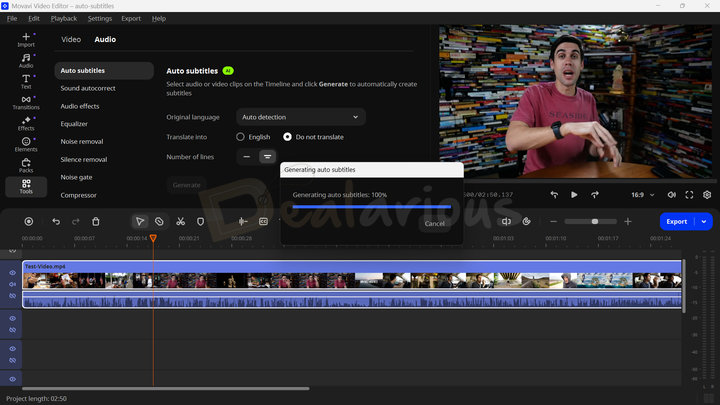
Movavi Video Editor’s AI Auto Subtitles can detect the video’s language automatically or let you choose from 13 available languages. You can also translate the subtitles into English and adjust the number of lines shown on-screen.
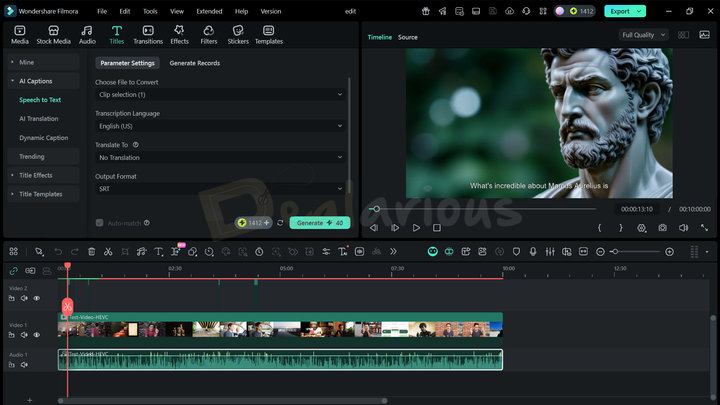
Filmora’s Speech to Text tool offers more options, including selecting transcription languages, translating into multiple languages, and detecting individual speakers for more accurate subtitling.
One feature common to both editors is the ability to auto-detect audio language and export subtitles in .SRT format.
Auto Subtitles Verdict: Draw
In my test, both programs worked well for detecting speech and generating subtitles, so this round is a draw.
Additional Features in Filmora
Beyond the advanced and AI tools already mentioned, Filmora includes other features that help when you want a more “editor-style” workflow. Some of them are:
- Speed Ramping
- Keyframing
- Dual Timeline Editing
- Multi-Camera Editing
- Masking
- Rendering
- AI Text-to-Video
- AI Extend
- AI Smart Short Clips
- Project management and sharing through Wondershare Cloud
- Built-in screen recorder, and more
Also, Filmora 15 added built-in access to tools like Sora 2, Veo 3.1, and Nano Banana Pro for AI generation workflows within the editor. So it’s worth checking what’s included in the latest build.
Filmora vs Movavi Video Editor: Performance
I ran performance tests on both apps using the same source files to see how much load they put on my system.
Here are my system specifications:
Processor: AMD Ryzen 5 3500U, 2100 Mhz, 4 Core(s), 8 Logical Processor(s)
RAM: 12.0 GB
Disk: 512 GB SSD
OS: Windows 11 Home Single Language
Graphics: AMD Radeon Vega 8 (Integrated)
For the test, I used 2K and a mix of 1080p and 720p sample videos. I also added AI subtitles, effects, and transitions to check stability during export.
Exporting Settings
Video Length: 10 mins
Format: MP4
Quality: High
Resolution: 1920 x 1080
Frame Rate: 29.97 FPS
Movavi Video Editor
Idle State Resource Usage
In the idle state, Movavi showed 0% CPU usage, but it used around 1.2 GB of RAM. GPU memory stayed steady at about 10.9 MB.
During Exporting
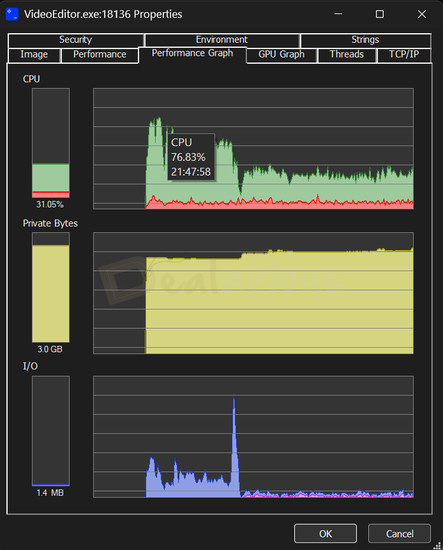
Movavi Video Editor took around 12 minutes to finish the export on my test system.
During export initiation, CPU usage reached 76.83%. After that, it mostly fluctuated between 30% and 45%. RAM usage stayed around 3 GB for the rest of the export.
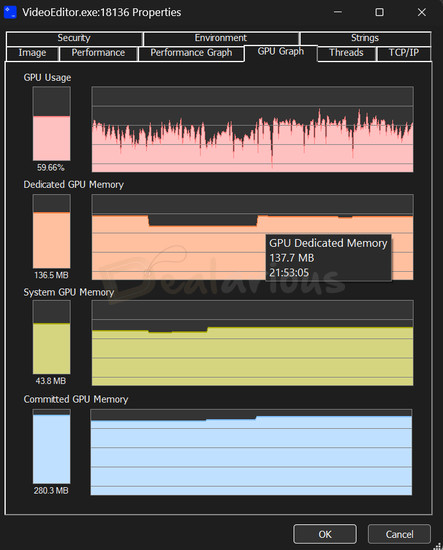
GPU memory consumption fluctuated between 116.5 MB and 137.7 MB during export.
Wondershare Filmora
Idle State
In the idle state, Filmora’s CPU usage was low, but it occasionally spiked up to 8.14%. RAM usage stayed steady at around 2.9 GB.
GPU memory usage reached 471.0 MB in the idle state.
Exporting Process
Filmora took around 18 minutes to complete the export.
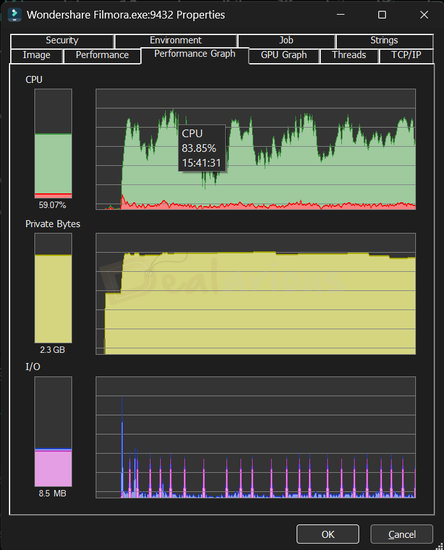
Filmora’s CPU usage fluctuated between 50% and 80%, peaking at 83.85%. RAM usage ranged from 2.3 GB to 2.5 GB during the export.
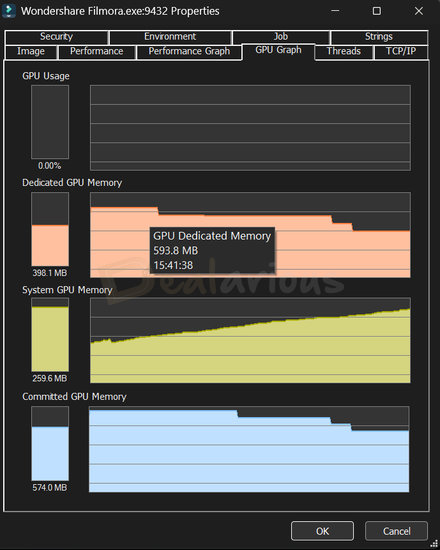
GPU memory usage peaked at 593.8 MB before dropping to around 462 MB.
Performance Verdict: Winner - Movavi Video Editor
Movavi Video Editor leads this segment by exporting faster on my system, while also using slightly less CPU and GPU memory overall. Its lighter footprint makes it a safer pick for mid-range or low-end laptops.
Customer Support
Both tools offer the usual support options, including a knowledge base, tutorials, user manuals, FAQs, human support, and an AI bot. Still, there are a few differences that showed up during my test.
Movavi’s AI bot handles basic questions fine, but it can feel a bit surface-level once you ask anything specific. In my case, email support took up to 3 days to respond, which isn’t great if you’re stuck mid-project. Movavi used to offer live chat support, but I couldn’t find it anymore, and that made the overall support experience less satisfying.
Filmora’s AI bot, in contrast, handled basic product questions well and gave more detailed replies. Live chat was available during their active hours, and their email support was also quick and patient enough to resolve my queries.
Customer Support Verdict: Winner - Filmora
With live chat support (when available) and more detailed AI bot answers, Filmora wins this segment.
Privacy and Data Sharing
During my Wondershare Filmora vs Movavi Video Editor comparison, I looked into their privacy and data-sharing practices. Both programs collect some data, as expected. The main difference is how clearly they explain what’s happening.
On Wondershare’s privacy policy page, they state that files processed locally remain on your device unless you upload them to their online services. They also state that data shared using AI tools is not used for model training and is discarded after the process is completed.
On the other hand, Movavi’s privacy policy page focuses more on account data, payment information, and device-level usage analytics. It doesn’t clearly explain how its AI features handle user media, nor does it mention whether user media is processed entirely locally.
Note: Both Filmora and Movavi Video Editor offer optional improvement experience programs (enabled by default), which can be disabled manually from the Preferences menu.
Privacy and Data Sharing Verdict: Winner - Wondershare Filmora
Because Filmora explains its data handling in more detail, it wins this segment. Movavi’s privacy page felt more surface-level in comparison.
Quick Verdict
Although Filmora and Movavi Video Editor are both powerful programs, their workflows are built for slightly different users.
Movavi Video Editor: Beginner and Intermediate Users
With a clean, organized, and intuitive interface, Movavi Video Editor is a good fit if you want a simple but capable editing experience.
- The program packs essential features, combined with automation and the right amount of manual control, so beginners can create good-looking videos without much effort.
- Movavi Video Editor’s lightweight build is also ideal for users on low-end devices.
Wondershare Filmora: Beginner, Intermediate, and Advanced
Filmora is better suited for users who want more granular control. Its workflow can feel a bit intimidating at first, but intermediate and advanced users will appreciate the extra depth.
- Advanced tools like keyframing, speed ramping, color grading, and drawing tools help you fine-tune details for a more polished result.
- Automated features like motion tracking, stabilization, and scene detection help simplify complex tasks, especially for beginners.
Alternatives
AVS Video Editor
AVS Video Editor is a Windows-only program with a simple interface. The design looks a bit dated, but it still gets basic editing done without much fuss. It also includes chroma key and freeze-frame tools, which can add depth to simple videos. One extra plus is HEVC support for input (editing), which Movavi Video Editor may not handle unless your system has the right codecs.
AVS is also fairly lightweight, so it can work well on low-end systems, unlike Filmora which usually benefits from stronger hardware. The trade-off is that AVS lacks the advanced controls and AI tools you get in Filmora and Movavi. Still, it’s a decent pick for straightforward editing.
You can get AVS Video Editor at a reasonable price, along with other AVS tools, with the AVS4YOU Unlimited subscription package. Check out our AVS4YOU Review to learn more.
Adobe Premiere Pro
Favored by experienced editors, Adobe Premiere Pro is a powerful video editing tool that needs no special introduction. It can handle complex work with high precision and control. But unlike Wondershare Filmora and Movavi Video Editor, which simplify editing with automation, Premiere Pro is more manual, and that makes the learning curve much steeper.
Premiere Pro also needs a stronger PC to run smoothly. In contrast, Wondershare Filmora and Movavi Video Editor are more beginner-friendly options. They’re easier on your system, have a smaller learning curve, and still include some advanced features. While they can’t match Premiere Pro’s level of control, they can still produce results that are more than satisfactory.
You can also explore our list of the best video editing software for beginners, which includes Filmora, Movavi Video Editor, and other beginner-friendly editors.
FAQs
Which video editor supports HEVC (H.265) input?
Wondershare Filmora supports HEVC (H.265) for both importing and exporting videos. Movavi Video Editor can handle HEVC on some systems, but it doesn’t include full HEVC support out of the box. On Windows, HEVC playback/import (and sometimes export) may require the Microsoft HEVC codec/extension, and export availability can still depend on your Windows/PC setup. Movavi explains the limitation here: Movavi’s official documentation.
Tip (Windows): If Movavi can’t import HEVC/H.265 clips, open the Microsoft Store and search for “HEVC Video Extensions”. Some PCs may also show “HEVC Video Extensions from Device Manufacturer” (availability varies by device/region). Install the extension, restart Movavi, and try importing again. If export still isn’t available, it's usually down to your Windows/PC's codec support.
Is Filmora harder to learn than Movavi?
It depends on how you plan to use it. For basic tasks like trimming, simple color adjustments, and applying effects or filters, Filmora won’t take long to learn. But if you’re a complete beginner and want to use its advanced controls right away, Filmora can take longer to get comfortable with than Movavi Video Editor.
Which app is good for creating social media content?
Both Filmora and Movavi Video Editor work well. Filmora has a slight edge with tools like AI Smart Short Clips, plus sections like Creator Hub and layouts designed for short-form videos.
How do Filmora and Movavi compare in terms of performance?
Movavi Video Editor’s lighter system requirements help it run smoothly on low- to mid-range systems. Filmora usually needs stronger hardware, especially for heavier edits and longer exports.
Conclusion
Although both programs include drag-and-drop editing, rich media libraries, and solid core tools, their workflows are aimed at different users.
Filmora stands out if you want a wide toolset and deeper editing controls, especially as you move into intermediate-level work. Movavi Video Editor leans toward a simpler workflow with automation, which is great for beginners, quick projects, and lower-end systems.
Both offer free trials with limitations, so you can test them and pick the one that fits your editing style best.

She reviews software at Dealarious, mostly recovery and productivity tools, which she tries out herself. Her goal is to keep things simple so readers don’t waste hours figuring out what works. Over the years, she has tested dozens of apps and learned that small details often make the biggest difference.
When she isn’t testing programs, you’ll usually find her hiking in the mountains or enjoying the rain. She believes good tech should quietly make life easier, not more complicated.