How do you convert DVDs to MP4? Even after the revolutionary growth and popularity of digital ways to watch movies, DVDs still play a major role in delivering high-quality visual and audio experiences. That is why many people purchase DVDs of their favorite films and continue to watch them over time.
There are times when you cannot keep all your DVDs in a convenient form — they're quite bulky when you have a large movie collection.
DVDs tend to get damaged after significant runs. However, in such situations, you can copy or convert your DVDs into convenient formats like MP4 and MKV and store them digitally. This way, your media will be accessible through different platforms. For instance, if you want to watch the film on your Smartphone, you can do that.

However, you would need a really effective solution to copy and convert your DVDs into the desired media format.
Notably, we came across Wondershare UniConverter, which offers all the necessary capabilities and functions to convert DVDs to MP4.
How to Convert DVD to MP4 using Wondershare UniConverter
As we mentioned, it's a comprehensive solution for performing various media actions. Actually, as a video converter, the tool offers a wide range of features. You can also edit the videos you have converted or want to convert. Of course, you have the brilliant option to copy or rip your DVDs, for that matter.
Now, let's go through the tutorial on how to convert a DVD to MP4. We have chosen MP4 as the destination format because it is a universal format that works with almost all platforms. However, you can also convert a DVD to MKV using the H.265 encoder. So, shall we start?
Step 1: Setup Application
You must download the tool from its official site and install it on your computer. Please note that the tool offers a free trial, after which a license must be purchased. The licenses are valid for life, and you can also get them at better prices with Wondershare UniConverter Coupons.
After you have installed Wondershare UniConverter, launch it. Go to the Converter tab.
Step 2: Load the DVD
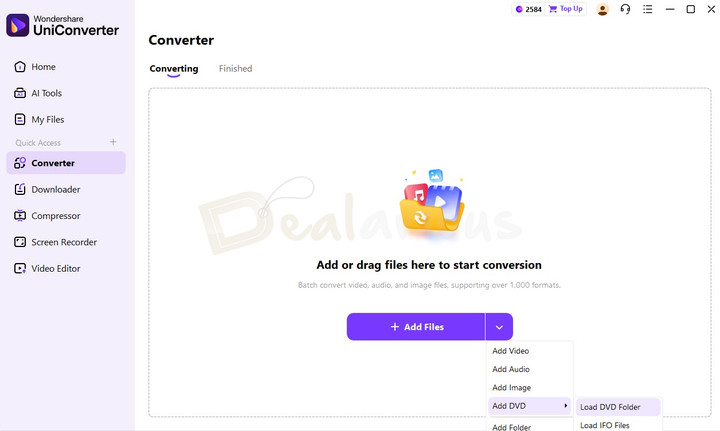
The 'Converter' tab has a button named 'Load DVD Folder'. Many options are available to convert DVDs to MP4.
- Load a DVD Folder that you have copied into the computer
- You can use DVD ISO images with the "Load ISO files" option.
- Load an IFO files.
However, in this process, we are loading a DVD. If you have a DVD in your DVD drive, it will appear on the list automatically.
Step 3: Load DVD Content
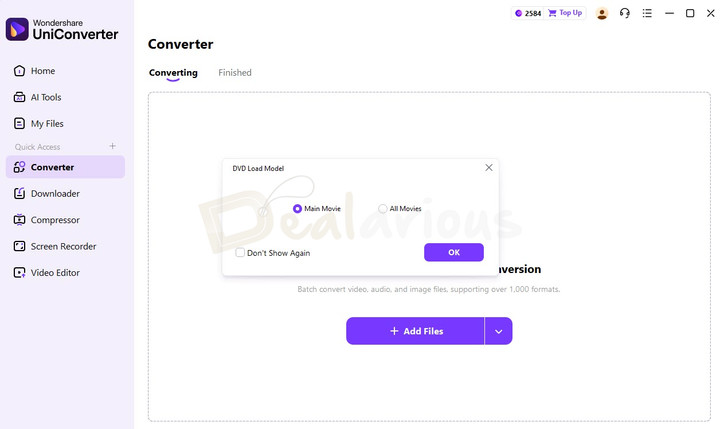
You will immediately be asked about the DVD Load Model. This model applies if you have inserted a DVD with more than one movie on it.
You can import one movie or all the movies. Note that Wondershare UniConverter will alert you that you should only use the converted movie for personal use.
Step 4: Convert DVD to MP4 File Selection
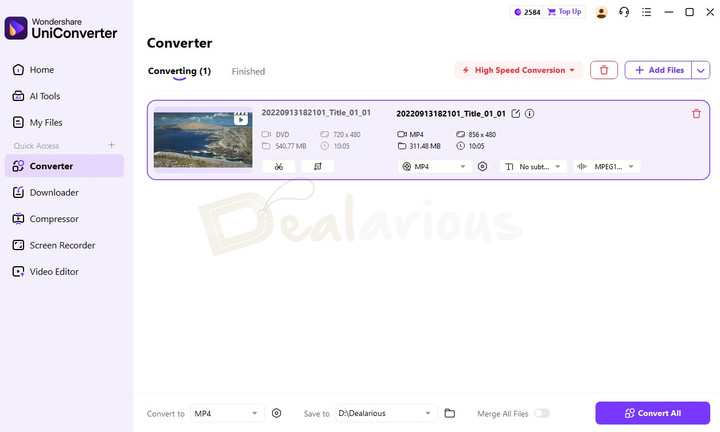
Now, you can see that the file has been added to the ‘Convert’ list.
All the chapters of your DVD, including the title file, will be listed as individual films. You can also merge all the files and convert them to a single movie file.
Step 5: Convert DVD to MP4 and others
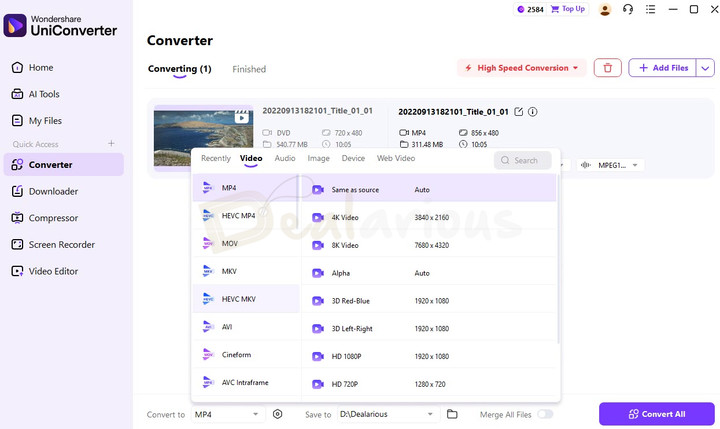
To proceed with the conversion, you must select the desired media format. Although this tutorial focuses on converting DVD to MP4, you have the option to choose any file format. For example, you can select the output to be HEVC (H.265) MKV or device-specific formats.
NOTE: MP4 H.264 has better platform compatibility, and almost any device supports it.
There are different options for selecting the file format. You can manually select the file format or choose the device, and Wondershare UniConverter will automatically select the most suitable file format for you. Either way, it will work fine.
Step 6: Start DVD to MP4 Conversion
Now, you can click on the 'Convert All' button. Depending on the resources available and the modes you've chosen, the conversion process will start.
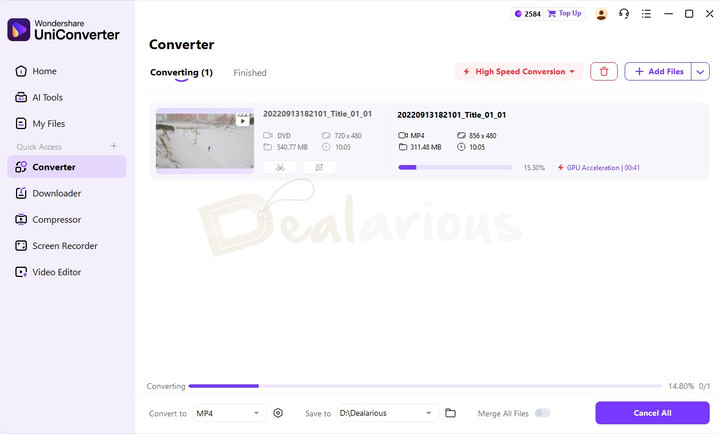
The speed will be higher if you are using a DVD folder or ISO file instead of a disc. Thanks to the compression standards of Wondershare UniConverter, you will have output at the earliest.
Conclusion with Extra Feature
You have already seen one of the easiest ways to convert DVDs to MP4. The speed is better, especially compared to other DVD converters and burning solutions. Please note that there are a few additional capabilities, such as an in-built editor. You can check all the features in our Wondershare UniConverter Review.
Using the Video Editor, you can make some changes to the output video. For instance, if you want to add another file of hard-coded subtitles to the video, you can do that. Similarly, there are basic yet useful editing options such as flipping, a few video effects, filters, etc.
If you are looking for a professional application that can convert DVD to MP4 at a lower price, consider Movavi Video Converter. It is equally good, but it has some reduced features, as you can see in our comparison of Wondershare UniConverter vs. Movavi Video Converter.
So, what do you think about the tutorial? We hope you know how to convert DVD to MP4 or any other format. We would love to hear from you.
Changelog

The three attributes that define me- Tech lover, Blogger, and Dog lover. I primarily cover Cyber Security, online privacy, and also have keen interest in exploring new software that make daily computing easier for home users. I do love to spend quality time away from the internet, so when I am not online, I either cook or bike.
I am a paid user for the converter and Filmore however I haven’t figured out how to embed the subtitle file to the converted .mp4 file. I tried several times, I choose the file before conversion but it never is included in the output. Could you assist?
I have purchased and used filmora9
Useless advice to me. Doesn’t work!!
Your statement is useless if you don’t explain what doesn’t work.