Microsoft Windows is a powerful operating system and one of the most popular choices worldwide. Its flexibility, affordability, security, and ease of use make it a preferred choice for PCs.
Is Windows Uninstaller Good Enough?
No. The built-in Windows Uninstaller isn't good enough.
Today, Windows has a lot of preinstalled bloatware and native apps that are difficult for regular users to remove. As a result, these apps just lie unused on your system and leech system resources. Also, some apps you install become stubborn and refuse to uninstall through Windows' default removal tool.
Thankfully, some apps help you get rid of unwanted software, unused Windows apps, and browser extensions. One of the most well-known names in this category is IObit Uninstaller. Above all, they have released their latest version, IObit Uninstaller 16, which supports Windows 11, 10, 8.1, 8, 7, Vista, and XP.

Pros
- Supports Windows XP & above
- Automatic Software updates
- Lot of Handy Tools
- Bulk Uninstallations
- Install Monitor
- Compatible with ARM-based Windows devices
Cons
- Support Response is bit slow
- IObit upsells within App
overall
USD 10.25
Supported Platforms: Windows
Interface
5/5
Features
5/5
Pricing
5/5
Support
3/5
IObit Uninstaller 16 Pro Review: Introduction


What does IObit Uninstaller do?
IObit Uninstaller 16 helps you to:
- Remove any unwanted software & bundleware. Also, it removes all residual files from your system.
- Remove malicious browser extensions on Chrome, Firefox, Edge, and Internet Explorer to protect your privacy.
- Check for outdated software and update required programs for a safe, secure experience.
Pricing
Considering upgrading to the pro version for the extended features? You can switch to the Pro version by buying the license for USD 59.93 from the official website, covering 3 PCs/year. However, you can also purchase it for USD 10.25 using IObit Uninstaller Pro coupons from Dealarious.
Do you want to have an automated System Maintainance application? Do check our Advanced SystemCare Pro review.
How to Install IObit Uninstaller 16 Pro?
The installation process is pretty simple. I went to the official IObit site and selected IObit Uninstaller from the product list. Then I downloaded the installation file and proceeded with the installation.
IObit Uninstaller 16 Pro: Key Features Review
User Interface
IObit Uninstaller 16 comes with a redesigned user interface that organizes its main features into six sections.
Toolbox contains nine utilities, including
The Software Relocator and Bloatware Remover are two new tools in Version 16. Overall, the redesigned interface is straightforward, and all essential tools are clearly visible and easy to find.
IObit Uninstaller 16 Pro: Functionality
IObit Uninstaller 16 provides various ways to uninstall applications from your system. Let's look at these and some key functions of the application.
Programs
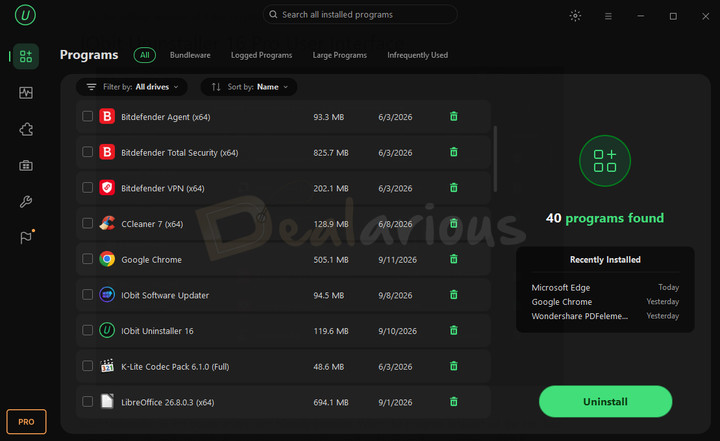
The Programs section is displayed by default when you open IObit Uninstaller. It shows your installed programs under five tabs: All, Bundleware, Logged Programs, Large Programs, and Infrequently Used.
The All tab lists all programs installed on your computer, while Bundleware shows additional programs that may have been installed along with another program. Pro users can remove bundleware easily. The Logged Programs tab lists programs whose installations were logged by Install Monitor. You can view the installation log to see the files and registry entries created during installation. The Large Programs tab helps you find programs taking up significant disk space, while Infrequently Used lists programs you haven't used for a specified period.
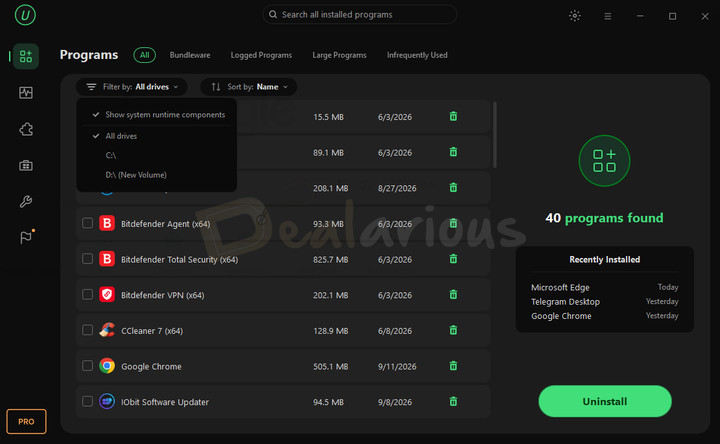
You can also use the search bar to quickly find a program, or filter programs by drive. The Sort by option lets you arrange programs by name, size, or installation date.
To uninstall a program, select its checkbox and click the trash icon or Uninstall button. Before you start, you can create a restore point and automatically remove residual files. IObit Uninstaller then scans for leftover files after the program's built-in uninstaller finishes.
Software Health
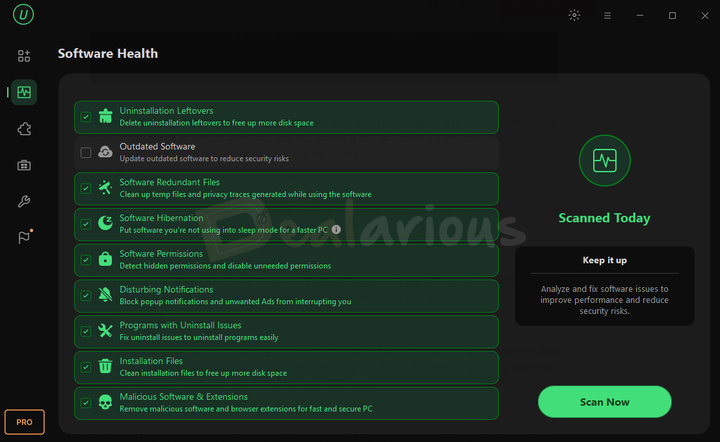
The Software Health feature scans your installed software and checks for different issues that may affect your system. Click Scan Now to start.
It checks for Uninstallation Leftovers from previously removed programs and lets you delete them to free up disk space. It also checks for Outdated Software, Software Redundant Files, Software Permissions, Disturbing Notifications, Programs with Uninstall Issues, and unneeded Installation Files.
Another check is Software Hibernation, which lets you put software you aren't using into sleep mode to help improve PC performance. You can also use the Malicious Software & Extensions option to identify and remove malicious software and browser extensions.
After the scan, you can click Details to review the detected issues before fixing them. Some issues require a Pro upgrade to fix.
Browser Extensions
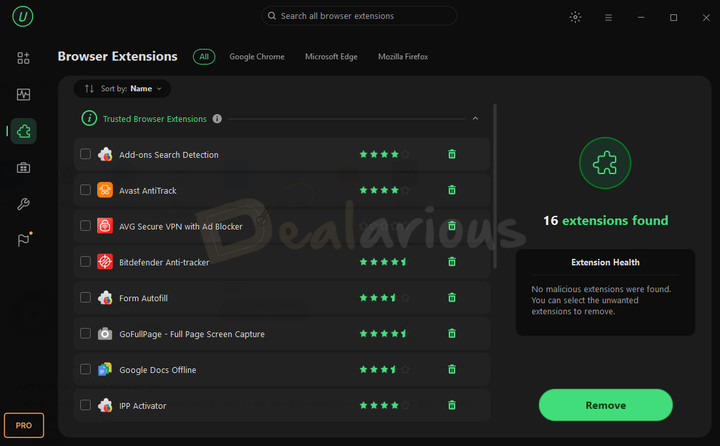
In this section, you can retrieve a list of all the extensions installed on every browser that you use on your system, including Firefox, Chrome, Edge, & Internet Explorer. You can then select every browser, see what extensions are installed, and remove them if necessary.
It's a useful feature because it helped me remove outdated extensions I had installed on my browsers but hadn't used in a while. Getting rid of them reduces junk bandwidth use and improves browser performance and stability.
Windows Apps
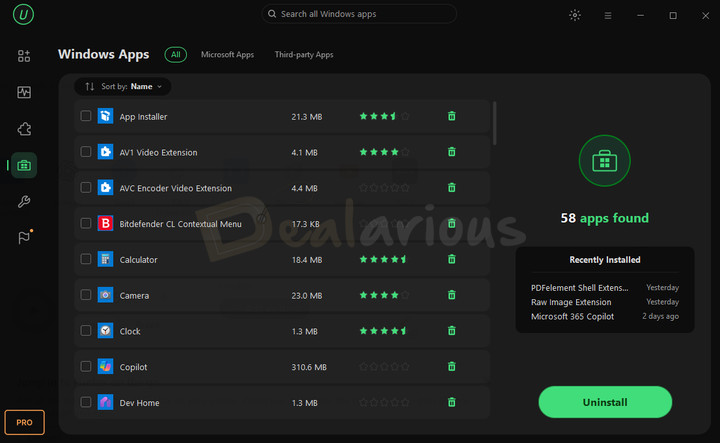
Available for Windows 8 and above, this section lets you uninstall Windows apps installed on your system. Many apps and features are of little use to a standard PC user.
Even though most of these apps are never useful, some don't offer an uninstall option through Windows' default settings. IObit gives you this same power. So you can uninstall even the most stubborn apps from this window and free up system memory.
There are three tabs here: All, Microsoft Apps, and Third-party Apps.
Toolbox
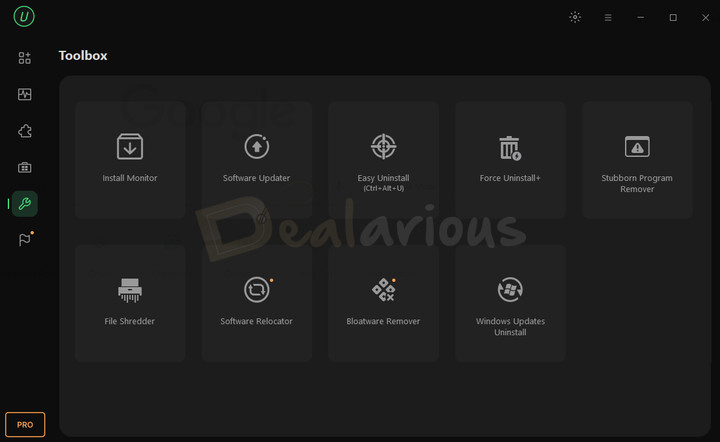
The Toolbox contains nine utilities to manage, uninstall, and troubleshoot software on your PC.
Install Monitor
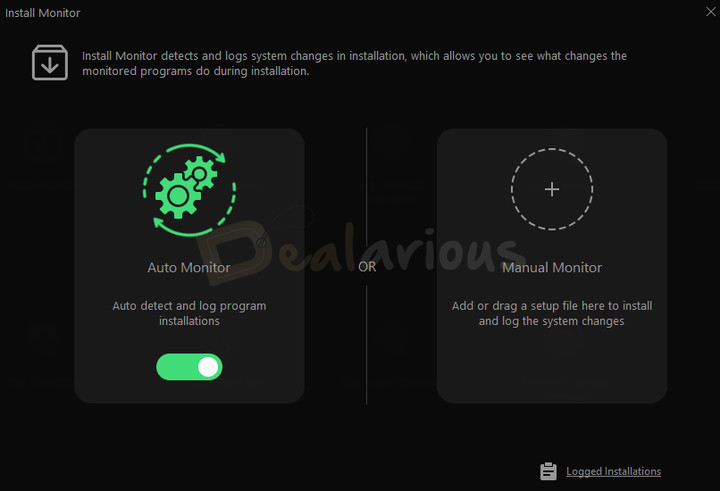
Install Monitor watches and logs system changes during any new program installation. It lets you see what changes the program made to your system during installation.
There are two modes available:
- Auto Monitor: IObit automatically monitors and logs system change information for any new installations.
- Manual Monitor: Drag and drop the setup file into this window to log the installation.
Software Updater
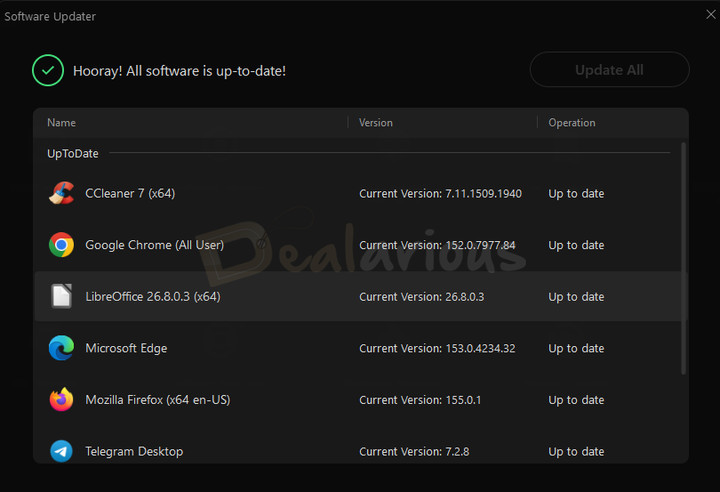
In this window, you can see all your third-party programs that need updates. Pro users can click Update All to update outdated programs with one click. If you are interested in the automated Pro features, check our IObit Software Updater Pro discount section.
Clicking Update takes you to the vendor's homepage, where you can manually download and update your programs.
Tip: You can, however, always go back and do it manually for both of the above features if you do not wish to upgrade to the paid version.
Easy Uninstall
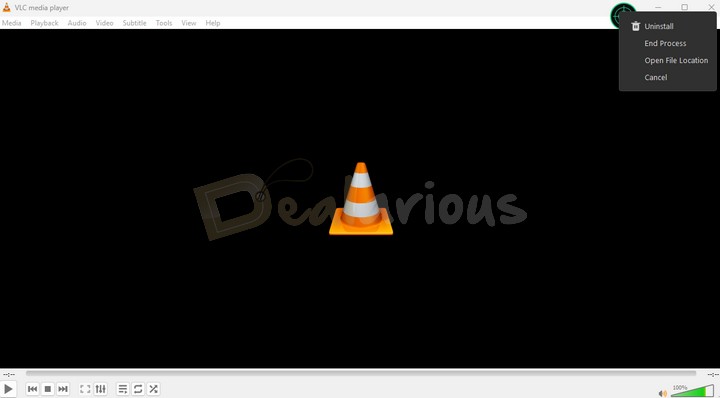
It is, by far, my favorite tool in the IObit Uninstaller. Easy Uninstall provides the simplest way to remove programs on your PC. You just click the icon. Once launched, you can drag it onto any open application window, a desktop icon, or even a system tray icon, and voila, it can uninstall the application in minutes. You can choose to uninstall right from where you drop this tool icon.
Force Uninstall+
Some programs in our system can't be uninstalled with Windows' default Add/Remove Programs function. There are numerous reasons for this, including faulty uninstallation/installation or interruption during the process.
The 'Force Uninstall+' feature is just for these types of stubborn programs. To start the uninstallation, you can browse for a file or folder, or drag and drop one into the tool, then start the force uninstall process. It also removes everything related to the program from your system, including leftover files, data, and even shortcuts for that app.
Stubborn Program Remover
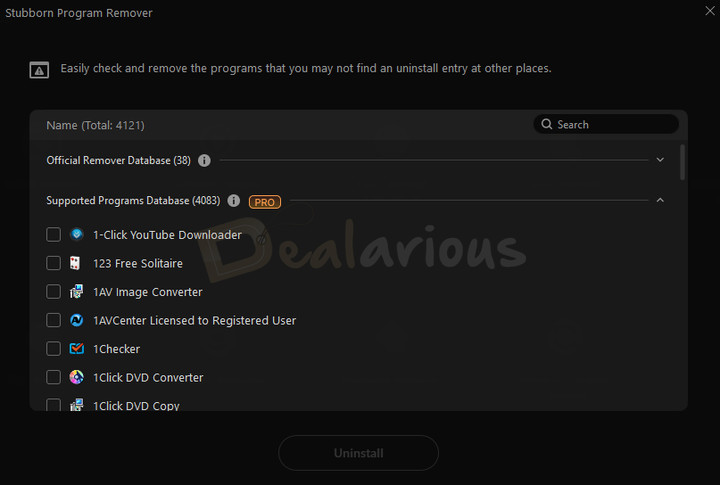
Stubborn Program Remover helps find and remove programs that don't have a normal uninstall entry. The Official Remover Database is available to all users, while the Supported Programs Database is available to Pro users.
File Shredder
With the File Shredder option in IObit Uninstaller, you can be sure the shredded data is non-recoverable under any circumstances.
Drag and drop a file or folder into File Shredder to permanently dispose of it without a trace. There are 3 shredding methods to remove files safely.
Software Relocator
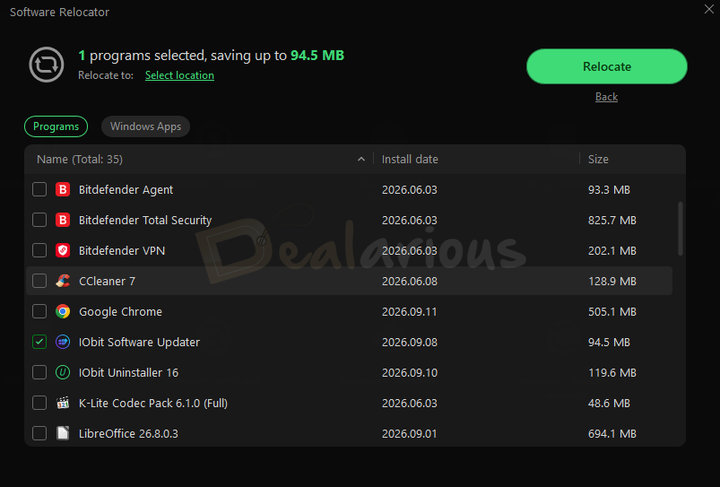
Software Relocator is a new tool in IObit Uninstaller 16 that lets you move installed software to another drive without reinstalling it. This can be useful when a drive is running low on space.
It scans for apps that can be moved. Select an app, choose the destination folder, and click Relocate. You can also check the relocation history and move an app back to its original location. It requires at least two drives.
Bloatware Remover
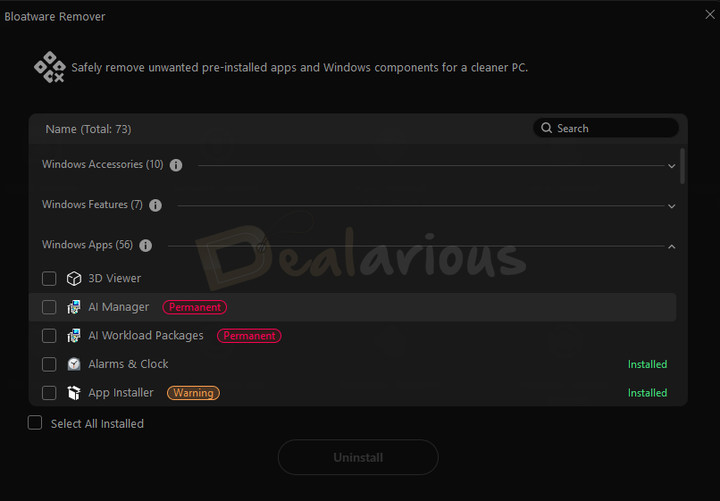
Bloatware Remover is another new tool in Version 16. It helps you remove preinstalled Windows apps and system components. Items are grouped into Windows Accessories, Windows Features, and Windows Apps. Select what you want to remove and click Uninstall.
Some items are marked Installed, Permanent, or Warning. Be careful with items marked Warning, as removing them may cause system instability.
Windows Updates Uninstall
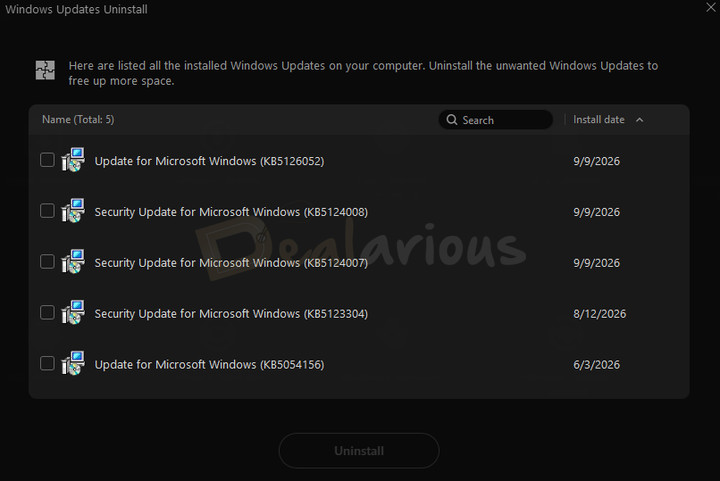
On the Windows Update Uninstall tab, you see a list of the latest Windows updates downloaded and installed on your system, along with their installation dates. You can select individual updates and remove them to free up space.
Action Center
The last section on the left menu is the Action Center. I thought this menu would be more of an 'instructions for the user' type, but it is actually a window for IObit to promote its other apps.
IObit recommends installing system maintenance programs like Driver Booster, Advanced System Care, Malware Fighter, and more.
General Settings & Options
Along with these functions, you can access the app's general settings in the right drawer. There, you can change the user interface theme, font sizes, and more.
You can restore your system to a previous point in time if something goes wrong when uninstalling programs. The Export program list option exports a list of all the programs installed on your system in a .txt format. This list is highly detailed and contains not only names but also the publisher, version, installation date and time, and the Windows registry entry for the program.
You also get User Feedback options, a User Manual, and Technical Support.
It is a very user-friendly program; however, if you want more help or detailed information on the features, check out the User Manual section. The official site page describes all the elements in great depth.
Uninstall History
This feature helps you keep a log of the programs you have uninstalled with IObit Uninstaller. You get a detailed record of which programs were uninstalled and how much space they consumed on your system.
You also get to know the removal dates and even the corresponding registry entries for the same.
At the top of the screen, you also get a complete summary of all the programs deleted and the total amount of space recovered on your hard drive from day one to date.
IObit Uninstaller: Support
The application settings window offers the option to contact support. Clicking it takes you to the support page on the IObit website.
The page contains an FAQ section and the most frequently used options, like resending the code, transferring, renewing the license, and reinstalling, at the top for a DIY support experience. You can also submit an online support ticket by filling out a form with product details. You can also reach out by phone through their 24x7 support line.
However, I found their email support slower than I expected.
IObit Uninstaller - Free vs. Pro
IObit has included most of the useful features for the IObit Uninstaller in the free version. However, the paid version enhances the experience by adding features like auto-updates and complete uninstallation of more stubborn apps.
So, in this IObit Uninstaller Pro review, it's important to cover the differences between the Free and Paid versions. As part of the Pro version, you will get the following additional features:
IObit Uninstaller Pro Review: Pros & Cons
In my review, IObit Uninstaller weighs much more on the Pros than the Cons.
Pros
Cons
Which is better, IObit Uninstaller or Revo Uninstaller?
Both programs are effective as uninstallers. Compared to Revo, IObit Uninstaller is easy to use and has a good interface. You can also perform bulk uninstallation. Other features include Software Updater, File Shredder, Windows Update removal, and Software Relocator, among others. As for pricing, IObit Uninstaller is reasonably priced.
One advantage of Revo over IObit is that the portable version of Revo Uninstaller Pro works on unlimited computers and can also run from a USB stick. Read more in our detailed IObit versus Revo comparison.
Frequently Asked Questions
Do I Need an Uninstaller for Windows?
Not necessarily, but a third-party uninstaller like IObit Uninstaller can make it easier to completely uninstall an application from your system. The built-in Windows uninstaller often leaves leftovers you cannot remove, which can slow down your PC.
What is the best Uninstaller for Windows 11?
From my experience, IObit Uninstaller is the best. It has a neat and clean interface and is easy to use.
Is IObit Uninstaller Free?
The program is available in both free and paid versions.
Is IObit Uninstaller safe?
Yes. IObit Uninstaller is safe for use when downloaded from the official IObit website. It is one of the best uninstallers for Windows PCs. It is simple, fast, and highly reliable.
Is IObit Uninstaller 16 Pro Worth it?
After reviewing all the features and options that IObit Uninstaller offers, I recommend installing it to remove unwanted and stubborn programs from your system. If you are a power user who needs features beyond the free version, upgrading to Pro is a good deal for the extra tools you get.
Have I missed any feature in my IObit Uninstaller Pro review? Please let me know in the comment section below.
Changelog

Sourojit is the Executive Editor at Dealarious and has been writing reviews, tips, and how-tos since 2008. A Computer Science Engineer by degree, he enjoys turning complex tech into simple, useful insights.
Outside of work, he’s a DIY enthusiast who enjoys gardening, long drives, and building custom PCs, often experimenting with water-cooled setups. Over the years, he has played the roles of reviewer, storyteller, experimenter, and teacher.