Windows 11 PC Maintenance doesn't have to be complicated. In everyday use, it's easy to overlook routine PC care until all of a sudden, slowdowns and errors start to appear. That's why it's important to perform regular PC maintenance to prevent small problems from building up over time.
While Windows 11 already includes built-in tools to keep your PC in good shape, a few extra utilities can help when you want to save time. In this Windows 11 PC maintenance checklist, I will provide easy-to-follow software-based steps to keep your system running smoothly. No advanced technical expertise is required.
Why is PC Maintenance important?
With regular use, clutter builds up in PCs, apps become outdated, and small issues quietly accumulate. Left unchecked, this can lead to slow performance, instability, and increased security risks. A quick maintenance routine helps keep these problems in check before they turn into bigger issues. (Even the Downloads folder tends to bloat without you noticing.)
In short, Windows PC maintenance is more about prevention than repair. And that's only part of the picture; there are several other benefits as well. For example:
- Regular maintenance of your PC (and older Windows versions) helps maintain stable system performance.
- It also reduces the risk of unexpected crashes and system freezes.
- Keeping your OS and apps updated strengthens your system security against emerging threats.
- And above all, proper system care can help your PC last longer.
What does this checklist cover?
Now that you know the benefits of ongoing PC management, here's what this Windows 11 PC Maintenance checklist will help you with.
- Keep Windows 11 up to date: OS updates do more than just secure your PC. They include bug fixes, process optimizations, and sometimes driver updates that help keep your device running smoothly (and they can quietly fix weird little glitches too).
- Enhance System Security: This checklist will also emphasize the importance of regularly running security checks with Windows Defender (aka Microsoft Defender) or a third-party antivirus solution to help protect your PC from malware, phishing attacks, ransomware, and other threats that could harm your system and data.
- Improve PC Performance: I also talk about how clearing junk files and stopping unnecessary processes and apps during startup can help speed things up.
- Update apps and drivers: I will also explain how keeping your software and drivers up to date helps improve system compatibility and reduce random crashes.
- Storage Optimization: You will learn easy ways to optimize your storage drives for smoother access and better day-to-day performance (downloads and old installers add up fast).
- Data safety and backups: Regular backups protect important files from accidental loss. I will cover simple Windows-based backup practices you can follow to keep your data safe and recoverable.
Essential Windows 11 PC Maintenance Checklist
Here are the top 10 steps in this Windows 11 PC Maintenance checklist to keep your PC healthy and running smoothly in the long run.
1. Keep Windows 11 Updated
How often: Windows 11 gets regular updates (often monthly), so it's a good habit to check for updates every week or two.
While some users may overlook the importance of regular OS updates, it's worth avoiding long gaps.
For instance, think of your Windows 11 device as a house, and automatic updates as the maintenance workers. They regularly bring fixes for security issues, annoying bugs and glitches, stability improvements, and performance tweaks. Most of the time, it's quick, but bigger updates can take longer. By keeping Windows updated, you lower the risk of newer threats, and your PC usually runs more smoothly.
How to Do it
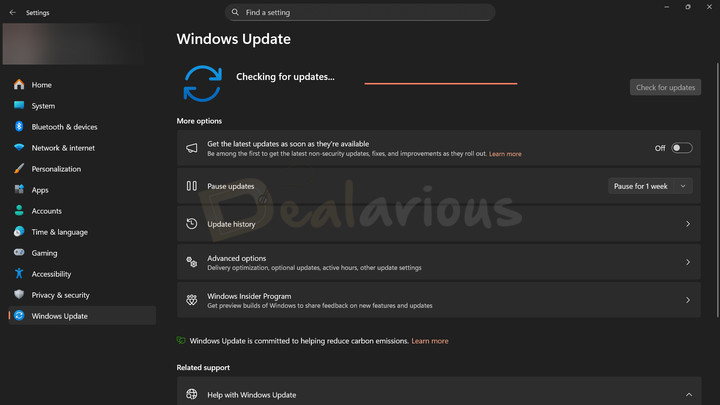
While Windows 11 rolls out regular updates, you can also run manual update checks. To do so,
- Press Win+I to open the Settings app,
- Navigate to Windows Update, and
- Select Check for updates.
- If necessary, download and install any available updates.
This small step helps keep your system safer and running well.
2. Review Startup Apps
How often: Every 1-2 months or after installing new software. (It’s one of the easiest wins in Windows 11 PC Maintenance.)
Startup apps in Windows aim to make your life easier by automatically launching important programs and processes at boot, but not all of them are needed. Some apps start up quietly and keep running in the background, which can slow down boot time and eat into resources over time. So, it's worth checking what's running at startup and disabling anything you don't really need. (Update helpers and chat apps show up here a lot.)
How to Do it
Windows 11 offers a few simple ways to disable apps at startup.
Method 1: Using Task Manager
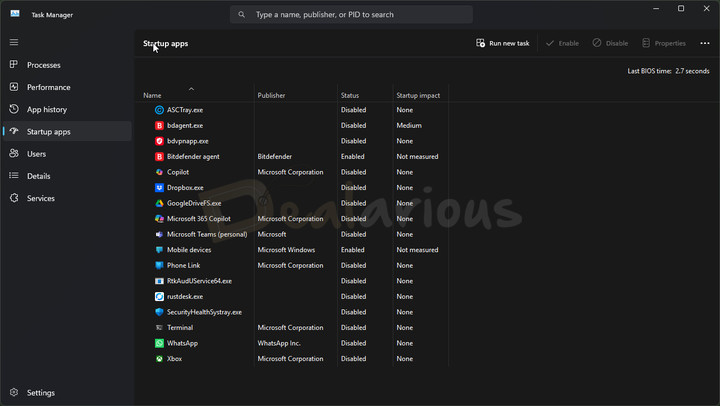
- Press Ctrl+Shift+Esc to enter Task Manager,
- Select Startup Apps, and
- Review the apps and disable the ones you don't need.
Method 2: Using System Settings
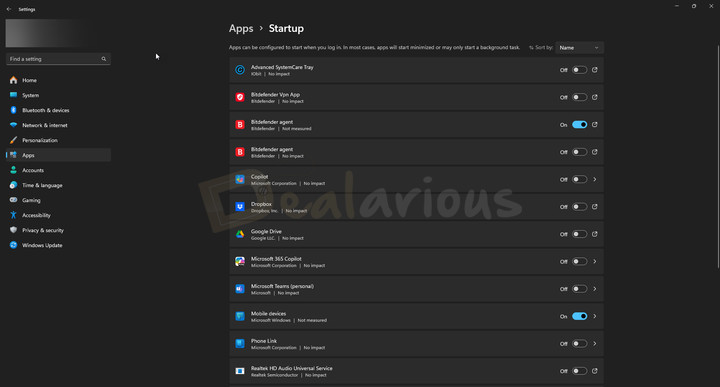
- Press Win+I to open Settings
- Head to Apps > Startup
- Review the apps and disable them accordingly.
Note: Task Manager and Windows Settings mainly focus on common startup apps, so they may not show every item that can launch in the background (for example, scheduled tasks or system services). Some entries are essential to Windows and should not be disabled. If you’re unsure about something, it’s safer to leave it on.
Tip: If you want a more “one screen” way to review startup entries, tools like IObit Advanced SystemCare, Avast Cleanup Premium, and CCleaner Pro can be useful for spotting and managing startup items in one place. If you want details, you can check my reviews of Advanced SystemCare Pro, Avast Cleanup Premium, and CCleaner Pro.
3. Uninstall Unused Software
How often: Every month
Unused apps can look harmless, but they still take up storage and can add clutter over time. In some cases, they also run background services or update tasks you don’t really need. So, as part of regular PC maintenance, it’s worth checking your installed apps once a month and removing anything you no longer use. (Old trial tools and “helper” apps are usually the first to go.)
How to Do it
Windows 11 offers two simple ways to uninstall your apps:
Method 1: Windows Settings
- Open the Windows Settings panel
- Navigate to Apps > Installed apps
- Look for the program you want to uninstall
- Click the three dots and hit Uninstall.
Method 2: Control Panel
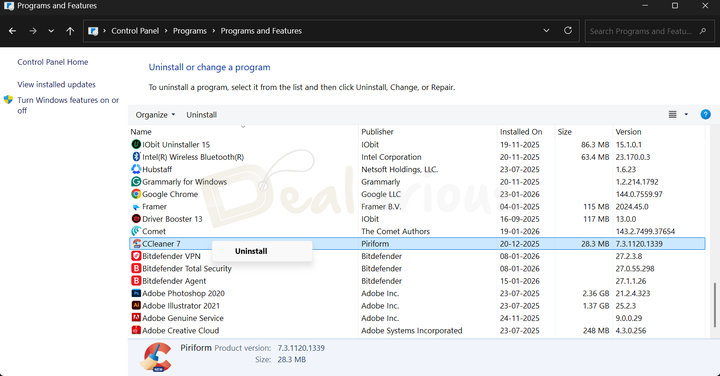
- Head to Windows Control Panel > Programs > Programs and Features
- Click the program you want to uninstall, right-click it, and select Uninstall.
Optional third-party uninstallers like IObit Uninstaller and CCleaner Pro can make the uninstallation process simpler and can also help remove leftover files, folders, and registry entries for a more thorough cleanup. If you want to compare options, you can check the current offers for IObit Uninstaller Pro and CCleaner Pro. For a detailed guide, learn how to cleanly uninstall software and remove leftovers.
4. Clean temporary and junk files safely
How often: Every one or two weeks
Windows junk files are temporary files (e.g., temp files, cache files, system log files, unused app data, recycle bin contents, etc.) that get created during normal use but are no longer needed. Over time, they take up storage space and can slow down your device's performance. So, as part of PC maintenance, it’s worth clearing them out regularly. (The Recycle Bin alone can quietly fill up.)
How to Do it
Windows includes two built-in features that help you clean junk files: Storage Sense and Cleanup recommendations.
Method 1: Storage Sense
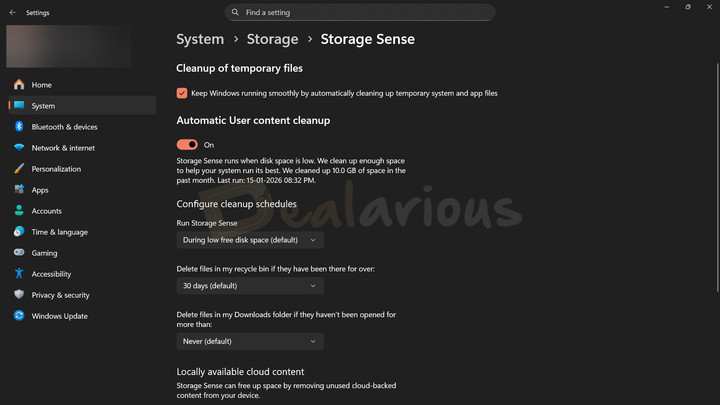
Available with Windows 10/11, this tool takes the hassle out of manual junk cleanup and can run automatically based on the schedule you set (and on some systems when storage runs low). It cleans up unnecessary temporary files, including items from the Recycle Bin, to free up storage space.
If needed, you can also manually customize Storage Sense settings by navigating to Start > Settings > System > Storage > Storage Sense.
Method 2: Cleanup recommendations
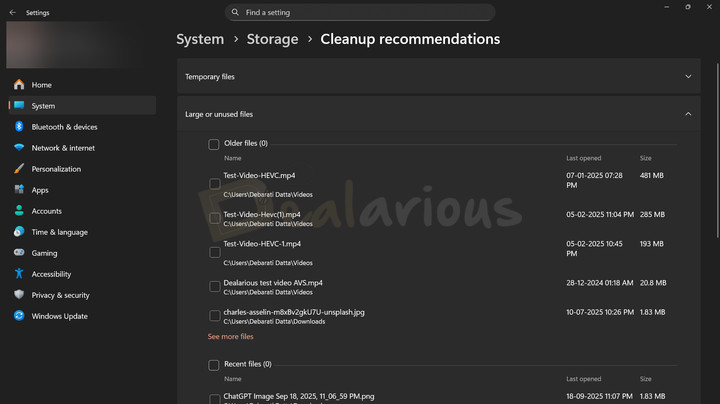
If you want manual control, then the Windows Cleanup recommendations option is handy for removing unnecessary files from your PC.
- Navigate to Start > Settings > System > Storage > Cleanup recommendations.
- Here you will find categories such as temporary files, large or unused files, files synced to the cloud, and unused apps, all neatly organized.
- Review each category and remove only what you don’t need to free up space.
In addition to built-in Windows tools, you can use third-party PC cleaners like Advanced SystemCare Pro or CCleaner Pro if you prefer a more guided cleanup. Many of these tools combine junk cleanup with a few extra options (like privacy cleanup or software updates), but it’s still a good idea to review what’s selected before you remove anything.
5. Manage Background Apps and Permissions
How often: Monthly
Another Windows 11 PC maintenance tip is to manage background apps and app permissions. It’s a simple way to reduce unnecessary background activity, help battery life on laptops, and improve privacy (some apps really don’t need constant access). (Chat apps and update helpers are usually the usual suspects.)
How to Do it
Method 1: Disable background activity for a specific app
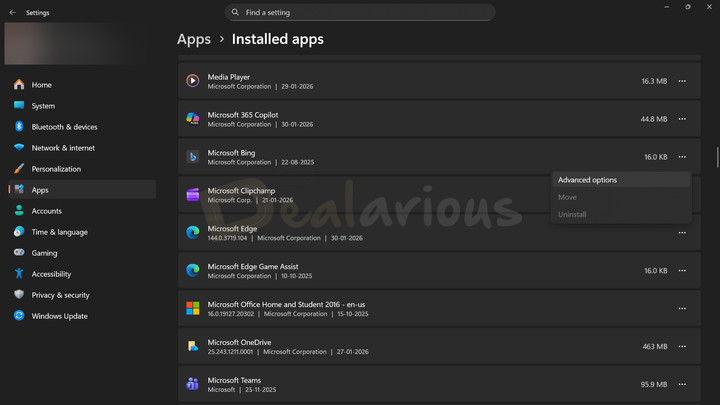
To disable background activity for a specific app:
- Go to Settings by pressing Win+I together.
- Open Apps and then navigate to Installed apps.
- Click the three dots next to the app that you want to manage. (If the selected app supports it, Advanced options will show up.)
- Select the Advanced options.
- Under Background app permissions, change the setting to Never.
In the same panel, some apps display the permissions they have been granted. If you notice unnecessary permissions, you can disable them to limit data access.
Note: Not all apps support background activity controls, so the Advanced options setting may not appear for every app.
Method 2: Manage individual permissions
- Go to Privacy and Security from the Windows Settings panel.
- Scroll down and look for App permissions.
- You will find categories such as Location, Camera, Microphone, and Account info.
- Review each category and the list of apps that have access to that permission.
- Toggle off access for any app that does not require it.
6. Keep Drivers Updated
How often: Monthly or whenever driver-related issues start to appear.
Drivers are the backbone of any computer. They allow operating system and hardware components (e.g., graphics cards, printers, network adapters, and other peripherals) to communicate smoothly, ensuring everything functions as intended. But when drivers become outdated, this communication can become messy, leading to issues such as slow performance, random freezes, crashes, system instability, and sometimes even security problems. (Wi-Fi and graphics drivers are usually the first ones you notice.)
How to Do it
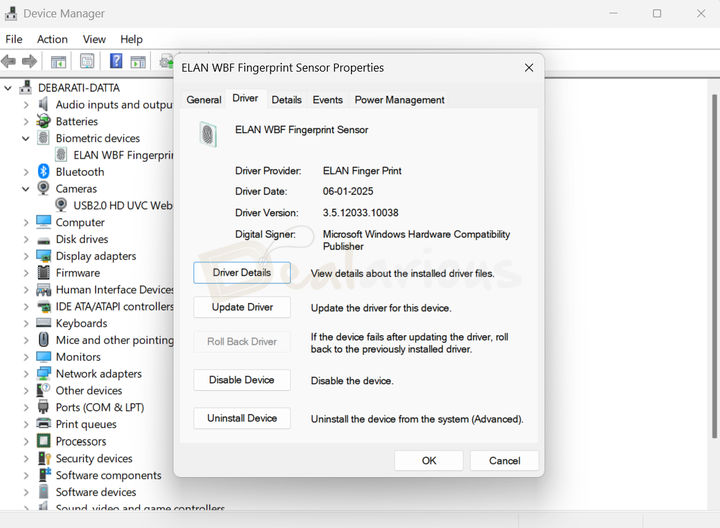
Windows offers a simple way to check for driver updates using Device Manager.
- In Windows 11, navigate to the Start button and right-click on it.
- Select Device Manager from the list.
- There you will see a list of all hardware components.
- Now, click the dropdown menu to reveal the driver of the respective hardware component.
- Right-click the driver, then select Update driver.
- Choose search automatically for drivers. (Windows will look for an updated driver and install it if it finds one).
You can also refer to Microsoft's official guide on updating drivers through Device Manager.
Note: While Device Manager provides a simple way to update drivers, it can be limited in scope. Similarly, Windows updates often install many drivers automatically, but they may not always match the newest versions available directly from hardware manufacturers.
If you are experiencing persistent system issues (screen flickering, no sound, external devices not recognized, etc.) and Windows' built-in tools haven't helped, a reputable third-party driver-updater tool can be worth considering. Tools like Avast Driver Updater and IObit Driver Booster can help you scan for driver updates and manage them in one place. Results can vary by hardware, so review each suggested update before installing it, and skip anything that doesn’t look relevant. If you want more options, you can also check this list of the best driver updater apps.
Safety note: Always review suggested driver updates before installing them.
7. Browser Maintenance
How often: Once a week or every two weeks
Browser maintenance is often an overlooked aspect of PC care, yet it plays a key role in keeping your system healthy.
How to Do it
Method 1: Clearing Cache and Cookies
As you use your browser to surf the web, websites save small files like images, scripts, login info, preferences, offline data, etc locally. You might know them as cache files or cookies. Over time, these files pile up and can consume storage space, negatively affecting browser and overall system performance. Removing these kinds of temporary files can help maintain computer performance. (Just note: clearing cookies can log you out of some sites.)
- Head to the browser you want to remove data from.
- Press Ctrl+Shift+Del
- A dialog box will pop up. There you will find options for cache, cookies, and browsing history. (These options might look different on different browsers, but they carry out the same task)
- Choose what you want to clear and hit Clear/Delete.
Method 2: Manage Tabs
Beyond clearing cache and cookies, the number of open tabs and the resource usage of your browsers can significantly impact your PC's performance. So, to boost your device speed, make sure to
- Keep only essential tabs open,
- Use lighter browsers, and
- Use built-in tab “sleep” or “memory saver” features when available (for example, Sleeping Tabs in Microsoft Edge).
Method 3: Manage Extensions
Browser extensions are like helpful extras that aim to make your life easier. However, too many extensions (or those you don’t recognize) can slow down performance and also raise privacy risks. So, keep only the extensions you actually use, and install them from official browser stores.
Tip: Cleaning your browser helps, but security matters too. In the Windows Security app, App & browser control (SmartScreen) can warn you about suspicious sites and risky downloads. It’s worth keeping it enabled as part of regular PC maintenance. To stay on the safer side while browsing, you can also follow a few important internet safety tips.
8. Security and Malware Check
How often: Weekly or whenever you suspect something is off.
Malware, viruses, and other cyber threats can affect your system's stability and privacy. These threats can run in the background, consume system resources, interrupt normal processes, or try to access your files. So, keeping security checks on your routine list is an important part of Windows 11 PC maintenance.
How to Do it
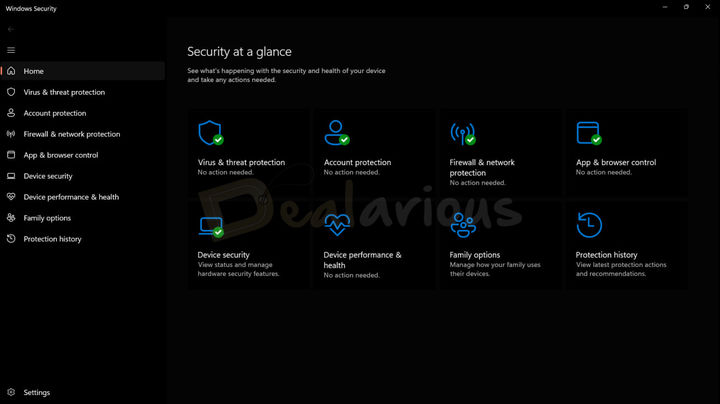
Windows Security (Microsoft Defender Antivirus) is a solid baseline for many Windows 11 users. To stay protected, it’s worth reviewing these areas in the Windows Security app:
- Real-time protection
- Firewall & network protection
- Ransomware protection (like Controlled folder access)
- Reputation-based protection (under App & browser control)
Additionally, you can run manual scans from time to time. I usually start with a Quick scan, and save Full scans for when something feels off, or the PC has been acting weird.
Furthermore, if you want a quick overview of security status and system health, you can also check the Security and Maintenance area in Control Panel (search for it from the Start menu). It flags common issues and suggestions.
Note: Windows Defender covers the basics well, but some third-party security suites bundle extra features (for example, a VPN, password manager, or multi-device support).
If you want those extras or are protecting multiple devices, a third-party antivirus suite can be worth considering. Options include Bitdefender Total Security, Avast Ultimate, and Norton 360 Deluxe. If you want more options, you can also explore the list of the best antivirus software for Windows.
9. Data Backup
How often: Weekly (or daily for important work files)
A solid backup routine means that even in worst-case scenarios (system crashes, file corruption, accidental deletion, or cyberattacks), your data is still recoverable. So, as part of your Windows 11 PC maintenance checklist, make it a habit to back up the files you actually care about.
How to Do it
Method 1: File History
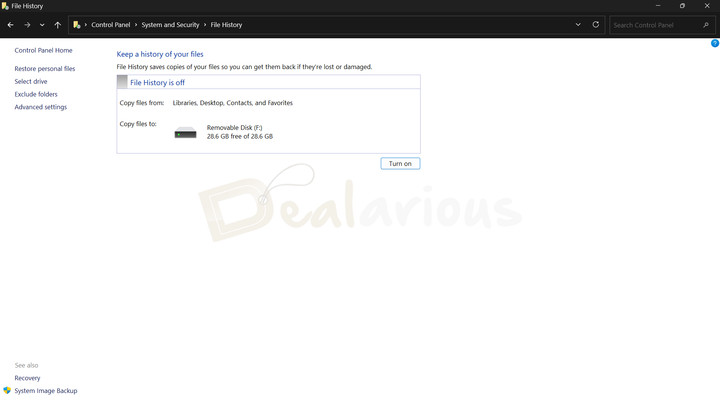
Windows' built-in File History feature helps back up important files (e.g., documents, photos, videos, or entire folders) to an external drive.
- First, connect the drive to your Windows 11 PC
- Go to Control Panel > System and Security > File History > Turn On
Once enabled, it quietly works in the background and saves multiple versions of your files. What I like about it is that backups typically resume when the external drive is connected again, so you don’t have to keep resetting it.
Method 2: OneDrive
Windows' built-in OneDrive tool offers a simple way to back up files by syncing them to the cloud. While the free OneDrive storage is limited to 5 GB, you can expand it through a paid upgrade. Changes you make locally will sync when your device is online, though large folders can take a while. (A couple of big videos can eat up that 5 GB fast.) You can enable Windows Backup by going to Settings > Accounts > Windows backup.
However, make sure to enable only the necessary files and folders for backup. If you’re not mindful, your OneDrive storage can fill up without you noticing.
10. Drive Optimization
How often: Monthly
Over time, storage fills up and drives can become less efficient. On traditional hard drives (HDDs), defragmentation can help by reorganizing fragmented data, making files easier to access. On SSDs, Windows runs optimization (TRIM) instead of traditional defragmentation, and by default, it can run automatically on a schedule. (On SSDs, the Optimize step often finishes pretty quickly.)
How to Do it
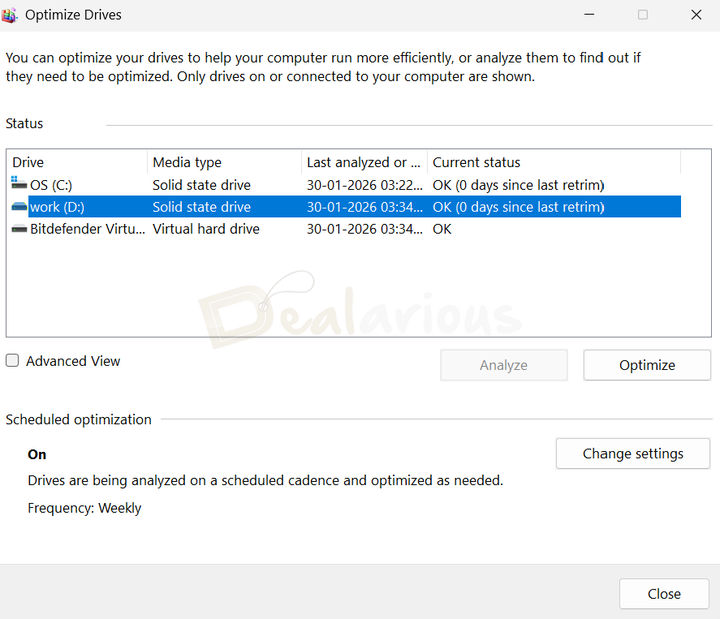
Windows can optimize drives automatically, but you can also run it manually using the built-in Defragment and Optimize Drives tool.
- Press Win+S > type defrag > choose "Defragment and Optimize Drives."
- Select the drive and choose Optimize (for HDDs, you can also use Analyze first).
As part of a complete Windows 11 maintenance routine, drive optimization works best when combined with regular junk cleanup, browser maintenance, driver and app updates, uninstalling unnecessary apps, and system updates.
Note: Solid-state drives (SSDs) don't require traditional defragmentation. In Windows, the Optimize Drives tool uses a trim operation for SSDs to help the drive manage freed space more efficiently.
Windows 11 PC Maintenance Checklist: Quick Verdict
Windows includes a wide range of built-in maintenance tools for routine system upkeep. For most users, these built-in tools are sufficient to keep your PC running smoothly and help with stability, without adding extra risk. That said, as systems age and workloads become more complex, reliable third-party tools can save time by automating some routine tasks and putting more settings in one place. Still, these tools should be carefully chosen and used. Using PC maintenance tools without understanding what they change can cause more harm than good. (On older PCs, startup cleanup and junk cleanup usually give the most noticeable improvement.)
FAQs
Does Windows 11 need regular maintenance?
Yes. While Windows 11 can handle many routine maintenance tasks automatically, doing a few periodic checks can still help with stability, security, and performance. (Even a quick update check once in a while can prevent odd bugs.)
Are PC cleaner tools safe?
It depends. Well-known PC cleaner tools, including CCleaner Pro, Advanced SystemCare, and Avast Cleanup, can be fine when downloaded from official sources and used carefully, but it’s still important to review what they’re about to remove or change. For basic maintenance, Windows 11’s built-in features are usually enough. If you do use a third-party tool, avoid one-click “fix everything” options unless you understand what they’re doing.
Can too many apps slow Windows 11?
Yes, too many apps can slow down your Windows 11 PC, especially when system resources (RAM, CPU, and storage space) are nearly full. So, try to keep only essential apps installed and remove the ones you don’t use anymore.
Is Microsoft Defender enough?
Yes and no. It depends on how you use your PC day to day. For many people who stick to normal browsing, email, and general work, Microsoft Defender can be enough. But it does have limits, and some users prefer extra layers (especially if they download a lot of files or manage sensitive data). To get a clearer idea, you can check whether Windows Defender is enough for Windows 10/11 users.
Can third-party tools save time compared to built-in Windows tools?
Yes. Third-party maintenance tools can save time by putting common tasks into one dashboard and automating some routine cleanup. Windows tools are still effective, but they can feel more manual, especially if you like having everything in one place.
Are built-in Windows tools really enough for basic PC maintenance?
For most users, yes. Windows 11's built-in tools, such as Storage Sense, Cleanup recommendations, Disk Optimization, and File History, are usually sufficient for basic PC maintenance tasks. (Storage Sense is especially handy once you set a schedule and forget about it.)
Conclusion
Think of PC maintenance as taking care of your own health. Without regular exercise, a balanced diet, and frequent checkups, your body can struggle to stay active. Similarly, setting aside a little time every week or two to clean out junk files, update apps, remove unnecessary software, and organize your PC helps keep things running smoothly. (I usually start with updates and storage cleanup, since they take the least effort.)
This Windows 11 PC maintenance checklist highlights one important aspect: keeping your PC healthy usually doesn’t require complex tweaks or expensive software. By combining Windows' built-in features with third-party tools only when they’re genuinely useful, you can keep your system secure, stable, and efficient over the long run.

She reviews software at Dealarious, mostly recovery and productivity tools, which she tries out herself. Her goal is to keep things simple so readers don’t waste hours figuring out what works. Over the years, she has tested dozens of apps and learned that small details often make the biggest difference.
When she isn’t testing programs, you’ll usually find her hiking in the mountains or enjoying the rain. She believes good tech should quietly make life easier, not more complicated.