You don't always need to pay for an antivirus to keep your system protected. Free programs also do a decent job of handling threats.
To see how well free antivirus solutions actually protect a system, I put two popular options to the test: Microsoft Defender Antivirus (built into Windows Security, often called Windows Defender) and Malwarebytes (free version).
In this Windows Defender Vs Malwarebytes Free comparison, I thoroughly compare their capabilities to determine which best fits users' needs.
Windows Defender Vs Malwarebytes: Quick Summary
Both Windows Defender and Malwarebytes are popular choices for free system security. However, there are a few differences.
Windows Defender is a full-featured antivirus solution with real-time protection. It also offers a variety of built-in security tools (e.g., ransomware protection, firewall protection, tamper protection), most of which are on par with paid antivirus products.
Malwarebytes Free, on the other hand, comes with limited features. It lacks real-time protection, but performs well as a second layer of defense with its on-demand scanning options. It also packs some useful extras like Digital Footprint scanner and Scam Guard.
At the end, both programs are effective in their own ways, depending on your needs.
Quick Verdict
In this Windows Defender Vs Malwarebytes comparison, both tools work effectively, but they cater to different needs.
Windows Defender has undergone multiple improvements, making it a decent standalone antivirus. While it lacks the sophistication of paid antivirus solutions, it can still serve as a primary antivirus program for most users.
Malwarebytes Free, while effective, lacks real-time protection and is ideal for manual scans, post-infection cleanups, and detecting adware, PUPs, and PUMs that other solutions might miss.
However, one advantage of Windows Defender is that, despite being a no-cost security solution, it does not display annoying pop-ups or upgrade prompts, unlike Malwarebytes Free. Malwarebytes Free can show upgrade reminders over time, but you can turn off promotional notifications from the app’s notification settings (though some important alerts may still appear depending on your version and setup)
Overview
Windows Defender
Windows Defender comes pre-installed starting from Windows 8. Over the years, Microsoft has significantly improved Defender from a basic antivirus into a full-fledged security solution. Today, it effectively monitors files and apps and blocks malware, spyware, and other threats as soon as they appear. It includes:
- Real-Time protection
- Multiple scanning options
- Firewall and network protection
- Ransomware protection
- Limited Parental Control via Microsoft Family Safety
- App and browser control, and much more.
Malwarebytes Free
Another popular free antivirus option is effective against rising threats. But, when compared to Windows Defender, the program has its own strengths and limitations.
Unlike Defender, Malwarebytes Free does not include real-time protection. However, its manual scanning options let you perform a thorough system check whenever you suspect a potential threat. Additionally, the program can effectively detect and remove rootkits, PUPs, and PUMs, and provides multiple additional features to strengthen your protection. It includes extras, but they don’t replace real-time protection:
- Digital Footprint Scanner (free email breach + dark web exposure check, while the extra identity-protection add-ons are part of the Ultimate plan)
- Scam Guard (identifies scam messages, suspicious links and images, while providing helpful guidance)
- Basic Privacy controls, etc.
Tip: If you are keen on learning what Malwarebytes can do beyond the free version, read this Malwarebytes Premium review.
Feature Comparison Table
The comparison table summarizes the core differences between the tools in this Windows Defender Vs Malwarebytes analysis.
Features | Windows Defender | Malwarebytes Free |
|---|---|---|
Supported OS | Windows only (built-in Microsoft Defender Antivirus) | Windows, macOS, iOS, and Android |
Real-Time Protection | Yes | No |
PUP removal | Yes | Yes |
Ransomware Protection | Yes | No |
Manual Scanning | Yes | Yes |
Parental Controls | YES (via Microsoft Family Safety) | No |
AI-based Scam Checker | No | Yes |
Digital Footprint scanner | No | Yes (email breach scan) |
Firewall Protection | Yes | No |
Phishing Protection | Yes (Limited to Edge Browser) | No |
Exploit Protection | YES (Windows Exploit Protection / mitigations) | No |
Interface
Over the years, both Windows Defender and Malwarebytes have undergone multiple updates to make their interfaces more intuitive.
Windows Defender Interface
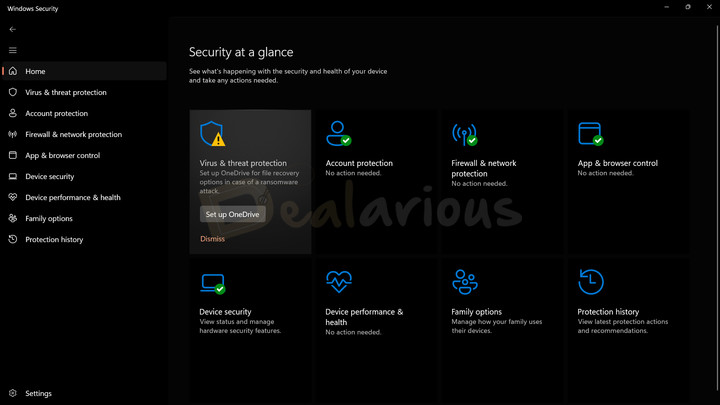
If you have been using Windows OS for a while, then Windows Defender's interface will feel instantly familiar. However, what caught my attention most is its well-organized user interface.
The main dashboard includes 8 cards:
- Virus & threat protection
- Account protection
- Firewall & network protection
- App & browser control
- Device security
- Device performance & health
- Family options
- Protection history
Each card displays a visual indicator (red, yellow, and green) to highlight its security status and whether action is required to improve system protection. Clicking any card opens its respective panel, where you can also tweak its controls.
The same options are available in the left-side panel, with Settings at the bottom. It made quickly jumping between different modules easy.
While I appreciate Defender's organized layout, sometimes accessing the key features required a few extra clicks, which did not feel very user-friendly. Also, from a personal perspective, the list-based layout of different modules, combined with a small font size, made the interface look visually cluttered.
Malwarebytes Interface
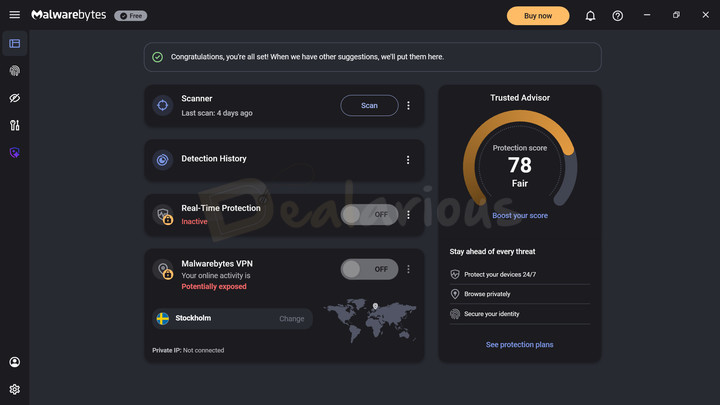
Malwarebytes boasts a modern, clean, and intuitive interface.
Main Dashboard
It includes 4 different cards offering quick access to primary functions such as:
- Scanner
- Detection History
- Real-Time Protection (Premium only feature)
- Malwarebytes-VPN (Separate Purchase)
On the right side, a vertical Trusted Advisor card displays your system's protection score, followed by a Boost your score button.
Left Panel
It includes 7 options for easy access to the
- Dashboard
- Identity Protection
- Privacy Controls
- Tools
- Scam Guard
- My subscription
- Settings.
While the Settings section offers some control over security parameters, many advanced options are locked in the free version.
Still, I found Malwarebytes's interface to be beginner-friendly and easy to grasp, at least compared to Windows Defender. The clean, well-organized layout helped me easily locate and use the needed features without any issue.
Interface Verdict: Winner - Malwarebytes
Based on my experience with this Windows Defender Vs Malwarebytes interface comparison, I prefer Malwarebytes layout over Windows Defender. I could easily locate features in Malwarebytes, whereas in Windows Defender, it took me some time and a few extra clicks. Hence, for this segment, Malwarebytes takes the lead.
Active Protection (Real-time Protection)
Real-time protection acts like a proactive guard, securing your every move. However, not many free antivirus programs offer this capability, which affects how these programs handle threats.
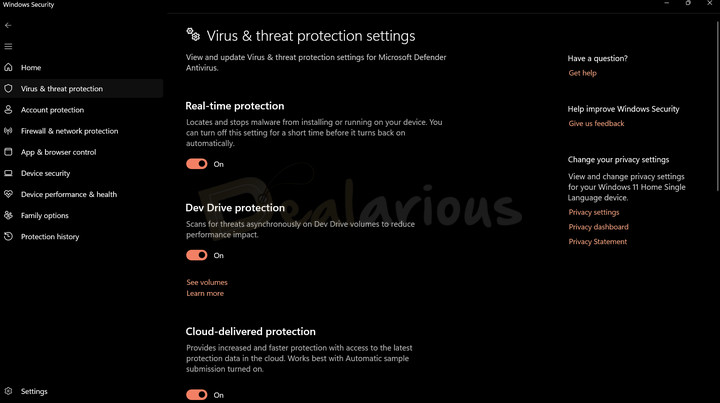
For active protection, Defender uses a mix of cloud-based intelligence, behavior monitoring, heuristics, machine learning, and signature-based detection to instantly identify and stop both known and emerging threats.
Enabled by default, Windows Defender's real-time protection continuously monitors your day-to-day activities (e.g., web browsing, downloading files, and running programs). If it identifies any suspicious or potentially harmful activity, it blocks the threats immediately.
Malwarebytes Free, on the other hand, does not include real-time protection. This means it cannot actively protect you against threats. You have to manually initiate a scan to detect and remove malicious elements.
Its Premium version, however, provides multi-layered real-time protection, which actively monitors and blocks malware, exploits, ransomware, and malicious websites from harming your system. For special offers, check Malwarebytes coupon section.
Real-time Protection Verdict: Winner - Windows Defender
In this Windows Defender vs Malwarebytes comparison, Defender clearly leads in this segment with 24/7 real-time protection.
Key Features
In the section below, I will focus solely on the features common to both security solutions.
Manual Scanning
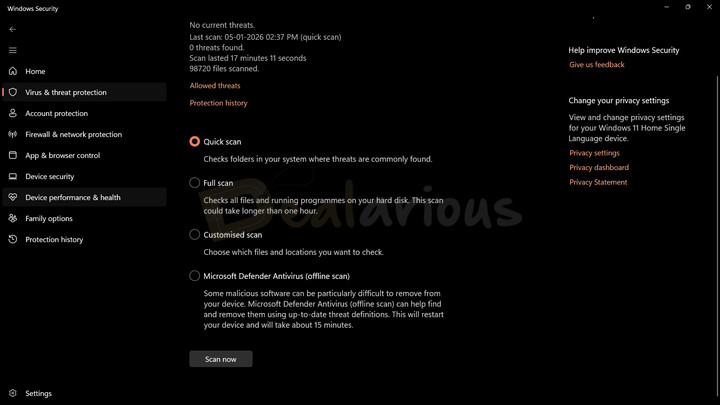
To provide more control over your system security, most standard security solutions include manual scanning options. It is helpful in verifying threats, especially when something feels off.
With Windows Defender, you get 4 different manual scanning options:
- Quick Scan
- Full Scan
- Customized Scan
- Microsoft Defender Antivirus (Offline scan).
While the first three options are usually common for most antivirus programs, Windows Defender's Offline scan feature caught my attention the most. This feature is designed for situations where you suspect stubborn malware is present on your system.
Once initiated, the Offline scan restarts your PC and runs a scan from a trusted environment, before Windows fully loads. It allows Defender to detect and remove boot-level threats (e.g., rootkits or viruses) that activate before Windows startup, hide, and interfere with the normal scanning process.
In short, this scan is helpful if you want to make sure your system is fully secure, especially after a malware attack.
Note: For scan scheduling, Windows Defender relies solely on Windows Task Scheduler, not the Defender app itself. While this makes scheduling possible, it is not particularly user-friendly for non-techy users.
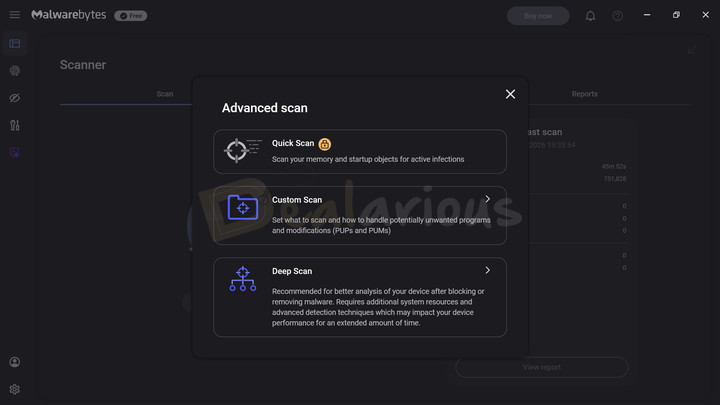
With Malwarebytes Free, you get limited manual scanning options.
- Custom Scan
- Deep Scan.
- The Quick Scan and Scan Scheduling features are reserved for premium users.
The Deep Scan option in Malwarebytes effectively scans your whole system to find and remove malware and other threats. Whereas the Custom Scan option lets you choose which drives to scan, and items such as memory objects, the registry, and startup items, as well as scanning within archives and rootkits, etc.
Scanning Options Verdict: Winner - Windows Defender
By offering multiple scanning options, Windows Defender provides greater flexibility to users. Hence, giving Windows Defender an edge in the scanning segment over Malwarebytes Free.
Unwanted Software Detection
While PUPs (Potentially Unwanted Programs) /PUAs (Potentially Unwanted Applications) are not always dangerous, they often pose risks (e.g., consuming system resources, tracking user activity, changing system settings without consent, etc.).
Both solutions can effectively detect such threats, but their approaches differ.
On most Windows 10/11 systems, Windows Security’s PUA (Potentially Unwanted Applications) blocking is enabled by default, but you can still verify it under App & browser control → Reputation-based protection. When it is on, Defender can detect and block PUA files, and it can also block attempts to download, move, run, or install them.
Malwarebytes Free detects PUPs (Potentially Unwanted Programs) and PUMs (Potentially Unwanted Modifications) only during manual scans. It means that threats are identified after a scan is initiated rather than blocked in real time.
Note: Malwarebytes Premium includes real-time PUA and PUM detection, but this feature is not available in the free version.
Unwanted Software Detection Verdict: Winner - Windows Defender
While both tools detect unwanted programs, Windows Defender gets the edge by actively detecting and blocking unwanted apps as they appear.
Protection against phishing and malicious URLs
Both Windows Defender and Malwarebytes help protect against phishing attacks, malicious websites, and harmful downloads, but each has limitations.
Windows Defender includes a built-in SmartScreen feature that actively protects you against phishing and malware. It does so by checking the reputation of websites and downloads and warning or blocking when something looks suspicious. If a site is flagged as malicious, the program blocks access to that site immediately.
However, the downside is that this protection is limited to Edge by default. In order to extend web-based protection beyond the Edge browser, you need to install the Microsoft Defender Browser Protection extension. But that extension is mainly meant for Chromium browsers (like Chrome and Edge).
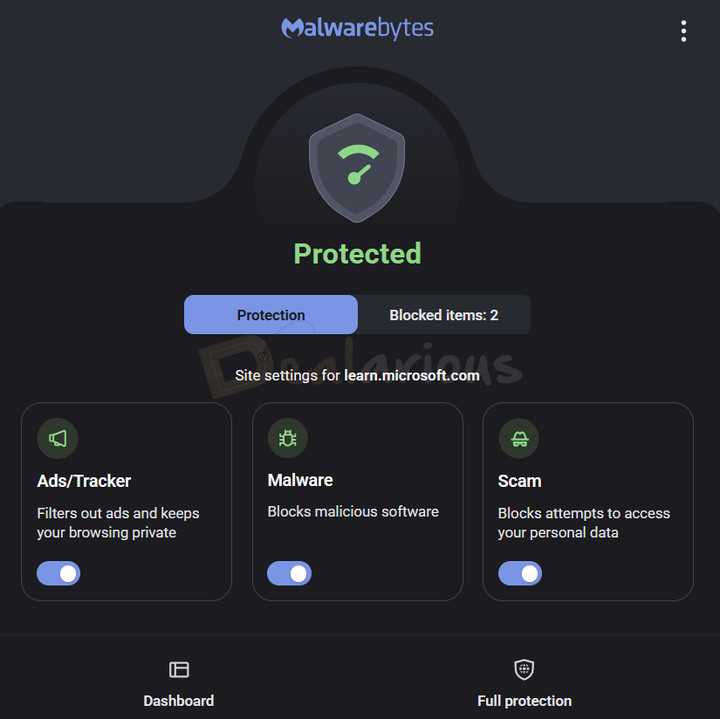
Malwarebytes Free does not include built-in, real-time web protection inside the desktop app. However, during installation, the program prompts you to install Malwarebytes Browser Guard. It is a free extension available for Firefox, Edge, Chrome, and Safari.
It can help block phishing attempts, malicious websites, ads, and trackers, offering multi-layer browser-level protection. I have been using this extension for a while now, and it has effectively blocked access to suspicious websites, annoying ads, and sneaky trackers.
Note: Malwarebytes does offer built-in real-time web protection, but it is part of the Malwarebytes Premium subscription.
Protection against malicious URLs Verdict: Draw
Considering both tools have limitations in providing solid web protection and require a bit of a workaround to get the most out of them, this segment ends in a draw.
Additional Tools
In this Windows Defender Vs Malwarebytes comparison, I also looked at the additional tools that each program provides.
Windows Defender Additional Features
Firewall & network protection
It is another core Windows Defender feature that helps protect your PC from network-level threats. Even though basic, Windows Defender's firewall can effectively monitor both inbound and outbound traffic and block suspicious activity as soon as it is detected. You can further customize firewall parameters and set rules to enhance security.
Ransomware protection
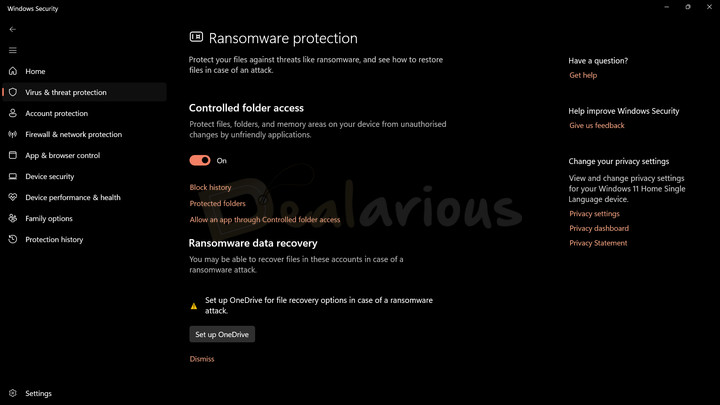
Windows Defender also includes an efficient Ransomware protection feature. While it is not as advanced as other comprehensive antivirus programs, it still does a decent job of protecting files, folders, and memory areas on your device from unauthorized changes by suspicious applications.
The feature is not enabled by default. You will need to navigate to the Ransomware protection window under the Virus & threat protection module, then enable Controlled folder access to activate.
Additionally, Windows' OneDrive integration helps you add files to the drive and protects them from attacks; as a result, you can recover them later if your system is even hit by ransomware.
Parental controls
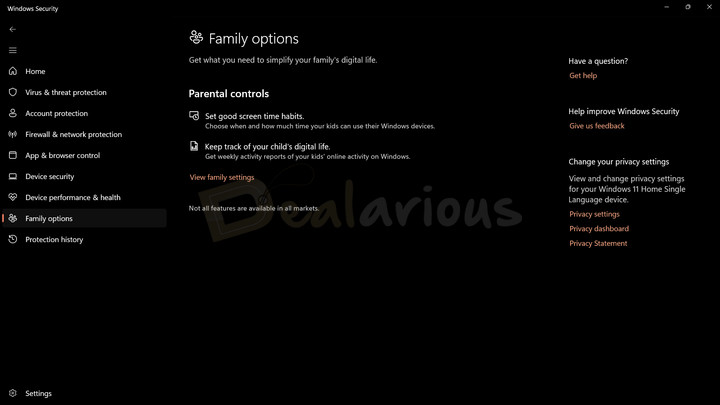
Another useful addition is parental controls, which are provided through Microsoft Family Safety. With this feature, you can add family members, apply content filters, set screen time limits, view activity reports, and more. However, most web filtering features work only with the Edge browser.
Malwarebytes Free Additional Features
Windows Security Adjustments
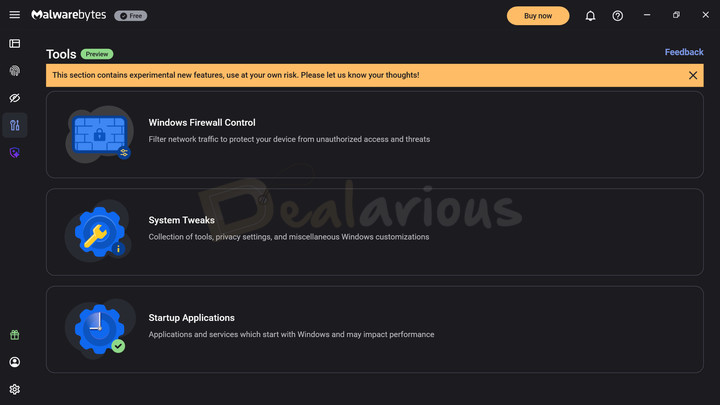
The Tools panel in Malwarebytes includes three options: Windows Firewall Control, System Tweaks, and Startup Applications. Available on Windows 10 & 11, these experimental features let you tweak different Windows security and system parameters to improve overall protection.
I found this section helpful for making quick adjustments, especially because of Malwarebytes' clean, organized layout. Finding and managing the same settings directly from Windows can feel a bit confusing and overwhelming, especially for non-techy users.
Nonetheless, these changes should be made with caution. Any changes made within Malwarebytes will directly impact Windows system settings. One wrong move can impact overall system stability. Hence, only use this tool if you are already familiar with Windows customization and security settings.
Digital Footprint Scanner (Data Breach Check)
This free tool lets you check whether any sensitive data linked to your email ID has been exposed online. After you enter and verify your email, it checks known breaches and dark web exposure linked to that address and then shows what may have leaked (for example, old passwords or other personal details), along with basic guidance.
Note: To get full identity protection, you will need to upgrade to the top-tier plan.
Scam Guard (New)
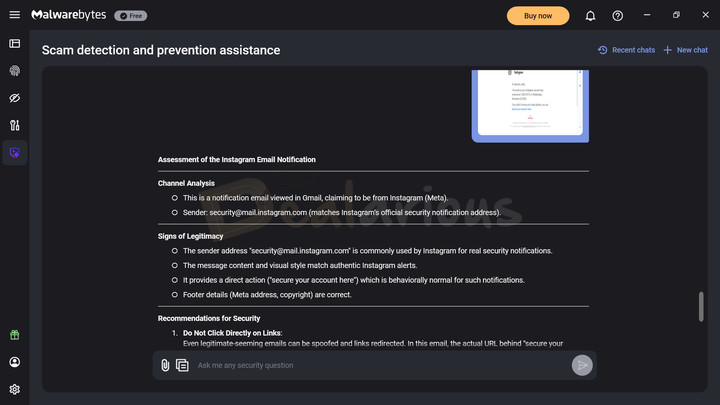
It is another helpful feature found in Malwarebytes (Desktop Security v5 on Windows 10+). The Scam Guard feature helps you check suspicious emails, texts, URLs, screenshots, files, or phone numbers, and provides guidance accordingly.
During my Windows Defender vs Malwarebytes comparison, I tested Malwarebytes' Scam feature by providing a screenshot of a suspicious email. The tool identified the email address as legitimate while still advising caution and avoiding any links.
While it helped me verify the email address's authenticity, the guidance itself felt generic. Also, Scam Guard is more of a “second opinion” helper; it doesn’t replace real-time protection.
Tip: Learn quick online safety tips to navigate the cyber world more securely.
Additional Tools Verdict: Winner - Windows Defender
Although both tools are free and offer extra features, Windows Defender includes more essential security extras, making it the winner in this segment.
Protection Against Malware
While Windows Defender and Malwarebytes take different approaches towards malware detection, both offer solid protection against modern threats. To determine their real-world capabilities, I have considered the latest results from two renowned independent testing labs, such as AV-Test and AV-Comparatives. Here's what I have found:
AV-Test
In the latest AV-Test reports for November-December, 2025, Windows Defender achieved a perfect score of 6/6 in the Protection, Performance, and Usability categories. It also achieved a 100% score in protection against 0-day malware and in detecting widespread malware during AV-Test lab evaluations. Furthermore, Windows Defender is also one of AV-Test's Top products.
Malwarebytes, on the other hand, did not appear in AV-Test's results after 2023. Based on the last recorded result from October 2023, Malwarebytes scored 6/6 in the Usability category and 5.5/6 in the Performance and Protection categories.
AV-Comparatives
According to the latest AV-Comparatives Real-World Protection test report (July–October 2025), Microsoft (Defender) landed in the 99.1% protection-rate group, and it recorded 3 false alarms in the report. In comparison, Malwarebytes blocked 98.1% malware attacks but recorded 42 false alarms.
Also, according to the Malware Protection Test conducted in Sept 2025, Microsoft (Defender) again sat in the 100% protection-rate group, though it recorded 27 false positives. In comparison, Malwarebytes blocked 99.88% of threats and recorded 28 false positives.
Protection Against Malware Verdict: Winner - Windows Defender
Based on the tests conducted by AV-Test and AV-Comparatives, both programs compete headstrong. However, Windows Defender clearly leads in this segment for its consistency and better malware detection rates.
Performance Test
As mentioned before, the free version of Malwarebytes does not include a Quick Scan option. Hence, to maintain consistency, I ran a Full Scan with Windows Defender and a Deep Scan with Malwarebytes Free to measure system impact.
Here are my system specifications:
- Processor: AMD Ryzen 5 3500U, 2100 Mhz, 4 Core(s), 8 Logical Processor(s)
- RAM: 12.0 GB
- Disk: 512 GB SSD
- OS: Windows 11 Home Single Language
- Graphics: AMD Radeon Vega 8 (Integrated)
Windows Defender Full Scan Performance
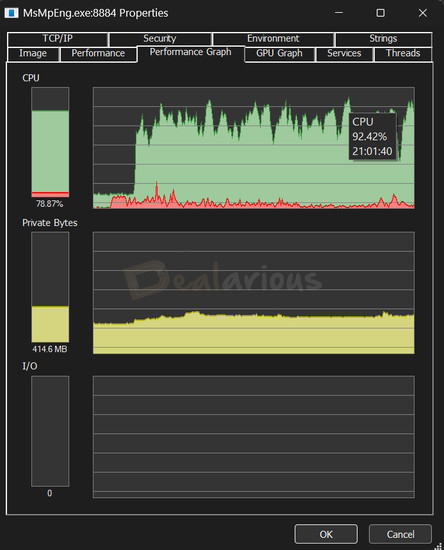
During a Full Scan, Windows Defender significantly increased CPU load, reaching 92.42% and fluctuating between 60-85%. The RAM usage peaked at 452 MB.
The scan took around 2 hours 12 minutes to complete, during which Defender scanned 1,578,678 files and detected no threats.
Malwarebytes - Deep Scan Performance
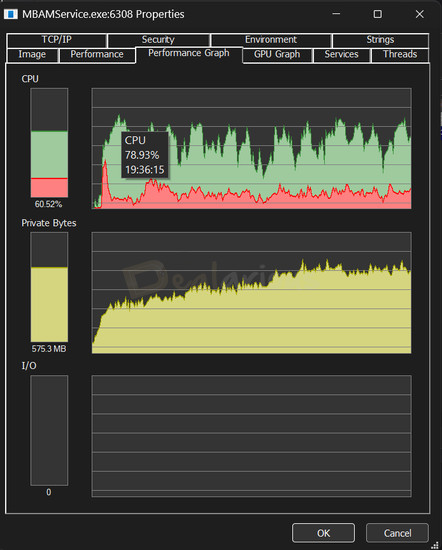
During the Deep Scan, Malwarebytes' CPU load peaked at 78.93%, with RAM usage reaching 930.1 MB. Throughout the scanning process, the CPU usage fluctuated between 40-75% and the RAM usage between 700-850 MB.
The scan took around 45 minutes and 52 seconds to complete, during which Malwarebytes scanned 751,828 files and detected no threats.
During both scans, I actively used my machine, switching tabs, running apps, and typing, without any lag, which I found remarkable. The longer scanning time of Windows Defender can be attributed to the program scanning more files than Malwarebytes Free, which explains the delay.
Performance Verdict: Draw
Both scans went well, and neither caused noticeable slowdowns during real use. Windows Defender used more CPU but less RAM, while Malwarebytes used more RAM but finished much faster. So overall, this segment ends in a draw.
Support
Reliable, easily accessible customer support is essential, as technical issues often arise unexpectedly.
Windows Defender support is handled through Microsoft’s support channels, along with an extensive library of guides, forums, and FAQs to address common queries. Depending on your region and the issue, Microsoft’s “Get Help / Contact Us” flow may offer options like live chat or a call-back. During testing, I reached out via chat support. The connection was quick, and the responses were prompt. The agent provided detailed answers to my queries, helping me understand everything clearly.
On the other hand, while Malwarebytes does offer live chat support, it usually starts through its AI chatbot. From there, live chat is reserved for current subscribers (Premium), while free users are typically pushed to create a support ticket, and then a support agent follows up by email. Free users can still access email support by raising a support ticket or by using their FAQs, how-to video tutorials, and guides for common queries. Another notable inclusion is the Malwarebytes Support tool, which helps troubleshoot issues and collect diagnostic logs (and in some cases can help fix common app problems).
While testing Malwarebytes, I raised a support ticket to connect with a human agent. However, it took nearly 5 days to get a simple response back (in my case). Hence, if you want to reach out to the support agent via email, be prepared for a delayed response.
Support Verdict: Winner - Windows Defender
With easier access to Microsoft support options (chat or call-back, depending on region) and quicker, detailed responses in my testing, Windows Defender leads the support segment.
Does Malwarebytes disable Windows Defender?
Malwarebytes Free does not disable Windows Defender, as it does not offer real-time protection.
With Malwarebytes Premium, Windows may turn off Windows Defender’s real-time protection if Malwarebytes is set to register as the main antivirus in Windows Security Center. This happens because running two real-time antivirus programs at the same time can cause conflicts, instability, and performance issues. If you want, you can adjust this behavior from Malwarebytes settings, depending on how you prefer to run both tools.
Is Malwarebytes Premium Worth it?
Yes, Malwarebytes is an efficient antivirus solution that offers multi-layered protection against emerging cyber threats. Its overall performance, along with malware detection capabilities, has improved noticeably over the years.
That said, Malwarebytes works best alongside full-featured antivirus programs such as Bitdefender Total Security or Avast Premium Security, which are often available at discounted prices. They provide additional security layers, such as a dedicated firewall, advanced ransomware protection, banking protection, etc., to improve overall cybersecurity.
When to use Windows Defender?
Before deciding when to use Windows Defender, let's quickly cover the basics.
- Windows Defender runs straight out of the box, no installation required.
- It is completely free, offers real-time protection, a built-in firewall for network security, basic web protection (useful if Edge is your go-to browser), etc.
- There are no annoying ads or pop-ups, no additional configuration required, and most importantly, it runs silently in the background while you work.
- Being a free built-in protection tool, Defender lacks some of the advanced security layers offered by other comprehensive antivirus solutions.
In short, Windows Defender is a great choice if you want a free, low-maintenance security solution that's good enough for day-to-day use (e.g., light browsing, streaming content, and working with trusted software). But, if you regularly browse or download files from various sources without verifying legitimacy, and frequently conduct online transactions, you may want to switch to a more advanced antivirus solution for added peace of mind.
When to use Malwarebytes (free version)?
Malwarebytes Free works best as a second layer of protection, rather than a primary antivirus.
- It is especially useful when you suspect a hidden threat, even after running a thorough check with Windows Defender's scanning options, and want a second opinion. In such cases, a manual scan with Malwarebytes adds an extra layer of reassurance.
- It is also effective at detecting and removing malware, PUPs/PUMs, and leftover traces that other antivirus tools may miss.
- Additionally, Malwarebytes' Tools section, which includes features such as Windows Firewall Control, System Tweaks, and Startup Applications, makes it easy to adjust Windows security settings that would otherwise be difficult to locate and use.
Alternatives
I have used both Bitdefender and Avast for a long time now. Along with their feature-rich paid plans, both programs offer free antivirus versions, making them solid alternatives.
Bitdefender as an alternative
Bitdefender is a renowned name in the cybersecurity space, and its free version uses the same core malware-detection technology as the paid plans, but with fewer extras. Available for Windows OS, it provides solid, low-maintenance protection against malware and common threats.
Despite being free, Bitdefender still includes a basic VPN allowance (200 MB/day), which Malwarebytes Free doesn’t bundle in the same way. However, Bitdefender’s dedicated firewall is part of its higher-tier suites (like Internet Security), not the free edition.
I have been using Bitdefender Total Security as my primary antivirus for years. It has consistently delivered reliable performance. To get more detailed insight into the program, you can read this Bitdefender Total Security review.
Avast as an alternative
Avast Free Antivirus is a popular free antivirus option, mainly because it's so feature-rich. The app does a good job of detecting and removing threats, keeping you safe from malicious apps, email attachments, websites, and more, while running quietly in the background. It also offers some decent extras, such as ransomware protection, rootkit protection, and a firewall.
Since the free version uses the same core engine as Avast's paid plans, it offers reliable malware detection and removal. It also comes with a clean, organized interface, making it a solid alternative.
To understand where Avast stands in terms of protection and performance, refer to the detailed Avast Antivirus review.
FAQs
Can you use both together?
Yes, you can use both Malwarebytes Free and Windows Defender together.
Can Malwarebytes Free replace Windows Defender?
While Malwarebytes Free can work effectively as a second layer of protection, it cannot replace Windows Defender. It lacks real-time protection, a dedicated firewall, and comprehensive ransomware protection, unlike Windows Defender.
Is Windows Defender enough for Windows 11 users?
Yes and No. It mainly depends on how you use your PC. For everyday tasks like browsing trusted sites, checking emails, and general work-related tasks, Windows Defender is usually sufficient. However, you have to be aware of its strengths and limitations. To get a clearer idea, you can check out whether Windows Defender is good enough for Windows 10/11 users.
Does Windows Defender scan for malware?
Yes, Windows Defender scans for malware. That said, no free antivirus software can provide the advanced malware protection offered by comprehensive antivirus solutions.
Does Windows Defender include Web Protection?
Yes and No. Windows Defender includes SmartScreen, which protects against phishing sites, risky downloads, and low-reputation URLs. However, this protection is limited to the Edge browser.
Conclusion
In this Windows Defender Vs Malwarebytes comparison, Windows Defender takes the crown for its proactive, 24/7, real-time protection and broader built-in security features.
However, Malwarebytes free version does not fall far behind as a capable free security tool. It provides on-demand scans to protect you against malware, rootkits, and PUPs and PUMs. It also has useful extras such as Scam Guard and Digital Footprint Scanner, adding value beyond threat detection. Nonetheless, its clean, well-organized, and easy-to-understand interface makes the program intuitive, especially for non-technical users.
In the end, both programs can be used together. While Windows Defender is pre-installed, you can easily install Malwarebytes Free as a secondary protection layer to further enhance system security.

She reviews software at Dealarious, mostly recovery and productivity tools, which she tries out herself. Her goal is to keep things simple so readers don’t waste hours figuring out what works. Over the years, she has tested dozens of apps and learned that small details often make the biggest difference.
When she isn’t testing programs, you’ll usually find her hiking in the mountains or enjoying the rain. She believes good tech should quietly make life easier, not more complicated.