
Sale!

Copernic Desktop Search

$28.99 $23.19

$28.99 $23.19
4.83 out of 5
(6 customer reviews)

Copernic Desktop Search helps Windows users find documents, emails, attachments, images, multimedia files, and supported cloud content from one indexed search interface. It is useful when Windows Search is not enough, especially if your files are spread across folders, email data, network locations, and connected cloud services.

Choose the Basic, Advanced, or Elite edition, then select the number of users and license duration of up to 3 years at checkout. You can also check the Copernic version comparison before choosing the version that fits your needs.

Download Only | Official Purchase | Limited Time Offer

Offer Ends in

[
00
Days
:
00
Hours
:
00
Minutes
:
00
Seconds
]

Deals Gone Wild

Description

Copernic Desktop & Cloud Search helps Windows users find documents, emails, attachments, images, multimedia files, and supported cloud content from one indexed search interface. It is useful when Windows Search is not enough, especially if files are spread across folders, email data, and connected cloud services.

You can compare the Basic, Advanced, and Elite editions and choose the license that fits your search needs.

Overview

Just as the name suggests, Copernic Desktop & Cloud Search is a Windows-based desktop search tool that helps you quickly find files, emails, attachments, documents, and supported cloud content. Its indexing can search inside supported documents and email content, making it helpful when you remember a keyword rather than the exact file name or folder.

The program keeps the desktop search index on the local Windows PC. Cloud search features depend on the connected service, edition, and extensions included with your license.

It has a clean, intuitive interface suitable for both beginners and advanced users. Overall, it is a practical desktop search solution for users who manage many files across local folders, emails, and cloud storage.

Minimum System Requirements

Here are the minimum system requirements you need to run the program smoothly on your Windows-based system:

  • OS: Windows 11 or Windows 10 (64-bit recommended)
  • .NET Framework: Version 4.8 or later
  • RAM: At least 8 GB, 16 GB is recommended
  • Disk space: 500 MB for installation, plus at least 2 GB for the index. In our test, the program occupied approximately 756 MB after installation.

Refer to Copernic Desktop Search’s official system requirements page for the latest requirement details.

Download and Installation

Copernic Desktop Search Installation in progress.


Installing Copernic Desktop Search is straightforward.

  • Visit Copernic’s official website and navigate to the Desktop & Cloud Search download page.
  • Download either the x64 or x86 installer based on your system architecture.
  • Once downloaded, run the setup file to start the installation.
  • Follow the instructions on the setup wizard to install the program.

Interface

Copernic Desktop Search dashboard with search bar at top, search results below, and search refinement options in the left panel.

Copernic Desktop Search features a neat and logical interface.

Dashboard

Upon opening the program, you are presented with the dashboard, where the search bar sits at the top, and the left panel includes options to refine search results by creation date, keywords, filename, etc.

As soon as you type in the search bar, the program starts showing relevant indexed results. You can then organize the results using the category filters below the search bar, each with a different icon, or further refine them by relevance, date, or filename. You can also switch between views, such as thumbnails and lists, for better visibility.

The icons do look a little outdated, but they do not affect the main search experience.

If you want to tweak the settings, navigate to Tools > Options. From here, you can schedule your scans, change the index location, and tweak advanced file search parameters.

Key Features

Here are some of the key features of Copernic Desktop Search that make it useful for everyday file search.

Fast Search Results

Once indexing is complete, Copernic displays results as you type; no need to hit Enter.

Deep File Search

Copernic does not just scan file names. It can also search inside supported documents, emails, attachments, PDFs, archives, and other supported file types. This is helpful when you remember a keyword inside a file but not the exact file name.

Wide File Format Support

Copernic Desktop Search Advanced Settings panel showing file type options and checkbox-based advanced options for customization.

Copernic Desktop & Cloud Search can index and search over 170 file types, depending on the edition and included extensions. This includes common formats like JPG, PNG, MP4, Excel, PDF, PowerPoint, and Word, with higher editions adding support for more specialized formats.

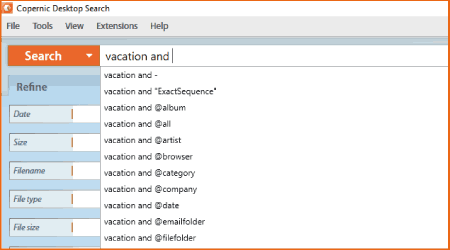
Multiple Search Operators

Copernic uses a mix of search commands, including keyword, prefix, Boolean, and exact-match searches. Together, these search commands help you narrow down results.

Image Text Recognition

Image Text Recognition panel with 11 languages to tick.

The program can use image text recognition to read text inside images and scanned PDFs. As it supports multiple languages, it can help you find text that would otherwise be harder to search.

Indexing Options

Copernic can index documents, notes, emails, attachments, browser data, network files, and supported cloud content, depending on the package and enabled extensions. It helps you search across more than one location instead of checking different apps and folders one by one.

Indexing Schedule

Indexing and & Performance panel allowing you to schedule a scan, change the index location, and add a maximum cloud content indexing limit.

You have control over when and where indexing happens. You can choose the index location, set an indexing schedule, and adjust performance options based on how you use your PC.

Works Offline

After local content has been indexed, Copernic can search those local indexed files without requiring an active internet connection. Cloud search still depends on the connected service and how that content has been authorized and indexed.

Tip: To get an in-depth understanding of the program’s real-world use, feel free to read our Copernic Desktop Search review.

Functionalities

Here are some of the useful functionalities of Copernic Desktop Search.

Search Across Desktop, Network & Cloud

The software does not just scan local files on your HDD or SSD. Depending on the edition and enabled extensions, it can also search content stored on network drives and supported cloud services. Cloud indexing limits can be adjusted from the settings if needed.

Extensions

Copernic Desktop Search comes with extension support that expands search capabilities beyond the basics. Cloud services such as OneDrive, Google Drive, and Dropbox, along with advanced file types, may depend on the edition and extensions included with your license.

If you want to go further, you can choose a higher-tier plan or extension support for features such as Image Text Recognition and file types like Photoshop, Visio, Illustrator, and more.

Optimize Performance

Copernic offers three indexing performance modes: Unrestricted, Restricted, and Smart. These modes control how many system resources are used during indexing. You can also schedule indexing or reduce indexing activity while actively using the PC.

Privacy and Local Indexing

A useful advantage of Copernic is that the desktop search index is kept on the local Windows PC. For cloud services, Copernic uses the authorization method provided by services such as Google, Microsoft, and Dropbox. This gives users more control over what is indexed and where the index is stored.

Support

Copernic Desktop Search offers support resources such as a knowledge base, FAQs, community forum, user guides, and direct contact options. For product behavior, installation, activation, billing, refund, or license delivery questions, users should refer to Copernic’s support resources or the checkout/payment processor used during purchase.

Why Choose Copernic Desktop Search?

The idea of Desktop Search is to keep files easier to find and reduce the time spent checking different folders or apps. The program supports Boolean and proximity searches, which can help users narrow down results when a simple keyword search is not enough. Search and navigation are also easy thanks to a self-explanatory interface, helping beginners find files without unnecessary complications. Depending on the edition and enabled extensions, Copernic can also help search files stored in supported cloud accounts.

In short, Copernic Desktop & Cloud Search is an efficient search tool for anyone who works with many files scattered across different locations, whether on a hard drive, network drive, or cloud storage.

Copernic Desktop Search Coupon Code and Pricing Plans

Copernic Desktop Search coupon code image with a centered coupon card, search icon, and savings coins.


Copernic Desktop Search is available in three plans: Basic, Advanced, and Elite. The Basic version is suitable for general file searches, while the Advanced and Elite versions provide extended indexing and enhanced search capabilities.

You get extension support with every plan, but higher plans offer more advanced search options and file-type support.

Also, Copernic offers a 30-day free trial with no credit card required. Users can test the software before buying and then upgrade if it fits their needs.

On Dealarious Store, you can check the current available offer for Copernic Desktop Search. If an active discount is available, it is applied through the purchase link, so you can continue with the “Buy Now” button above.

FAQs

How to activate the free trial?

When you sign up for the 30-day trial, Copernic asks for your email address and sends the installer and trial license file. After installing Copernic Desktop Search, launch the program, go to Extensions/Licenses, and import the trial license file.

What is included in the Copernic free trial?

Copernic’s support article says the trial includes the features available in the Elite version for 30 days. After the trial ends, Copernic Desktop Search goes back to the free edition unless you buy a paid license.

Is there a Copernic Desktop Search coupon code?

You can check the current available Copernic Desktop Search coupon code or discount through the links on this page. Click the Buy Now button above to proceed with the purchase on Copernic’s checkout page.

Which Copernic Desktop Search edition should I choose?

Choose Basic for general file search, Advanced if you need broader indexing and search options, and Elite if you need the widest feature and file-type support. The exact feature set can change, so compare the editions before buying.

How to activate Copernic Desktop Search?

To activate Copernic Desktop Search, launch the program, go to the Extensions/Licenses section, and select Import License File. Add the license file received after purchase, and the paid license will be activated.

Can Copernic search cloud files?

Yes, Copernic can search supported cloud services such as Google Drive, Dropbox, and Microsoft OneDrive, depending on the edition and enabled extensions. Cloud indexing may require you to connect and authorize the relevant account.

Can I get a refund for Copernic Desktop Search?

Refund handling is managed by Copernic or its checkout/payment processor because the purchase is completed through Copernic. Before buying, review the terms shown during checkout. If you need help with a refund request, contact Copernic support directly.

Conclusion

Copernic Desktop & Cloud Search is best suited for users who want more control over file search on Windows. You can search by keywords, refine results, and look inside supported documents, emails, attachments, and cloud content depending on your edition.

Its features are useful for students, researchers, office users, and anyone working with large amounts of data. In our Windows 11 testing, the program performed well. Indexing large datasets takes time, but adjusting performance options can help speed up indexing when needed.

6 reviews for Copernic Desktop Search

  1. 5 out of 5

    Erikas

    Love this product already for many many years. Best search product in the market. My previous purchase was expiring next month so checked and found this magnificent discount. Thank you.

Add a review

Copernic Desktop Search
$23.19 $76.79Price range: $23.19 through $76.79