This Movavi Slideshow Maker review covers what it’s like to build a slideshow fast, then polish it like a normal editor. I tested Movavi Slideshow Maker 25 on Windows 11 with an activated license and also checked how the trial behaves.
If your goal is simple, quick slideshow creation (with a real timeline when you need it), this tool is a good fit. If you want heavy AI tools or advanced color grading like Premiere Pro, you’ll feel the limits.
Movavi Slideshow Maker Review: Quick Summary
Pros
- Beginner-friendly interface
- Easy-to-use editing tools
- Dual editing mode (Wizard + Manual)
- Quick slideshow creation
- Scene Detection saves time on long footage
Cons
- Wizard templates feel basic and limited
- You still finish exporting from the main export panel
- Email support can take up to a few days
overall
USD 24.95
Supported Platforms: Windows, OSX
Features
4/5
Usability
5/5
Performance
4.5/5
Support
3.5/5
Movavi Slideshow Maker feels like a lighter, slideshow-first version of Movavi Video Editor. It gives you two ways to edit:
- Manual mode (full timeline editing)
- Slideshow Wizard (guided, template-based slideshow creation)
In my test, Wizard mode was great for getting a quick draft done, and Manual mode made it easy to fix pacing, titles, color, and transitions. One small thing I noticed right away is that the startup screen makes it obvious where to begin, so you’re not guessing.
If you’re testing the trial version first, expect export-related limitations. It’s best used to see if the workflow clicks for you before buying.
Quick Setup
Before I get into the editing experience, here’s a quick look at the setup and basic requirements.
System Requirements
Movavi Slideshow Maker supports both macOS and Windows, but the specs below apply to Windows users:
- OS: Windows 10/11 (64-bit)
- Processor: Intel, AMD, or compatible dual-core processor (1.5GHz)
- RAM: 4 GB minimum
- Space: Around 400 MB of free disk space for installation
On my test laptop, the program used about 406 MB of drive space, which is reasonable for a video tool.
Note: For more details, visit Movavi’s official system requirements page.
Download and Installation
You can download the installer from Movavi’s official website. The setup file is small (around 2.64 MB).
- Open the installer and follow the setup wizard.
- Once installed, the program launches normally like other Movavi apps.
On my end, the install finished in a few minutes and opened automatically.
Pricing Plans
Movavi Slideshow Maker is sold in 1-year and lifetime plans. At the time of writing, pricing was around $44.95/year and $69.95 lifetime.
If you are looking for a discount, you can check our Movavi Slideshow Maker coupon section.
There’s also a 7-day trial, which is enough to test Wizard mode, basic editing tools, and the export workflow before paying.
If you want a video editing all-in-one package, Movavi Video Editor and Movavi Video Suite are cost-effective options to consider. However, please note that these applications do not include the Slideshow Maker.
Movavi Slideshow Maker Review: Interface
Movavi clearly builds for beginners. When you launch Slideshow Maker, it asks if you want to start with the Slideshow Wizard or Manual mode. Each one feels made for a different kind of user.
Manual mode
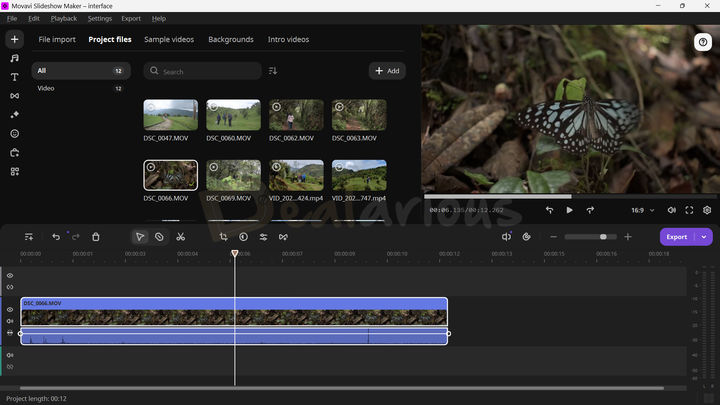
Manual mode is for normal timeline editing. If you’ve used Movavi Video Editor before, it’ll feel familiar. Tools sit on the left panel, preview on the right, and the timeline stays at the bottom. One thing I liked was that the timeline toolbar puts common tools (split, clip settings, and quick tweaks) right where your cursor usually is.
Slideshow Wizard
This mode is best when you want a slideshow fast, without thinking too much. The workflow is broken into five steps:
- Files: Add images and videos
- Templates: Pick a preset style or keep it simple
- Music: Choose built-in tracks or import your own
- Preview: Watch the result and adjust a few basics
- Export: Move forward to finish the project export flow
Wizard mode is clean, and you don’t feel lost, even on the first run. It’s very step-by-step, which is the whole point.
Movavi Slideshow Maker: Key Features Review
Movavi Slideshow Maker gives you a mix of simple tools and a few advanced ones. It’s not trying to compete with Adobe Premiere Pro, but it does cover a lot for casual creators.
Creative Tools
Dual editing mode
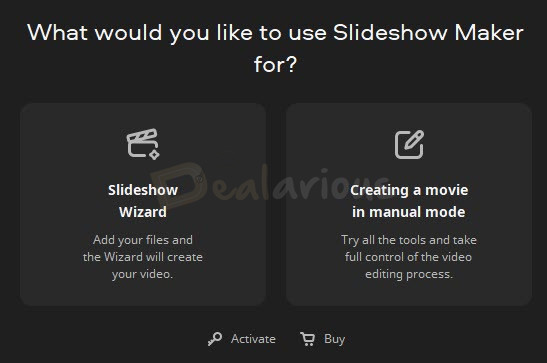
This is the main reason to use Slideshow Maker. You can start in Wizard mode to get a slideshow built fast, then switch to Manual mode to edit like a normal timeline project.
In Manual mode, you can trim clips, add effects, work with titles, tweak colors, use motion tracking, and more. It’s not overloaded, and that’s a good thing.
In Wizard mode, you pick a template and music, then let the app assemble the draft. It’s limited, but it saves time when you just want something shareable quickly.
Templates
Templates help beginners a lot, especially if editing feels stressful. The Wizard includes around 10 ready-made templates (Family, Travel, Memories, Birthday, and similar styles). They work, but the collection feels basic. I noticed some styles look a bit too similar once you preview a few back-to-back.
Basic Editing Tools
Trimming
Trimming is simple here. You can split clips with the Blade/Split tool, or drag clip edges on the timeline. It’s the kind of editing you can do without watching a tutorial first.
Transitions, Filters, and Effects
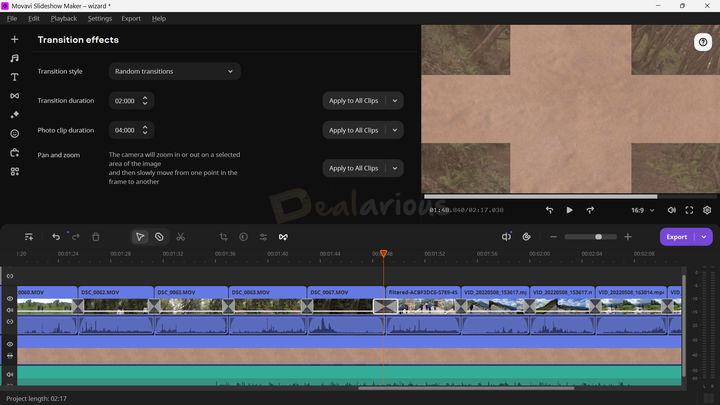
Transitions and filters are drag-and-drop. After applying a transition, you can still tweak timing and style. That part feels more flexible than many “instant slideshow” tools.
Tip: Don’t mix too many transition styles in one project. Stick to 1 or 2 types, otherwise it starts to look messy fast. If you want a few practical editing ideas, see these video editing tips.
Advanced Video Editing Tools
Color Adjustments
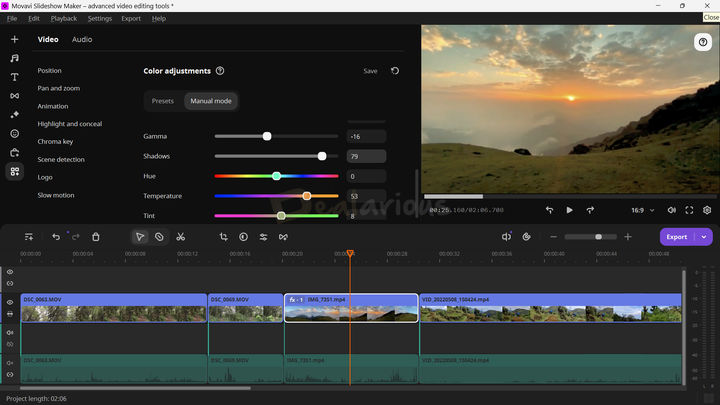
You can do basic color correction with presets or manual adjustments (white balance, contrast, saturation, gamma, and so on). It’s useful, but still limited compared to Filmora’s broader preset feel or Premiere Pro’s deeper grading tools. I personally prefer it when I can adjust individual RGB channels, which isn’t the main focus here.
Chroma Key
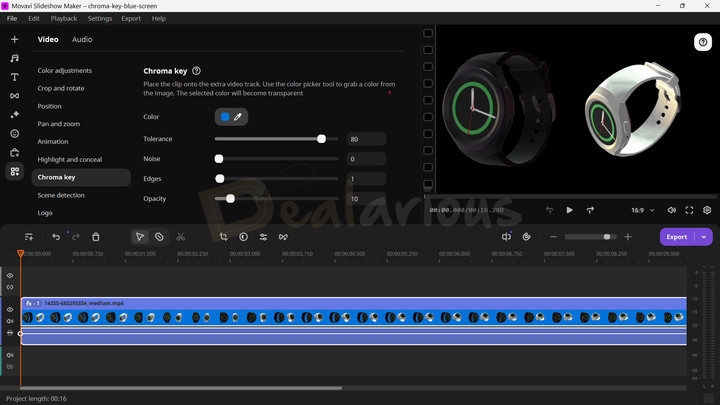
Chroma key is simple: pick a background color and replace it. You can also adjust Tolerance, Noise, Edges, and Opacity. It’s not “pro studio” level, but it’s quick, and it works.
Scene Detection
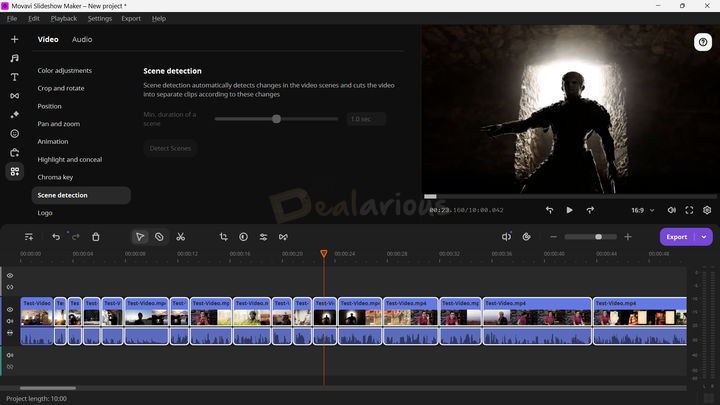
Scene Detection was one of my favorite tools here. I ran it on a longer video, and it split clips based on the interval I selected. The best part is that I didn’t have to manually cut everything first.
Animation
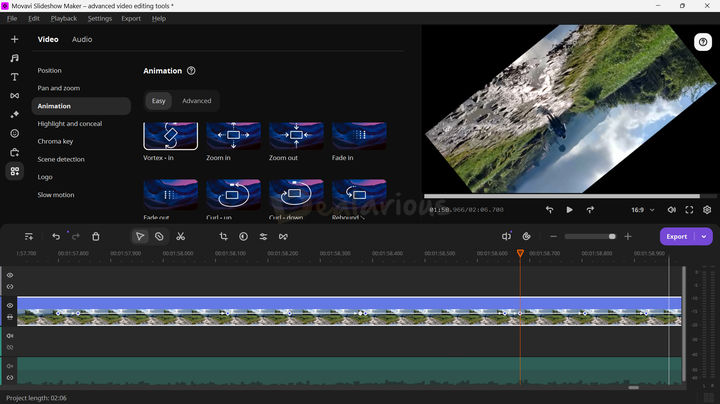
You can animate clips using presets, and then fine-tune keyframes, opacity, and rotation. It’s not hard to learn, but you’ll probably spend a few minutes clicking around before it feels natural.
Motion Tracking

Motion tracking lets stickers, titles, and elements follow a moving subject. It has Quick and Precise modes. I used Precise. The tool is basic, but it did the job for simple tracking.
Advanced Audio Editing Tools
Noise Removal
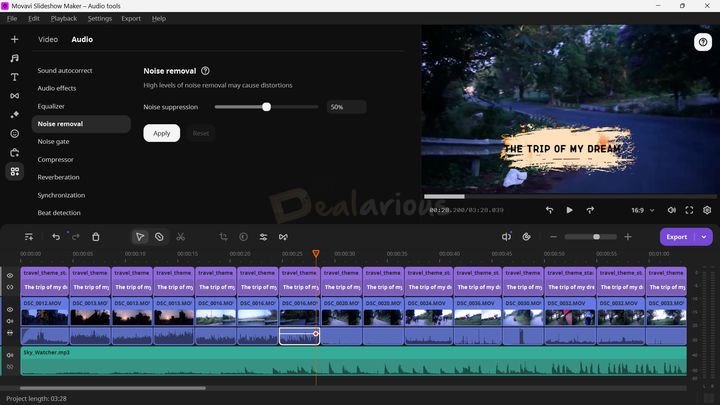
Noise removal is a simple slider. It’s the kind of tool you’ll use when you recorded a voice clip and the fan noise is sitting in the background.
Beat Detection
Beat Detection finds beats and marks them on the timeline. It helps when you want quick cuts that match music timing, especially for travel clips and short reels.
Synchronization
One-click audio-video sync is useful if your audio track drifts out of place. It’s not something everyone needs daily, but it saves time when you do.
Other Video Editing Tools
Besides the tools above, Movavi Slideshow Maker also includes:
- Slow motion
- LUTs and overlay effects
- Sound autocorrect
- Noise gate
- Equalizer
Movavi Slideshow Maker Review: Editing Experience
To test it properly, I built a slideshow in Wizard mode first, then switched to Manual mode to polish it.
Starting with Slideshow Wizard
Adding Files
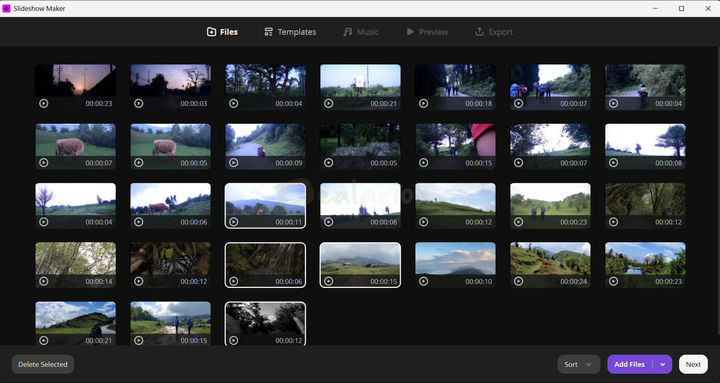
I started by importing a folder with 80+ files (images + videos). On my first attempt, it lagged and crashed once. On the second attempt, the same folder imported normally, and the rest of the session stayed stable.
Two things helped a lot here:
- Selecting multiple files made the cleanup fast.
- Drag-and-drop reordering made it easy to control the flow.
Template and Music Selection
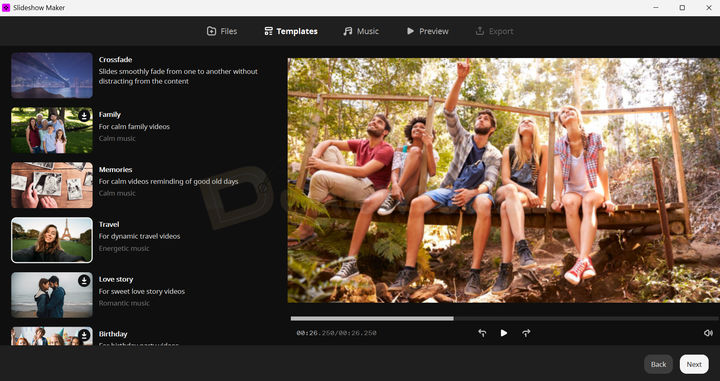
I picked a travel-style template that matched my clips, but the template collection felt limited. If you’re the kind of person who wants lots of modern template styles (like Filmora’s template packs), you may find this one a bit plain.
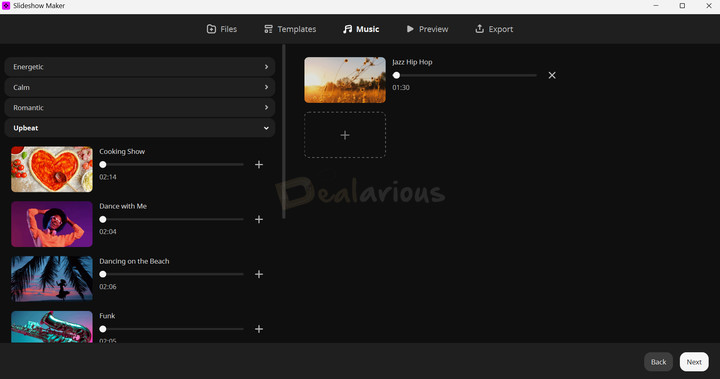
I used a built-in track for testing, and the library was decent. Not huge, but not empty either.
Preview and Quick Adjustment
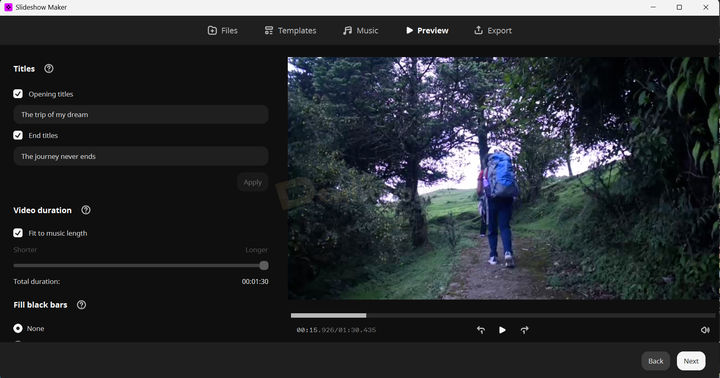
Preview processing depends on how heavy your folder is. In my case, it took under a minute to generate a preview for 30 clips, and that was faster than I expected.
Export behavior
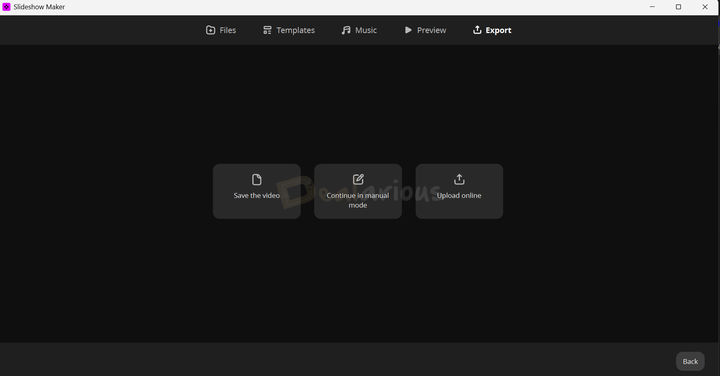
Wizard is meant to guide you, but the final export flow still happens through the main export panel. In practice, Wizard helps you build the project fast, and then you render/export from the full editor side.
Switching to Manual Mode for Fine-Tuning
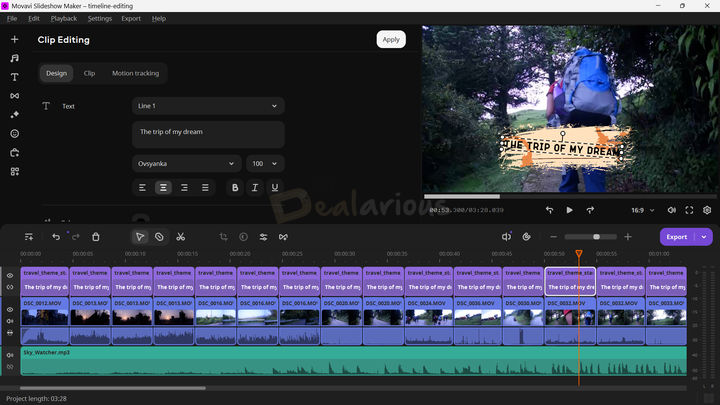
Manual mode is where it turns into a “real editor.” The timeline opened with neatly arranged clips, transitions, titles, and music. I copied title styles across clips to keep everything consistent, then tweaked each title text. No weird lag, and my laptop fan didn’t suddenly go crazy, which is always a nice sign.
Overall, the workflow felt smooth: Wizard for speed, Manual mode for control.
Exporting
Once your edits are done, click Export on the timeline. From there, you can export in common formats like MP4, MOV, and AVI, or use device presets (Android, iOS, TVs). There are also upload options for platforms like YouTube and TikTok.
Note: HEVC/H.265 support depends on having the Microsoft HEVC extension installed. So on a fresh Windows setup, HEVC files may not work out of the box.
Integration with Movavi Tools
Movavi Slideshow Maker works within the Movavi ecosystem, but it runs as a separate app. In Movavi Video Suite (and even in Video Editor), you may still see a Slideshow Maker option. When you click it, you typically get two choices, like Try and Buy, and the program installs separately.
Here’s the key detail: a Movavi Video Suite or Movavi Video Editor license won’t activate Slideshow Maker. If you already own Slideshow Maker, it opens activated. If you don’t, it launches as a trial.
Also, based on what Movavi support told us, Slideshow Maker access with the Suite/Editor license was temporarily removed starting with version 25.6 and hasn’t been brought back yet. If you want the Slideshow Maker, you have to purchase it separately.
For more context on how Movavi's ecosystem works, see our detailed reviews on Movavi Video Suite and Movavi Video Editor.
Performance
Here’s the system I tested on:
- Processor: AMD Ryzen 5 3500U
- RAM: 12GB
- Disk: 512GB SSD
- OS: Windows 11 Home
- Graphics: AMD Radeon Vega 8 (Integrated)
Idle State Resource Usage
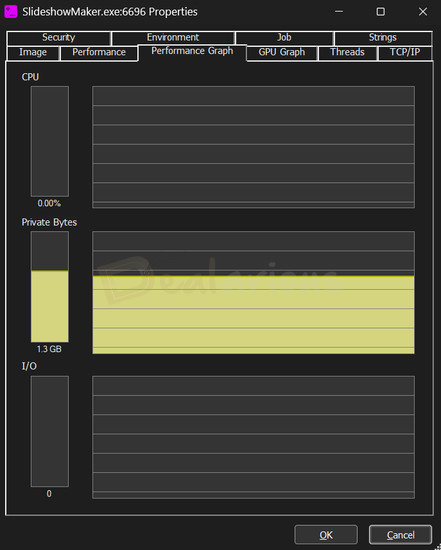
Idle CPU usage showed 0%, but RAM stayed around 1.3GB. That’s not tiny, but it stayed stable.
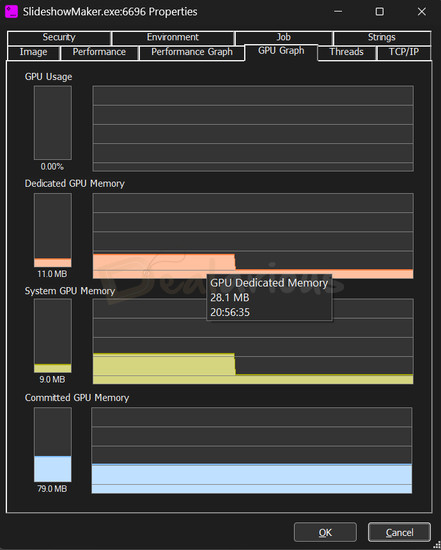
GPU memory hovered, then settled around 11MB and stayed there.
During Exporting
Export Settings
- Video Length: 3 minutes 28 seconds
- Format: MP4
- Quality: High
- Resolution: 1920x1080
- Frame Rate: 29.97 FPS
- Size: 888MB
Export took about 10 minutes, and performance stayed steady.
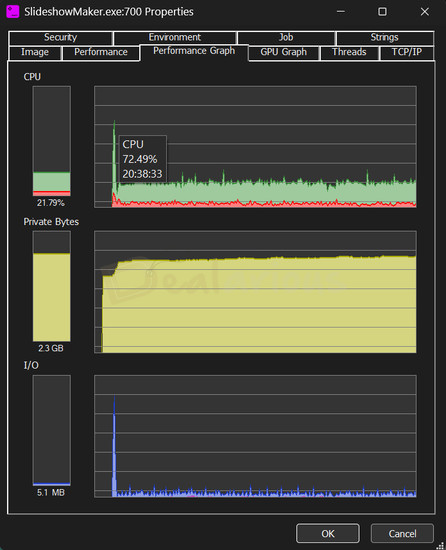
CPU peaked around 72% at the start, then floated between roughly 20% and 32%. RAM stayed around 2.3 GB during export.
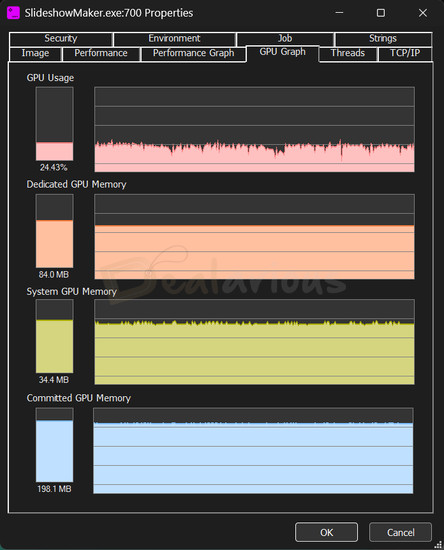
GPU memory stayed consistent at around 84 MB during export.
On my system, it didn’t lag during editing or export. If you’re on minimum specs (especially 4 GB RAM), expect slower previews once you stack lots of effects and transitions.
How good is the Software Support?
Movavi has helpful resources like FAQs, guides, and tutorials on its official support site. There’s also a bot that handles basic questions.
If you need a real person, you can create a support ticket and get help over email. Response time can take up to 3 days.
During my test period, I didn’t see a live chat option, so ticket-based support looked like the main route.
Movavi Slideshow Maker Review: Overall Experience
What I Liked
Wizard speed + Manual control
The best part is the workflow. Wizard mode gets you a draft fast, then Manual mode gives you enough control to polish it without getting overwhelmed.
Timeline felt clean
Even with multiple clips, titles, and transitions, the timeline stayed readable. I didn’t feel like I was fighting the UI.
What I Disliked
Templates are basic
Templates work, but the collection feels limited and a bit plain.
Export still runs through the full editor panel.
Wizard helps create the project quickly, but final export/rendering still happens through the main export panel workflow.
Movavi Slideshow Maker Alternatives
Icecream Slideshow Maker
Icecream Slideshow Maker is a good alternative if you mostly create photo slideshows and want something simple on Windows. Movavi is better if you mix videos and photos, and if you want stronger timeline editing.
Wondershare Filmora
Filmora has an “Instant Mode” for quick template edits, plus a bigger editing workspace for manual control. It’s a strong pick if you want more modern templates and a wider creative library. Movavi Slideshow Maker still wins for a clean, beginner-first workflow that doesn’t feel heavy. Learn more in this Wondershare Filmora review.
Adobe Premiere Pro
Premiere Pro is the most powerful option here, but it’s also the hardest to learn. You’ll do everything manually, and it’s not built for “quick slideshow in five steps” like Movavi is.
Quick Verdict
Movavi Slideshow Maker is best if you want a fast slideshow builder plus a real timeline for edits. Wizard mode gets you a draft quickly, and Manual mode is simple enough to fine-tune titles, pacing, and color without feeling overwhelming. Templates are basic, but for beginners and casual creators, it does the job without making things complicated.
FAQs
Is Movavi Slideshow Maker good for beginners?
Yes. The interface is simple, and Wizard mode walks you through the process step by step.
Can I edit my Movavi Slideshow Maker project in Movavi Video Editor?
Yes. Save the project file, then open it in Movavi Video Editor for further edits.
Is Movavi Slideshow Maker free?
No, but there’s a trial version you can use to test the workflow before buying.
Does Movavi Slideshow Maker have AI features?
Not in the way Movavi Video Editor markets AI tools. If you want AI-focused editing tools, Movavi Video Editor is the better option.
Does Movavi Slideshow Maker offer templates or themes for quick projects?
Yes. The Slideshow Wizard includes template-based styles you can apply quickly.
Can I export my slideshow in HD or 4K quality?
Yes, 4K export is supported (hardware and project settings can affect how fast it renders).
Can I add my own music or use built-in tracks?
Yes. You can import your own music or pick from the built-in library.
Is Slideshow Maker included with Movavi Video Suite or Movavi Video Editor?
You may see an option to launch it from Suite or Editor, but it installs and runs as a separate app. It needs its own Slideshow Maker license to activate.
Does the software support both photos and video clips in the same project?
Yes. You can combine photos and video clips in the same slideshow, and that’s how most people will use it anyway. If you want to double-check specific formats before importing, refer to Movavi’s supported formats page.
Conclusion
Movavi Slideshow Maker is for people who want a simple workflow. Pick files, get a slideshow draft fast, then tweak it in Manual mode. I liked that it didn’t feel overwhelming even when the timeline got busy. The template selection is still the weak spot. More variety there would make a big difference.

She reviews software at Dealarious, mostly recovery and productivity tools, which she tries out herself. Her goal is to keep things simple so readers don’t waste hours figuring out what works. Over the years, she has tested dozens of apps and learned that small details often make the biggest difference.
When she isn’t testing programs, you’ll usually find her hiking in the mountains or enjoying the rain. She believes good tech should quietly make life easier, not more complicated.