When you find your desired content, such as movies, music videos, or other media online, it isn't always possible to obtain it in a convenient file format. Since different devices have different formats, you need a solution to convert files into other formats. For instance, you may want to convert a full HD MKV movie to MP4 format to play on your PlayStation, Xbox, or Phone. To do that, you certainly need a video converter.
Wouldn't it be awesome if you could have additional capabilities along with the fast file conversion? Well, that is what Wondershare UniConverter (Formerly known as Wondershare Video Converter Ultimate) brings to the stage in the form of a multipurpose video converter suite. In this Wondershare UniConverter review, we will go through all the conversion features you can expect.
For those in a hurry, below is the Wondershare UniConverter review highlights:
Wondershare UniConverter Review: Quick Summary

Pros
- Any to any format converter
- Supports 8K for conversion
- Supports download in 4K/8K
- Uses advanced GPU acceleration
- 2D to 3D and VR conversion
- Batch Processing Capability
- AI Implementation
Cons
- Doesn't support downloading videos from websites that need a subscription to access their videos/soundtracks.
- Limited AI Credits
- Basic AI Thumbnail Maker
- Basic Smart Format Recommendation feature
overall
USD 29.99
Supported Platforms: Windows, OSX
Value for Money
5/5
Features
5/5
Speed
4.5/5
Support
4/5
Wondershare UniConverter Review: Features
As we mentioned, Wondershare UniConverter is an impressive product from Wondershare. Also, it is a multipurpose video conversion suite. The best part of this video converter is that you are not limited to just converting video formats. This tool can help you with a variety of needs, such as:
These additional features will enhance the entire media management cycle.
Wondershare UniConverter: Pricing Plans
Wondershare UniConverter 17 comes with yearly plans, 2-year plans, and a Perpetual license (One-Time Fee) for Individuals.
12 Months Plan: 49.99 USD
24 Months Plan: 69.99 USD
Perpetual License: 79.99 USD
Users with a Perpetual license will get access to all the advanced features, including free updates. However, major version updates are not included under this licensing plan. It is generally priced at USD 79.99. However, using our Wondershare UniConverter coupon, you can get better discounts. The yearly plan includes all free updates as well as major upgrades.
Getting Started with UniConverter
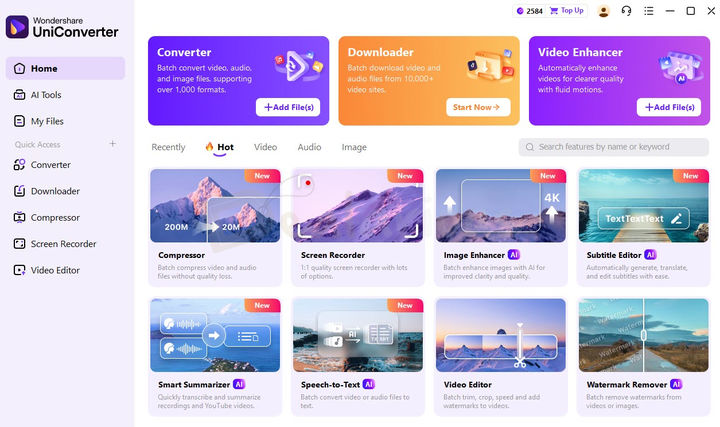
Whether you purchase the full version or try out the free trial, the installation process remains the same. You have to download the setup file from Wondershare's official site. However, an active internet connection is essential, as the setup process downloads files.
In a few seconds, you will have the fully-fledged new interface of Wondershare UniConverter. The new interface is simple to understand, so you do not have to spend much time learning it or going through hard manuals.
Functional Modules
Functionality is of first importance when choosing a video converter. In this respect, the solution is quite reliable. The latest Wondershare UniConverter version is categorized into these sections for specific tasks.
Video
Besides offering standout conversion capabilities, UniConverter is known for its great collection of productivity-boosting tools. Among the plethora of video tools that UniConverter offers, a few deserve special mention in this review.
Video Converter
The first and foremost section of this Wondershare UniConverter review is about video conversion. Here, you control more than 1000 media file formats, and file conversion is done between these formats. To proceed, select Converter on the app's Home screen.
There are these options available for source selection.
- You can add Video, Audio, Image, Folder
- Add DVD (Load DVD Folder, IFO Files, ISO Files)
- Add from Device
Once the file (or the DVD) is added, you can click its Convert button to begin. Wondershare UniConverter practically supports any to any video conversion. Hence, you do not have to worry about old or new media formats that you might be having. You can easily change the target file format with a single click.
Want to digitize your DVD collection? Please read our article on How to Convert DVD to MP4 with Wondershare UniConverter.

Added benefits:
If you have a lot of videos to convert, you can do it quickly. Just place all the videos in one folder and point Wondershare to it. UniConverter will automatically generate the list of all videos for batch conversion.
However, if you are unsure which format to convert your videos to, you can use the new 'Help Me Select' option. It suggests three options: HEVC MP4 (for a smaller size and better quality), MP4 (for compatibility), and HEVC MKV (for cinema-quality).

During my test, the feature was quite basic. It suggested the same formats for almost any type of video I added to the Converter. Upon contacting the support, they replied:
"The general recommendation rule is to suggest a corresponding conversion format based on the video format. However, it is also possible for different videos to be recommended to the same conversion format."
Also, video editors can export MP4 and WEBM files with transparent backgrounds (Alpha Channel). This is a big update for video editors. No matter what format the user's source file is, as long as it has a transparent channel and you select WEBM or MP4 when converting, the output file will retain the transparent channel.
Additionally, one standout aspect that I truly appreciate about UniConverter is that, with every update, they have consistently enhanced their overall performance, and the latest update is no exception. During my Wondershare UniConverter Review, I thoroughly enjoyed its flexibility of conversion along with its ultra-fast conversion speed, which I have mentioned below.
Conversion Settings
Video conversion uses advanced hardware acceleration to speed up the process. Hence, if you use a dedicated graphics card, you should check and enable the GPU Acceleration (Intel, AMD, and NVIDIA) option. With their multi-threaded GPU acceleration technology, you can batch convert video files (4K, 8K, and other HD videos) faster.
If you are bulk converting and prefer conversion when you are not using your PC, increase the maximum conversion tasks. This option controls the number of simultaneous video conversions that can be processed. The higher the number, the higher the load on your system resources. Keeping the task number high while actively using your system will impact performance.
Audio Converter
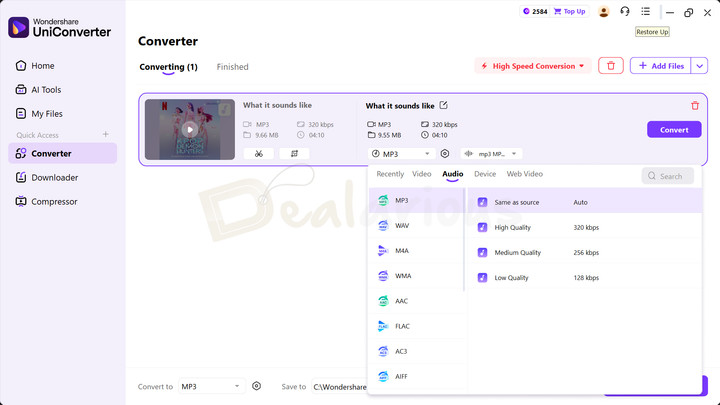
Audio Converter lets you convert the audio files into the desired format. Click on Add File/Add Folder to select the audio file. After adding the required audio file, you can choose from the available audio formats and click the Convert button to begin. You can convert Audio to Audio or Video to Audio.
For batch conversions, click Convert All at the bottom-right corner. You can find the converted audio in the Finished tab at the top corner.
Downloader
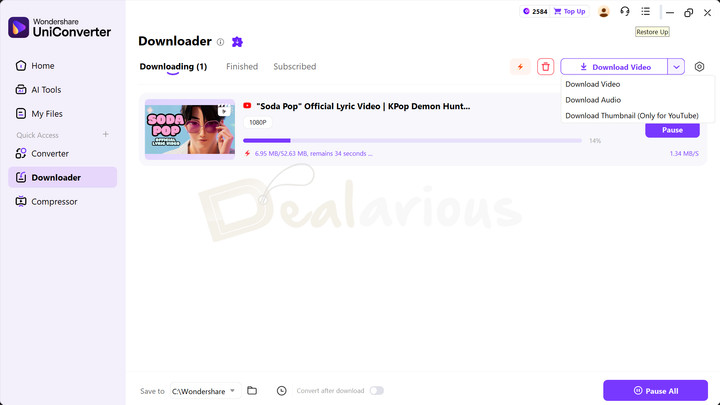
This section is perhaps the most useful one. By providing the URL of the online streaming media, you can download video, audio, or a YouTube thumbnail. UniConverter 17 also includes a Chrome extension. It is a helpful addition, allowing you to download YouTube videos as you watch them without having to manually copy and paste the link. The latest update also supports downloading 4K and 8K videos.
Additionally, people concerned about privacy will appreciate the latest version's Private Space feature. Once your videos are downloaded, you can move them to Private Space and password-protect the files. Another interesting inclusion is the Subscribed section. It automatically downloads new videos from the channels you are subscribed to. All you need to do is add the link of the channel or playlist, and UniConverter will detect new videos according to your set detection frequency (daily or weekly). There's also a convenient schedule option letting you place a massive list of downloaded links and leave the download to happen at night.
Another star feature, in my opinion, is the auto-convert option. You can either save the streaming video as it is or convert it before saving it. Wondershare UniConverter also has options for converting videos to MP3 and recording screen video. The downloading speed for streaming videos is good. If you download videos at system idle time, you should enable 'High Speed Download ' to provide powerful priority for the downloads.
Download Settings
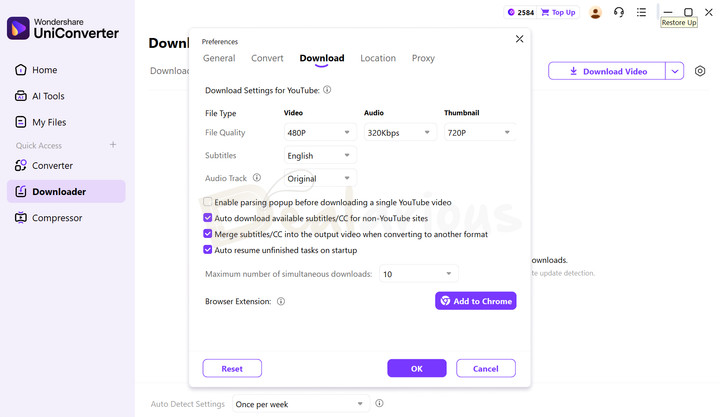
Depending on your connection speed, you can set the number of simultaneous downloads that are allowed. Keep this number low if you usually browse along with the download. In this section, you will find some YouTube-specific settings. You can also auto-merge the subtitles to the video output. If you do not intend to merge the captions in the video, disable the option. You can get the file subtitle separately in the downloaded folder along with the video.
Video Compressor
Video Compressor lets you compress video files. Add or drag the required files for compression. The added video will appear with a thumbnail and details. The module includes three compression modes: Prioritize Quality, Prioritize Size, and AI Compression. You can move the slider to adjust your file size and quality.
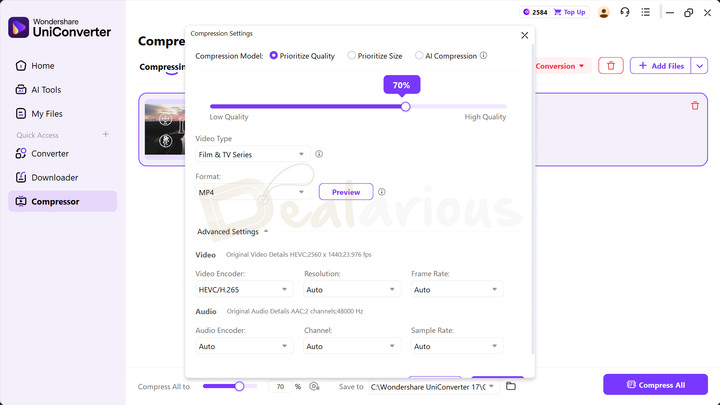
Additionally, if you select Prioritize Quality or Prioritize Size, you can also adjust other parameters, such as Frame Rate, Resolution, and Video/Audio Encoder, in the Advanced Settings. Furthermore, UniConverter's support for the AV1 codec helps you reduce file size by up upto 90% while maintaining high visual quality.
AI Video Enhancer
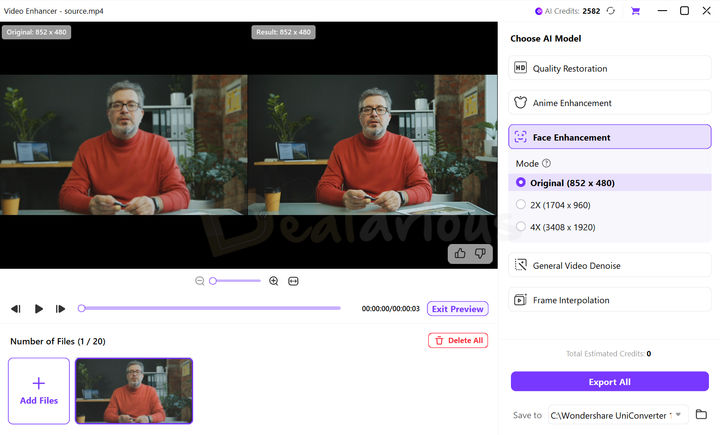
This module offers 5 different sets of AI tools to quickly enhance your videos.
- Quality Restoration: It helps enhance old or low-resolution video footage by repairing visual artifacts, correcting colors, and restoring overall clarity. It did a good job in enhancing a low-quality video on my end. While it did not make the video entirely clear, it was an improvement over before.
- Anime Enhancement: Enhances anime videos by sharpening lines, boosting colors, and keeping the original style. It offers three modes: Original, 2X, and 4X. For my test, I went ahead with the Original mode. The result turned out to be over-smoothed, especially the character lines. The tool likely missed some details.
- Face Enhancement: Similar to Anime Enhancement, this module also offers three modes: Original, 2X, and 4X. It helps improve the clarity of the subject's face in a video by effectively restoring blurred faces, refining facial features, and delivering sharper, more defined results.
- General Video Denoise: It helps reduce visual noise present in your footage, making it look clearer. Useful for videos captured in low light. During my test, this module took around 24 minutes to reduce noise from a 10-second clip recorded in low light. While the final result had less visual noise, the clarity looked slightly smoothened rather than crisp.
- Frame Interpolation: It efficiently converts a low-frame-rate video into a high-frame-rate video, up to 4 times the original frame rate. However, for optimal performance, I'd recommend using the 2X settings.
Note: The higher the resolution and video length, the more time the program takes to complete each process.
Video Editor
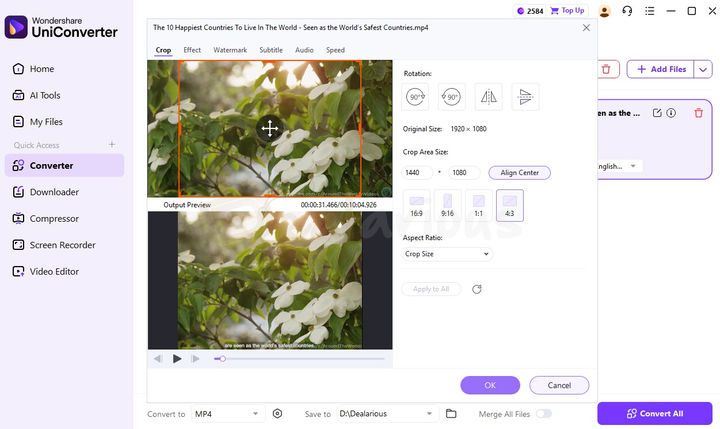
A superb feature I found is the Video Editor. It allows you to edit videos, including cropping, adding subtitles, effects, audio layers, and watermarking. You can also trim your videos, delete unwanted sections, or split a long video into multiple clips. You can tweak your video appearance by adjusting brightness, applying LUTs, modifying contrast, saturation, and adjusting white balance. Choose from among the 50+ filters UniConverter provides and change the videos' speed.
The latest update includes another handy tool called Loudness Normalization. Enabling this tool helps you maintain consistent audio levels throughout the video.
After completing all the edits, you'll find the edited video under the Finished tab.
Screen Recorder
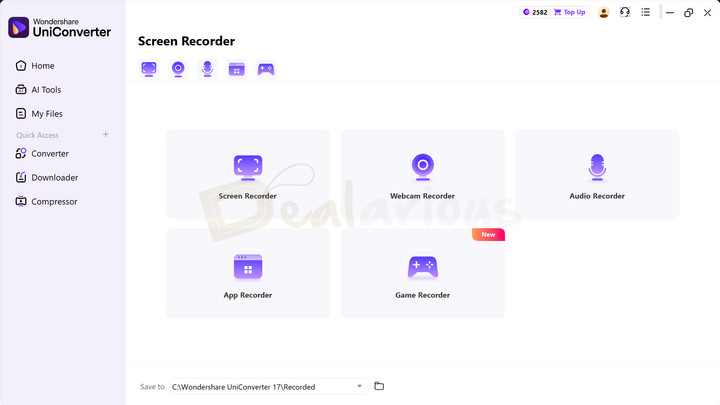
Wondershare Screen Recorder is the ultimate fail-safe measure for failed streaming video downloads. You can pull up the screen recorder and record the stream in full HD with Audio. Apart from recording streaming videos, you can do a lot more with the recorder. You can use the tool as a Webcam recorder, Audio Recorder, or record a specific app window or game.
The screen recorder can record the mouse cursor, system sound, and microphone audio. Hence, you can also create demonstration videos for your presentation and present them in the format of your choice. Additionally, you can experiment with various recording settings, such as adjusting the video/audio bitrates, frame rate, quality, format, and channel, or enabling Noise reduction for clearer audio.
Before you start the recording, you can add logos or mosaics. It is only applicable when recording your screen. However, you won't be able to view the logos or mosaic during the recording session. It's visible only after the recording is complete.
The latest update also lets you record the screen in 4K. For gamers, Uniconverter 17 supports upto 120 FPS recording with a microphone and audio synchronization. Helpful for recording your gaming content. After recording, you can edit the saved clip or generate a transcript, improve clarity, convert or compress it, among other options.
DVD Burner
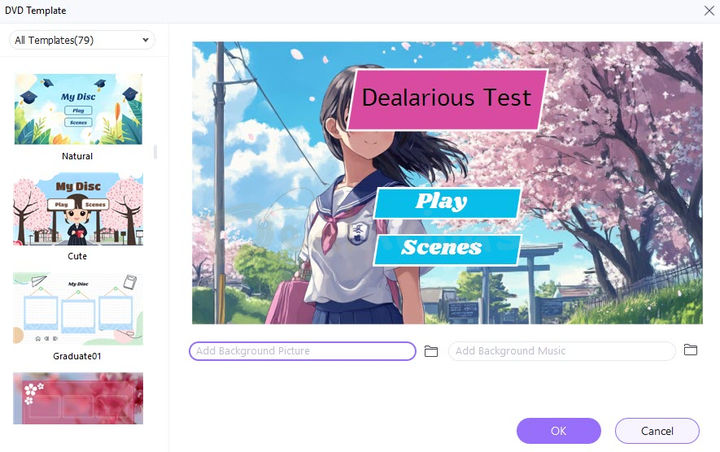
As the name suggests, this section makes creating DVDs easier. You can add as many files as you wish to the DVD and choose settings such as Quality, Aspect Ratio, and TV Standard. Wondershare UniConverter also lets you select from a range of DVD templates. You can customize the menu title and change the button text. Before burning, you can also trim, edit, or add subtitles to the video clip from a local drive.
Altogether, it's enough for DVD Authoring. If you have multiple videos added to the burn list, you can combine them to make a single video. The latest update also includes DVD and Blu-ray Burning Options.
Merger
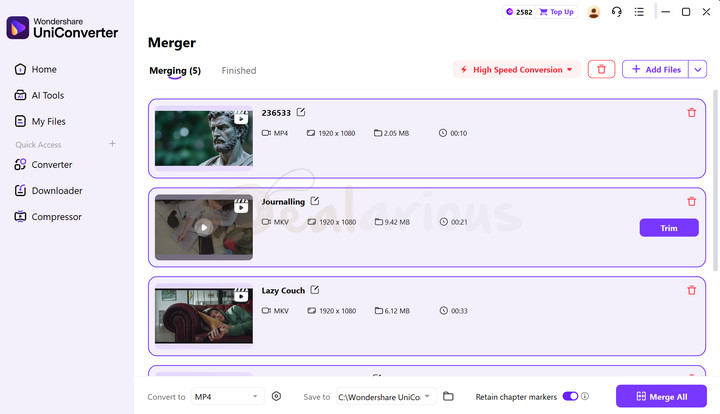
Wondershare UniConverter comes with an in-built Merge option. It allows you to merge two or more video clips into one. Select the video clips you want to merge. You can also trim individual videos before merging them. Choose the desired output format and resolution for the merged clip. Please note that the High-Speed Conversion should be enabled. Select the folder in the File Location field and click Start All to merge them into a single video.
Note: If enabled, the "Retain Chapter Markers" option retains chapters during merging. However, this process replaces old markers with new ones named after the merged files. It works only for MP4 files.
Subtitle Editor
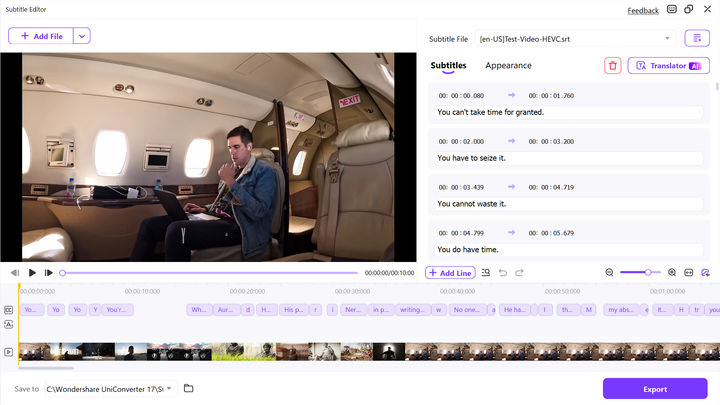
Subtitle Editor is one of Wondershare UniConverter's handiest features. In the latest update, UniConverter has enhanced its subtitle generation capabilities by incorporating AI into the module. The feature now allows for 4 different ways to add subtitles to your video.
Auto-Subtitles Generator (AI)
This tool utilizes AI to create automatic subtitles for you. Furthermore, it can translate your subtitles into 130+ different languages. UniConverter automatically detects the source language and allows you to choose the maximum number of characters per line to be displayed in the video for improved readability. You can also enable AI Subtitle reflow to preserve meaning and readability.
During my review, the subtitle generation process took around 4 minutes to complete for a 10-minute video file. Although the generated subtitles are not 100% accurate most of the time, you can successfully adjust them according to the video's framing and stylize them just the way you would like them to be.
Import Subtitle File
This tool allows you to import subtitles from your local drive.
Text to Subtitles
The next inclusion is the Text to Subtitles tool, which allows you to import the entire subtitle in one place. UniConverter will automatically adjust the subtitles frame by frame, allowing you to make adjustments as needed afterward.
Manual Subtitles
If you want to avoid the automation process, you can always use the Manual Subtitles tool for precise subtitle editing. However, to achieve a streamlined workflow, I recommend using the Auto Subtitles Generator feature.
Another integration that I appreciate about UniConverter 17 is the flexibility during export. You can rename the file, choose from three export types (MP4, SRT, or Project), and decide whether to embed subtitles or save them separately. It made the process more convenient.
VR Converter
With this tool, you can convert 2D and 3D videos to be compatible with your VR set. Wondershare offers 3 VR presets for conversion. You can convert videos for HTC Vive, Oculus Rift, and Samsung Gear VR.
Smart Summarizer

It is another useful and productive addition introduced in UniConverter 17. This tool lets you add a video/audio file from your local drive or paste a YouTube link to automatically generate an editable transcript and AI Summary.
Before transcribing, you can choose to translate the summary into different languages and select a Summary Preset (e.g., General Summary, Study Notes, and Meeting Minutes). It helps make the summarization more precise.
In my test, I added an 11-minute YouTube video link, and it took about 3 minutes to generate a summary and transcription. The generated summary had an overview, key points, and insight, along with the video and the speaker's transcript.
UniConverter also lets you edit the summarized content by adding heading tags, bold or italic text, inserting links, tables, and more. You can either copy the whole summary or export it. The export options include a Transcript (with speaker names and timecodes) in .txt format and a summary in Markdown format.
Overall, it is a handy addition that can enhance your workflow.
Audio
Here are some of UniConverter's audio tools that will help you to increase your productivity.
Noise Remover (AI)
UniConverter's AI Noise Remover tool works exceptionally well for removing background noise from your video and audio files. It effectively removes unnecessary background sounds and enhances the clarity of your voice. This feature is especially handy for people who enjoy vlogging and recording audio in noisy environments. Depending on the length of your video and audio, the tool will process them in just a few moments.
AI Vocal Remover
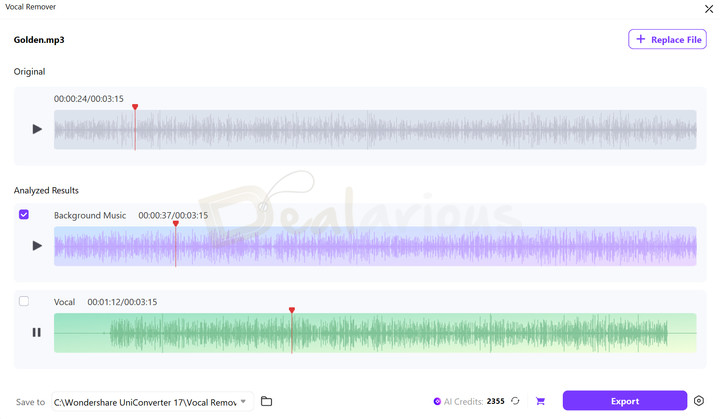
With the help of AI, UniConverter efficiently analyzes your audio track and separates it into two sections: Background music and vocals. It performed impressively well in distinguishing and separating both audio elements. Both the elements sounded clear, and I did not encounter any noticeable overlapping.
Once you are satisfied with the result, you can selectively export only the background, vocal, or both elements by checking the boxes beside each track.
Text to Speech / Speech to Speech (AI)
My experience with this feature was really amusing. The Text-to-Speech feature in UniConverter allows you to add your voice sample. Then the program replicates your tone to convert the pasted text into natural-sounding speech. What makes the text-to-speech feature a powerful tool is its incorporation of subtle elements, such as quick pauses. As a result, the narrated audio sounds more realistic.
Similarly, with the Speech-to-Speech tool, you can add any audio file from the local drive and select a sample clone voice. The program will transform the original speech to match the selected voice.
CD Burner
The CD Burner tool lets you burn Audio files to CD without losing quality. It supports popular audio formats like MP3, WAV, M4A, etc. Select audio files; you can also add multiple files here. You will see the Name, Length, Size, and Output Size of the audio files here. When you have finished selecting the files to burn, please insert a blank CD into your system and select the Burner from the upper-right area. You will receive a "Burning Completed" message when the process is complete.
CD Converter
CD Converter tool lets you convert your CDs to audio formats like MP3, WAV, M4A, etc. After clicking on CD Converter from the Toolbox module, you are prompted to insert a CD. Choose the audio files you wish to convert. You can even preview it by clicking the Play icon. Choose the desired output format. The Settings icon has parameters like Channel, Sample Rate, and Bitrate for further customization.
Transfer
You can quickly transfer converted audio/video to your Android devices or hard drive. To move media from Wondershare UniConverter, you must first enable developer options on your phone and then enable USB debugging. There is no need to worry if you are unsure how to do it.
Wondershare gives step-by-step instructions on the Transfer window. You can follow the same and perform the task.
Once done, connect your phone to the system via a USB cable. The program will automatically identify your phone model, which will be showcased in the top right corner of the window. Your phone will also display a connection confirmation as the connection is established.
Image
Below, I have mentioned a few tools that I thoroughly enjoyed using during my Wondershare UniConverter review.
Image Converter
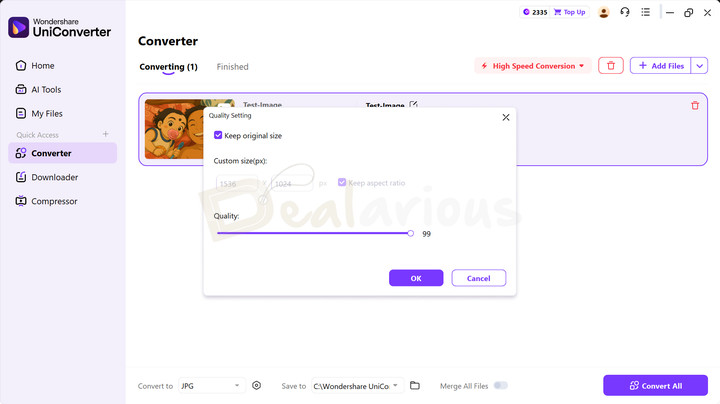
Convert images into popular formats like JPG, PNG, BMP, TIFF, WEBP, EPS, PSD, SVG, etc. Furthermore, the Image Converter tool allows for editing before you proceed with your conversion task. You can crop the image, rotate it, add effects, and add a text or an image-type watermark. You can also change the height and width of the images if required.
AI Image Enhancer
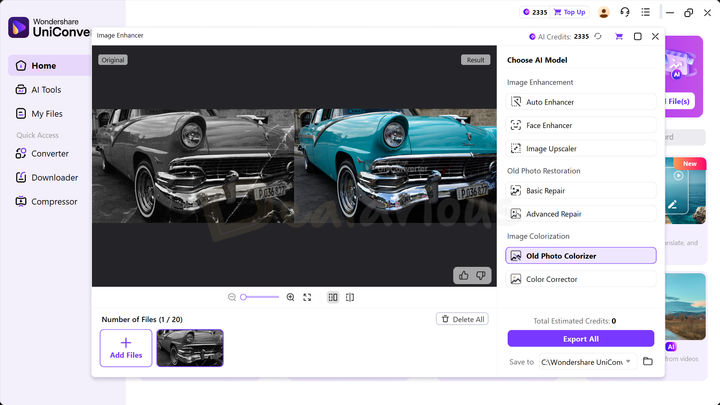
The AI Image Enhancer module offers 7 different tools to improve your image quality for specific tasks. Such as:
- Using the Auto Enhancer tool, you can increase the light of a poorly lit image for more clarity.
- The Face Enhancer tool enables you to refine facial details for a polished appearance.
- The Image Upscaler tool enables you to convert a low-resolution image to a high-resolution one without compromising quality.
- The Old Photo Restoration model offers two repair options: Basic Repair and Advanced Repair. Both options can remove scratches, stains, and discoloration issues and revive photos to their original appearance. However, the Advanced Repair option digs deeper and enhances overall image quality by refining its details.
- With the Color Corrector tool, you can easily enhance a dull-looking image to make it appear more vibrant and vivid.
- My personal favorite is the Old Photo Colorizer tool. It can effectively convert a black-and-white photo to a color photo.
AI Watermark Remover
The AI Watermark Remover feature in UniConverter allows you to remove watermarks from images and videos. To do so, import the video or image file into the module, choose a model between AI and Standard, and mark the watermarked areas.
While testing the feature, UniConverter efficiently removed a single embedded watermark from both the image and video files. However, the program can struggle to remove complicated watermarks. This is especially true if you are considering removing watermarks from stock image files.
AI Background Remover
UniConverter offers another useful tool. The Background Remover feature efficiently removes unwanted backgrounds from images with just a single click. Furthermore, the tool allows you to customize the image by adding backgrounds, resizing it, adjusting brightness, applying auto enhancement, and adding a Watermark, among other options. I really appreciated the improvement in the latest update compared to my previous experience with the tool.
AI Thumbnail Maker
To be honest, I am slightly disappointed with the effectiveness of the tool. Before diving into that, let me share how you can work with this feature. To start with,
- You will first need to navigate to the AI Thumbnail Maker feature.
- From there onwards, you can select a style from the given list.
- Select the aspect ratio from four different options ( 16:9, 9:16, 4:3, and 3:4), and
- Write a detailed prompt
- Hit Generate when satisfied.
Once the image files are generated, you can download them.
During my test, the program generated a basic AI image based on the provided prompt but failed to include any text on the thumbnail. I would highly appreciate it if Wondershare looked into the matter in the upcoming updates and allowed for more creativity and an option for customization to make this feature more efficient.
AI Tools
The AI Tools section shows all Uniconverter features sorted by their usage in a specific file. It includes additional tools like Video Stabilization, Add Watermark, Vocal Remover, AI Portrait, Auto Highlight, Scene Detection, Smart Trimmer, AI Script Generator, Auto Crop, and more.
AI Tools and Credits
The usage of AI tools varies between subscription plans. Perpetual license users are provided with 1000 bonus AI credits. Once the credits are exhausted, you will have to buy additional AI credits to continue using your preferred AI feature.
Note: You can use the AI features according to the AI Credits Consumption Rule.
The Game Of Formats
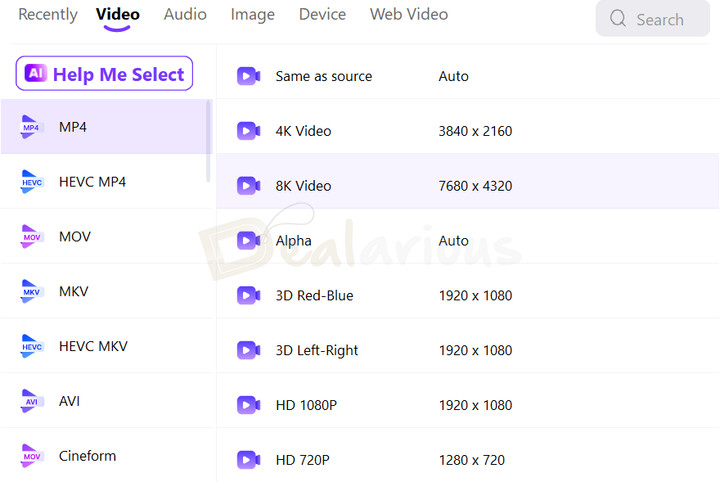
As we mentioned earlier, more than 1000 media formats are compatible with Wondershare UniConverter and can be useful for almost any purpose. Additionally, it also includes the new compression standard, known as High-Efficiency Video Codec (HEVC), also referred to as H.265. HEVC ensures the same quality video while reducing its size to a noticeable level. Advanced encoders like VP9, VP8, AV1, and CFHD are also included. So, there is no question about compatibility.
Our list of the Best HEVC Video Converters is a great resource for those who want to explore more HEVC conversion tools.
When I was testing, I was able to handle all the media formats I had in my mind. If you are confused about formats, you can select the device, and Uniconverter will set the format automatically. Furthermore, for more convenience, you can also customize your preferred video output settings.
Conversion Speed

Wondershare claims that Wondershare UniConverter can offer a 130x faster conversion for media files you want to convert to another format. The conversion speed is impressive when GPU acceleration is used.
For this Wondershare UniConverter review, I converted a 2K, HEVC video file into an HD 1080P video.
My system specifications are:
Processor - AMD Ryzen 5 3500U, 2100 Mhz, 4 Core(s), 8 Logical Processor(s)
RAM - 12.0 GB
Disk - 512 GB SSD
OS - Windows 11 Home Single Language
Graphics - AMD Radeon Vega 8 (Integrated)
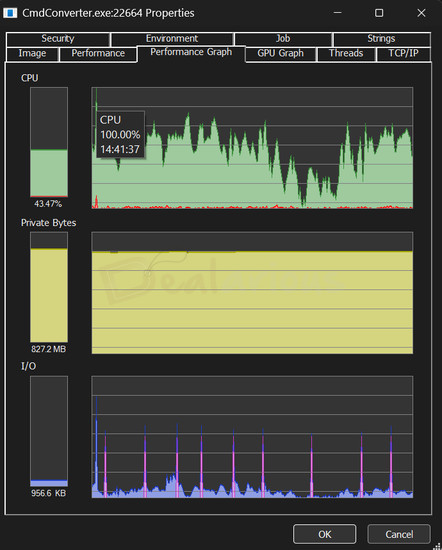
It took 19 minutes for the conversion to complete. After initiating the conversion, the CPU load spiked upto 100% and after a while, it maintained a consumption between 50-70%. The RAM usage remained constant at 827MB.
There was no GPU usage throughout the conversion, as my system doesn’t have a dedicated GPU.
Is Wondershare UniConverter safe?
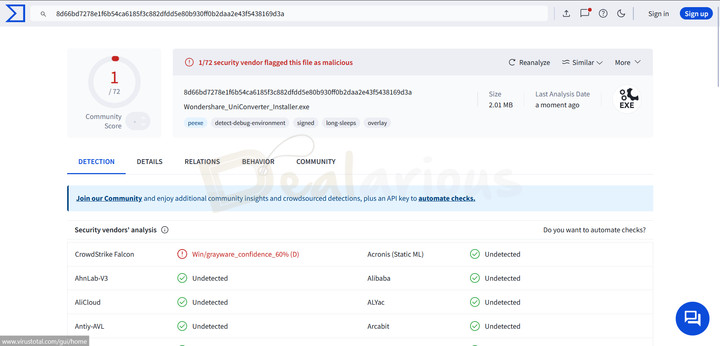
Yes, it is entirely safe. To test the safety of the installer file, I downloaded the full offline installer. Then, I checked with the Virus Total website. Out of the 72 tests with different antivirus engines, one vendor detected the file as malicious.
Note: I contacted the support team inquiring about the detected threat, and they said it was a false alarm.
What I Liked and Disliked
I enjoyed working with UniConverter. However, it certainly has some drawbacks, too, which didn't go unnoticed. Below, I have listed both the positive and negative aspects of UniConverter that I encountered during testing.
What I Liked
Batch Processing
UniConverter is a powerful program that efficiently boosts productivity, and it proved its capability by allowing me to not only batch convert and compress media files but also implement the same function in other features, such as AI Image Enhancer, AI Background Remover, Watermark Remover, Voice Changer, Noise Remover, etc.
This integration significantly enhanced my workflow by enabling me to apply the same effects to multiple videos and images with just a single click. A time saver indeed.
AI Implementation
Spoiler Alert! Once you start using UniConverter's AI functionalities, you won't want to stop. The AI features were easy to use and provided quite satisfactory results. The AI tools can be quite addictive, as they cut down the effort required for tedious tasks and function remarkably well.
Advanced GPU Acceleration
Are you tired of slow processing speed? UniConverter's Ultra-fast Speed conversion changed my perspective. Wondershare claims that UniConverter can offer a 130x faster conversion speed. Once I enabled GPU acceleration, the conversion speed became seamless.
What I Disliked
Limited AI Credits
As I mentioned before, the AI feature is addictive. Hence, it is possible that using it too often will quickly exhaust the AI credits.
AI Thumbnail Maker Needs Improvement
The AI Thumbnail Maker feature didn't meet my expectations. The result was quite basic and far from what I had envisioned. Overall, the tool delivered a disappointing output in creating thumbnails.
Basic Smart Format Recommendation
I had high hopes with this tool, but faced disappointment. It suggested the same video formats regardless of the different inputs I added to the Converter. As a result, the tool felt quite basic.
Wondershare UniConverter Alternatives
For other reliable video converter options, consider Movavi Video Converter and AVS Video Converter. If pricing is a concern, you can use WonderFox HD Converter Pro as an alternative. For a better understanding of the features, read our WonderFox HD Video Converter Factory Pro review.
Frequently Asked Questions
Is Wondershare UniConverter free?
Wondershare UniConverter is a paid tool. Yes, they do have a free version, but with limited features. There is also a free trial with limitations in conversion, download, compression, editing, etc. To take advantage of the full features, you must purchase a license.
Is Wondershare UniConverter worth your money?
Now it's time to conclude all the points in this Wondershare UniConverter review. It is one of the most impressive video converters I have come across. If you are using it for the first time, the available options can be a bit overwhelming. However, as soon as you get used to it, you will be comfortable.
Wondershare UniConverter is a paid tool for video conversion. Various licenses are available for the product, with various pricing ranges. However, if you convert videos regularly, you should get a Lifetime license. This license allows you to install the converter on one PC. Given the features this converter offers, the price is fair.
To sum up, Wondershare UniConverter can be used as a multifunctional tool, not just a video converter. By the way, have you already used it? If so, do let me know your views in the comments section below.
Changelog

Sourojit is the Executive Editor at Dealarious and has been writing reviews, tips, and how-tos since 2008. A Computer Science Engineer by degree, he enjoys turning complex tech into simple, useful insights.
Outside of work, he’s a DIY enthusiast who enjoys gardening, long drives, and building custom PCs, often experimenting with water-cooled setups. Over the years, he has played the roles of reviewer, storyteller, experimenter, and teacher.
If there was a minus 10 this would go to wondershare; what a facile name for a fraudulent company that is anything but a wonder. I have wasted 2 months after paying for A LIfetime subscription to get onto their site without any attempt by their-so-called customer service to sort this out satisfactorily. I am told I have paid my subscription but my account is not accepted. Instead I am continually informed that I must pay again. They even have the audacity to suggest that I recommend them to other people. STAY AWAY FROM THIS OUTFIT AND SAVE YOUR MONEY AND TIME. They do not care for customers only for nefarious profit.
Why no media server module since Version 12?
This Uniconverter does not even let you stream movies from your PC to a PS4!!
Will this convert a 4gb file from mpg to mv4
I’m looking for software to clip small segments from DVD movies to my Mac to include in Powerpoint or Keynote presentations. Is Wondershare Video Converter the proper program, or are there others better?
I use iDealshare VideoGo to convert multiple video and audio files.
It helps to convert various formats like AVCHD, DAV, WTV, MPG, FLV, WEB, MPG, VOB, H.265 etc
Great review. I was confused between Movavi video converter and wondershare. Seems like this has more option and tools than any video converter. So, I guess this is what I wanted. Thanks!