In today's world, where data holds immense value, a single wrong click or a system glitch can cause your files to disappear.
It is where data recovery tools come into play, helping you restore files that often seem unrecoverable. EaseUS Data Recovery Wizard is one of the most talked-about options in this category. But is it actually worth the hype?
This EaseUS Data Recovery Wizard Pro review aims to find out how the tool performs in real-world scenarios and whether it's worth your consideration.
Quick Verdict
My journey with EaseUS Data Recovery Wizard Pro has been quite satisfactory. I tested the tool on multiple devices and in different data-loss scenarios, and it held up quite well. The scanning was fast, the interface is modern and intuitive, and the advanced features helped do more than recover files. Yes, it is not flawless and returned unusable files, especially with older or long-lost data. However, it did a good job of restoring recently deleted files and files from formatted drives to a usable format, while also retaining their original names.
Pros
- Modern, clean, and intuitive interface
- Straightforward recovery process
- Additional features beyond data recovery
- Retains original file and folder names for recently deleted files
- Helps fix lost partitions
- Fast scanning
- Light on system resources
Cons
- Inconsistent results with older recovered files
- The File Repair feature can be hit or miss
- Occasional glitches
- Using ChronoSnap can feel intimidating at first
overall
USD 104.97
Supported Platforms: Windows, OSX
Usability
4.5/5
Features
4.5/5
Recovery Rate
4/5
Scanning Speed
4/5
About EaseUS Data Recovery Wizard Pro
Before diving into the review, let's quickly unpack what this tool is all about.
Established in 2004, EaseUS is best known for developing reliable utilities and multimedia tools. EaseUS Data Recovery Wizard Pro is one of its flagship products. It not only helps you recover your files but also fixes lost partitions, repairs corrupted files, creates disk image, and more.
It supports 200+ file types and more than 1,000 file formats, so it covers common stuff like JPG, PSD, SVG, RAW, MP4, MP3, and ZIP, along with a long list of less common formats too.
It also works with all the usual storage devices, including HDDs, SSDs, USB drives, SD cards, and RAID setups. On top of that, it supports NAS and Linux recovery, which is useful when the missing files are not sitting on a regular Windows drive.
Tip: Recovery tools, even though handy, must be used carefully. If not, you might end up overwriting your data and making it unrecoverable. Therefore, you must always install and save recovered files on a separate drive and not the one you are trying to recover from. You can also educate yourself on the limitations of data recovery tools in order to use EaseUS Data Recovery Wizard Pro to its full potential.
System Requirements
Now, let's take a quick look at the system requirements to ensure the program runs smoothly on your system. EaseUS Data Recovery Wizard Pro supports both macOS and Windows devices. However, the system requirements below apply only to Windows.
OS: Windows XP and later
Disk Space: On my end, the program used about 600 MB of space after installation.
CPU: 500MHz processor or faster
RAM: At least 2 GB
Supported File Systems: FAT (FAT12, FAT16, and FAT32), exFAT, NTFS, NTFS5, EXT2/EXT3/EXT4, HFS+, and ReFS
I recommend reviewing EaseUS Data Recovery's System Requirements page for a detailed insight.
Full Disclosure: For this EaseUS Data Recovery Wizard Pro review, I was provided with a Professional Lifetime license from their support team. Everything you will read here is solely based on my personal experience, with no influence or edits.
EaseUS Data Recovery Wizard Pricing
EaseUS Data Recovery Wizard Pro comes with different pricing plans for individual users.
- Monthly Plan – USD 69.95
- Yearly Plan – USD 99.95
- Lifetime Upgrade – USD 149.95
All plans are valid for one PC only. If you move to a new computer later, the EaseUS support team can help transfer your license.
EaseUS also offers both a Free version and a Trial version. The Trial version lets you scan and preview recoverable files, but it does not include free recovery.
Use our EaseUS Data Recovery Wizard Pro coupon to get a discount on the monthly, yearly, or lifetime plan.
What is the difference between EaseUS Data Recovery Wizard Free and Pro?
Before making a purchase, it's always wise to do a little test run of any product. Fortunately, EaseUS Data Recovery Wizard offers a free version that lets you evaluate its capabilities, though it has some limitations.
The Free version allows up to 2GB of recovery on Windows, starting with 500MB and increasing to 2GB after sharing the software on social media. Once you reach that limit, you need to upgrade for unlimited recovery.
Some advanced features are still locked behind the paywall, including NAS data recovery, corrupted video repair, advanced photo repair, and crashed PC recovery with a bootable USB in WinPE. Still, the free version offers generous features, such as recovering files from multiple file systems and storage media, which I find sufficient for testing the program in most common data-loss scenarios.
In essence, the free version can give you a quick evaluation of the program's capabilities, unless you want the advanced tools.
EaseUS Data Recovery Review: Interface
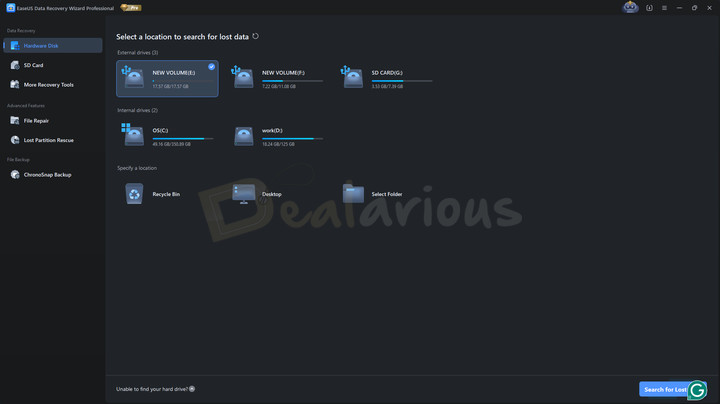
One thing I particularly like about EaseUS Data Recovery Wizard is its modern, clean, and intuitive interface. The basics are the same as any recovery tool: select the target location, scan, and recover.
Main Window
Upon launching the software for the first time, the main window displays all important recovery targets on the right, including drives, partitions, and connected external storage devices. For a quick scan, you can also choose specific scan locations such as Recycle Bin, Desktop, and Select Folder.
Left Panel
The left panel contains three categories with different feature options; clicking any of them opens the corresponding panel on the right.
1. Data Recovery
SD Card: Shows all connected external devices
More Recovery Tools: Includes Crashed PC Rescue, NAS and Linux Recovery, RAID Recovery, Cloud Recovery, and Image Recovery.
2. Advanced Features
File Repair: Lets you repair corrupted files, such as photos, videos, and documents.
Lost Partition Rescue: Helps detect and restore missing or deleted partitions, and recover files from them.
3. File Backup
ChronoSnap Backup: A relatively new feature that automatically creates real-time version backups of your files.
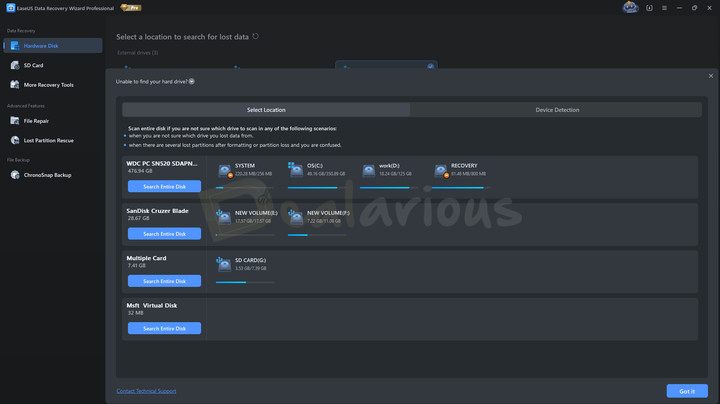
In case you can't find your target drive in the main window, you can also click on the 'Unable to find your hard drive?' option at the bottom and let the program detect unrecognized disks. However, if the disk has a physical issue or is unreadable, then it won't be able to detect it.
To set scanning in motion, all you need to do is select your target drive and click 'Search for Lost Data'.
In short, EaseUS keeps things organized and clearly labeled, so even beginners won't have trouble recovering files.
EaseUS Data Recovery Wizard Pro: Key Features Review
Scanning
EaseUS Data Recovery Wizard boasts a powerful scanning system with both quick and advanced scanning capabilities. However, these options are not displayed in a traditional layout.
When you select a drive or a specific location to scan, EaseUS Data Recovery Pro starts with a quick scan that targets recovering recently deleted files using directory information. Then it moves to advanced scanning, which dives deeper to hunt down older, missing, and complex files.
But here's the interesting part: EaseUS also includes a video repair option for supported files, so in some cases you can try fixing damaged videos during recovery too.
In my test, the scanning worked impressively fast, and successfully recovered both recent and older files from my test device.
Recover Data From Cloud Drive

EaseUS Data Recovery Pro does not limit itself to recovering files from regular storage devices; it also claims to support cloud recovery. EaseUS says cloud recovery works with major cloud services like Dropbox and OneDrive. This feature can connect directly to your cloud account and attempt to retrieve your lost files.
I tested this with Dropbox (online-only), and permanently deleted all the files I stored for this EaseUS Data Recovery Wizard review. Upon initiating a cloud scan, EaseUS returned no files. This is an expected behavior, since when you permanently delete files from a cloud service, they're gone from its servers as well.
In short, if you are using cloud storage solely through the browser without local sync, EaseUS Data Recovery Pro will not be able to find, let alone recover, those files.
The interesting part, though, is that it can retrieve files that are still in the cloud (trash and file version history), as well as those that were previously downloaded or synced to your device through the cloud drive app.
Create Disk Image
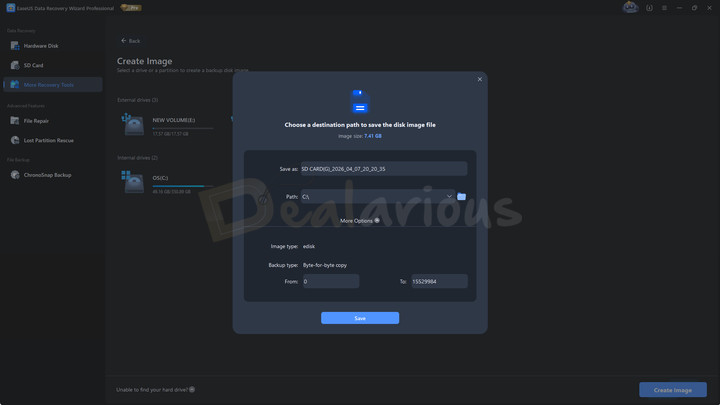
Another helpful feature is Image Recovery. But what is it actually?
For instance, think that you have a failing drive containing important documents. Now, EaseUS Data Recovery Wizard's Image Recovery feature helps you create an exact sector-by-sector virtual replica of the same drive to another healthy drive. This way, you can still access or recover your valuable data even if the drive completely dies.
The feature helped me create a virtual replica of my 8GB SD card on a 32GB USB drive, with all files accessible. I also ran a scan on the same disk image to find and recover lost and missing files. However, I had to reformat the USB drive from FAT32 to exFAT for the image creation process to succeed.
Tip: When creating a disk image larger than 4GB, make sure your target drive is formatted as NTFS or exFAT. Using a FAT32 file system can cause the process to fail midway, as it cannot write a single file beyond 4 GB.
File Repair
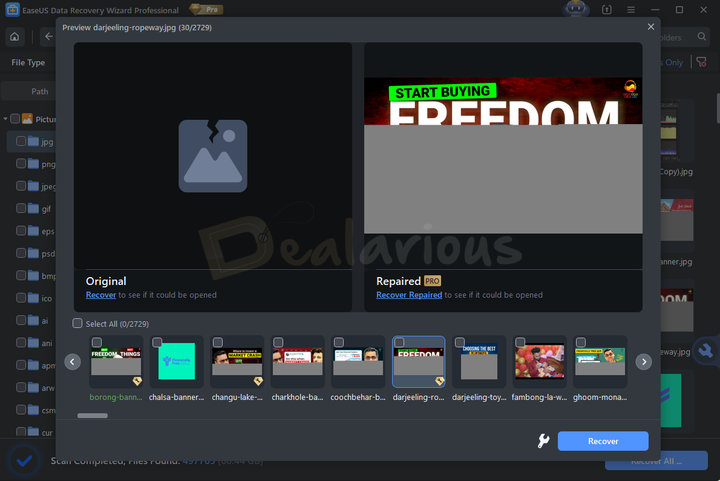
Imagine you get yourself a data recovery tool to get your lost file back; luckily, you find the file only to discover it is corrupted.
Frustrating, isn't it!
Now, EaseUS Data Recovery Wizard Pro claims it can help you in such a situation with its File Repair feature, but my experience suggests otherwise.
I tried this feature on an image file, and it successfully reconstructed half of its content.
You see, EaseUS Data Recovery Wizard Pro does not magically rebuild files from scratch; it can only work with whatever bits of the file are left on your device before they are overwritten. So yes, it can indeed repair your files, but don't expect perfection every time.
Lost Partition Rescue
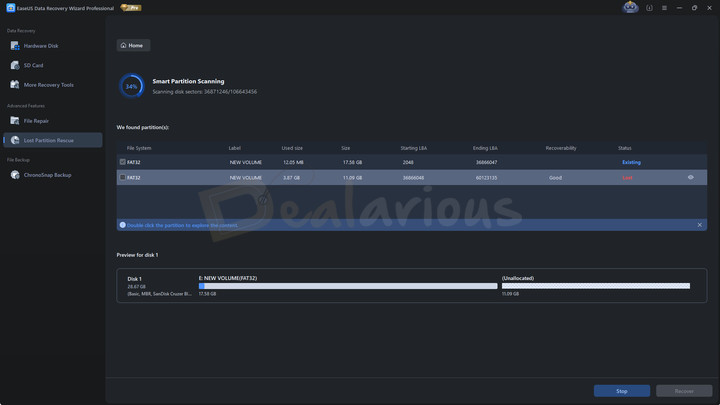
A missing or corrupted partition is the worst kind of nightmare! One moment it's there, and the next it's either gone or inaccessible. Now, you fear losing all your files for good.
Well! Here's the good news: just because a partition disappears from File Explorer, it doesn't necessarily mean it's not there. Sometimes File Explorer can't access a partition for many reasons (e.g., a virus attack, File System corruption, or accidental deletion), but the data on it remains accessible.
It is where EaseUS Data Recovery Wizard Pro steps in! It can scan beyond what your system sees, find the lost partition for you, and help you recover files from there.
On my end, the feature did a more-than-satisfactory job. It not only detected a deleted partition on my test drive but also repaired it while keeping the existing files intact. It is a pretty nice advantage to have for a recovery tool.
However, keep in mind that the program cannot repair severely corrupted or damaged drives; in such cases, file recovery is the best option.
Tip: Yes, EaseUS Data Recovery tool is helpful, but I suggest using a dedicated tool for critical partition-related issues, such as MiniTool Partition Wizard Pro. You can also read this detailed MiniTool Partition Wizard Pro review for a full breakdown of its capabilities.
Crashed PC Rescue (Bootable USB)
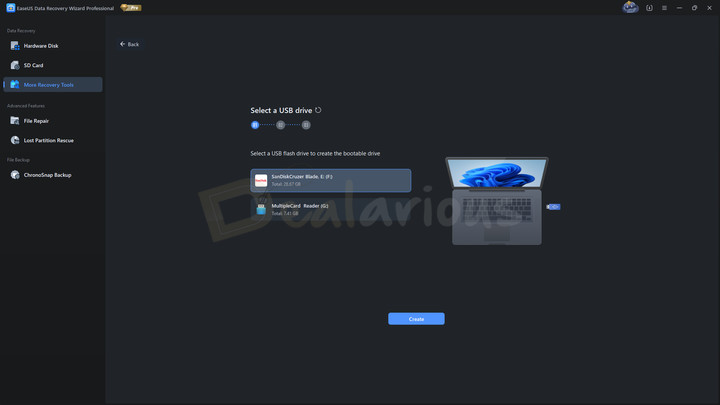
Your computer holds all your important files, right? But what if one day it just refuses to boot up! Black Screen, restart loops, freezing, everything except taking you to Windows. That's where the Crashed PC Rescue feature comes in handy. It lets you create a bootable USB drive and run EaseUS Data Recovery Wizard Pro in a pre-boot environment, so you can recover your data before it's gone.
The process is quite simple, involving only 3 steps:
- Connect a working USB drive to the device you are using.
- Launch EaseUS Data Recovery Wizard Pro, navigate to Crashed PC Rescue, and hit Start.
- In the following window, select your USB drive and hit Create.
On my end, it took around 20 minutes to create a functional bootable device.
Note: Just make sure to use an empty USB drive, as the process will completely format it. Or if you have anything important there, back it up first.
SD Card Recovery
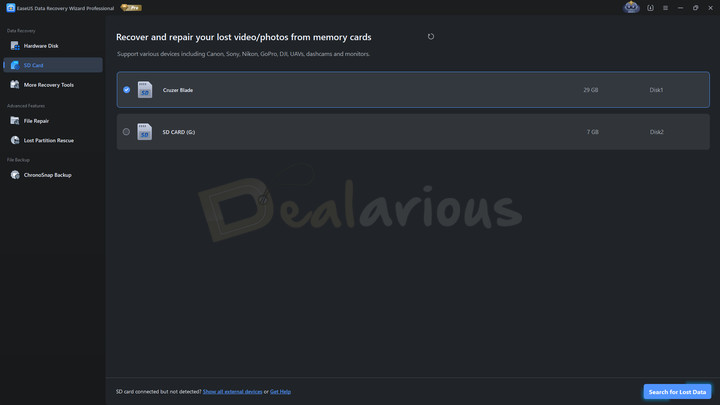
To check EaseUS Data Recovery Pro's capability to recover files from an SD Card, I loaded my 8GB card with test files and then formatted it. As expected, the scan completed pretty fast and pulled up around 15.74GB files (including both recent and old deleted files) within 4 minutes. I went ahead with full recovery, and it was completed in around an hour without any issues.
Save Scan Session
Another feature that I found handy is Save Scan Session. It lets you save your scan results in .rsf format, eliminating the hassle of rerunning the same scan. You can load the saved file and continue recovering files.
However, during my test, I found the feature in an unusual spot. It is a small icon in the top navbar, next to the hamburger menu. It is not something one notices right away, and there's a good chance that one might completely overlook it. Lucky for me, I was specifically looking for this tool and found it after looking through their official resources. Otherwise, I would have missed it.
In short, it's a great feature, but it definitely needs more visibility.
ChronoSnap
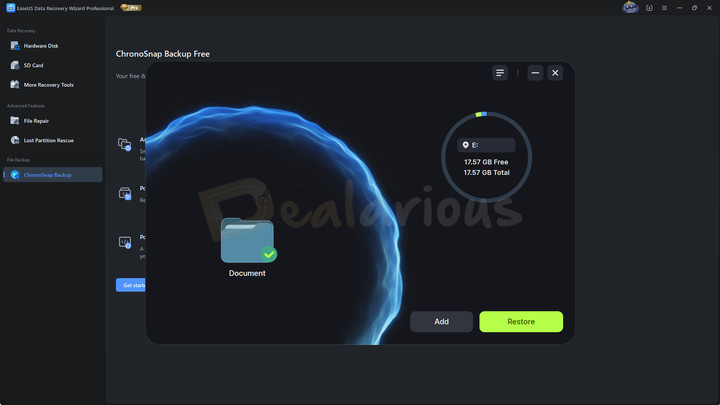
It is a backup tool; once you add a folder and choose a save location, the feature automatically starts taking snapshots of file versions in real time. This way, you don't risk losing your recent changes or the older versions of the files.
However, understanding how the feature works was quite the work for me! As this is a new inclusion, the resources did not include any guides to help me understand how the feature works. Hence, I had to resort to EaseUS's support assistant and figure the tool out from scratch.
In short, the idea of ChronoSnap is quite promising, but the execution can feel a little intimidating.
My Experience with EaseUS Data Recovery
In this EaseUS Data Recovery Wizard Pro review, there's a lot I want to unpack, but before that, let's take a quick look at how you can use the program effectively.
How to use EaseUS Data Recovery Wizard Pro?
Similar to any other program, setting it up comes first.
Download and Installation Process
In my experience, installing and setting up the program went smoothly.
- Download the executable file from EaseUS official website and run it to start the installation process.
- Once done, follow the instructions that pop up in the setup wizard, and the program will be installed quickly.
That's about it.
Launch the program
Once installed successfully, launch it and start recovering files.
Scanning
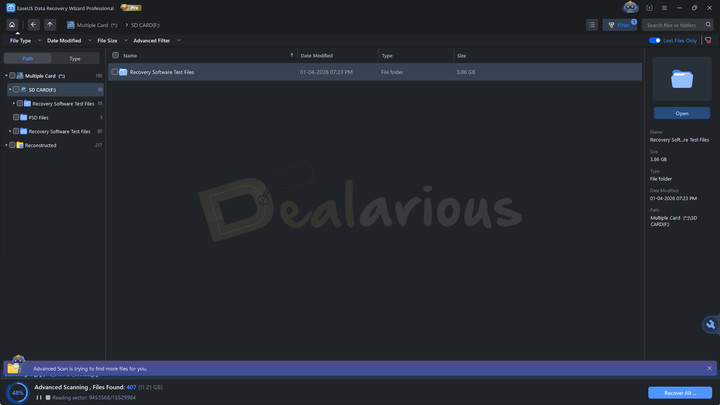
Scanning is also as easy as it gets. Select your target drive and hit the 'Search for Lost Data' button at the bottom right.
However, for efficient scanning, here's a quick tip!
If you are unsure where your files were lost, it's best to run a full drive scan. This process will scan your entire drive and recover all lost data before it is overwritten. It is also ideal in situations where you have accidentally formatted an entire drive, a partition is missing, or you have experienced file system corruption, to name a few.
On the other hand, if you know the exact location of the lost files (e.g., a specific folder, Desktop, or Recycle Bin), it's best to leverage the Specify a location option.
Filter
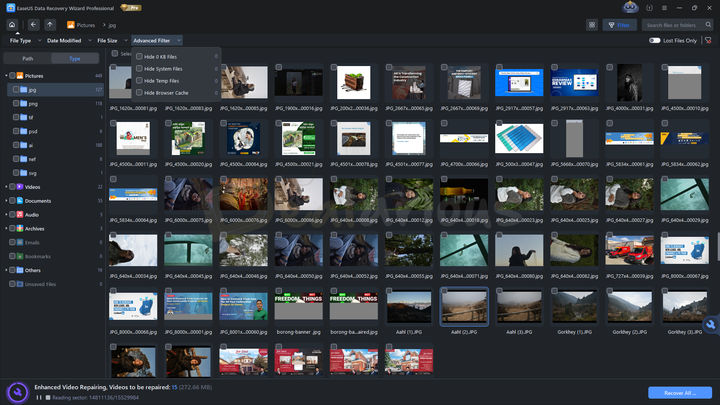
During the ongoing scan, the program displays all the missing/lost files it finds in real time. To organize the view, you can use the Filter option. On the left panel of the scanning window, you can find two options: Path and Type. However, for more filter options, go to the top-right corner of the window and click Filter. It will reveal four more filter options:
- File Type,
- Date Modified,
- File Size and
- Advanced Filter
Besides that, you can also toggle the Lost Files Only option just to view the missing or deleted files or use the Search bar in the top-right corner to access your files quickly.
Preview
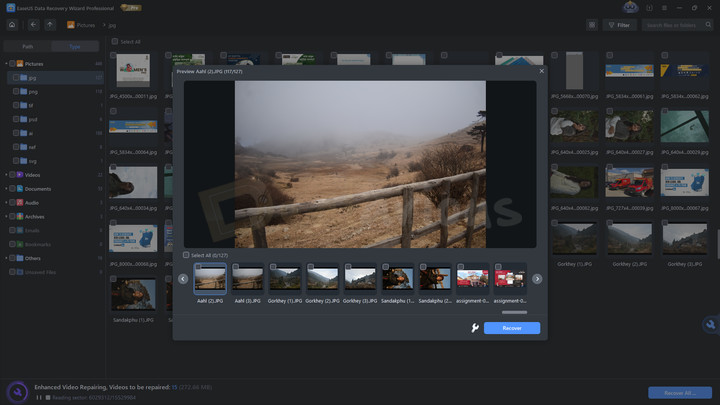
Once you have narrowed down your files using filters, you can start previewing. EaseUS Data Recovery Pro lets you change between list and thumbnail view depending on what works best for you. Hover over any file, tap on the eye icon, and the preview will pop up instantly.
Unfortunately, you can't view files in full screen.
Recovery
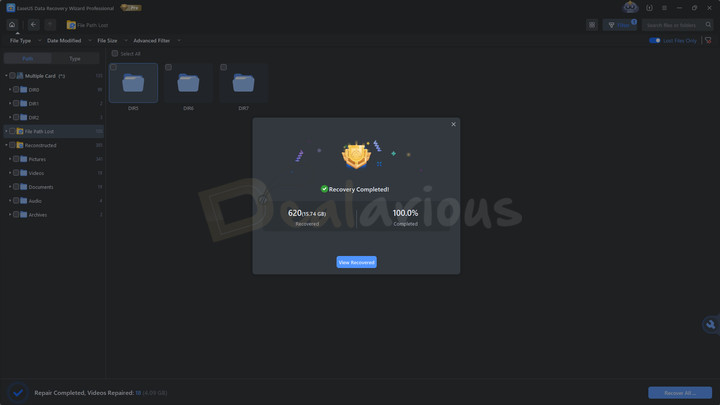
Tick the files you want, select a destination drive/folder or a cloud service (Google Drive, Dropbox, or OneDrive) to recover them to, and click Save. You can also enable file repair when recovering the files.
Note: The recovery process will take time, depending on the size of the files selected for restoration and the target drive type. For example, if your target drive is an SSD, you can expect faster recovery compared to a USB or HDD.
Once recovered, it will redirect you to the saved files section.
Impact on the System
My system specifications during the test:
Processor: AMD Ryzen 5 3500U, 2100 Mhz, 4 Core(s), 8 Logical Processor(s)
OS Version: Windows 11 Home Single Language
RAM: 12 GB
Disk: 512 GB SSD
Graphics: AMD Radeon Vega 8 (Integrated)
For this EaseUS Data Recovery Wizard Pro review, I performed a thorough scan of my 124GB SSD partition. I checked CPU usage during scanning to see if it strained the system. Below are my findings:
Idle State Resource Usage
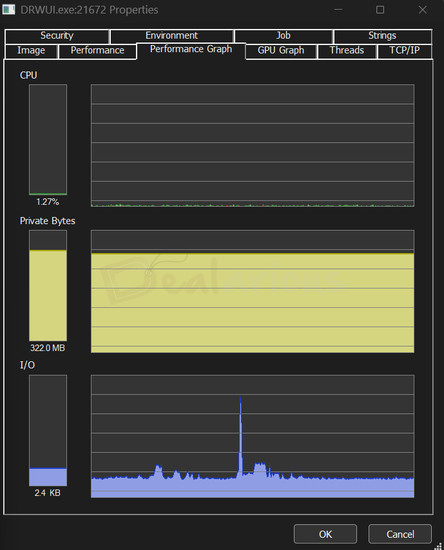
In its idle state, the program used little to no CPU resources, while RAM usage remained at a constant 322 MB.
Resource Usage During Scan
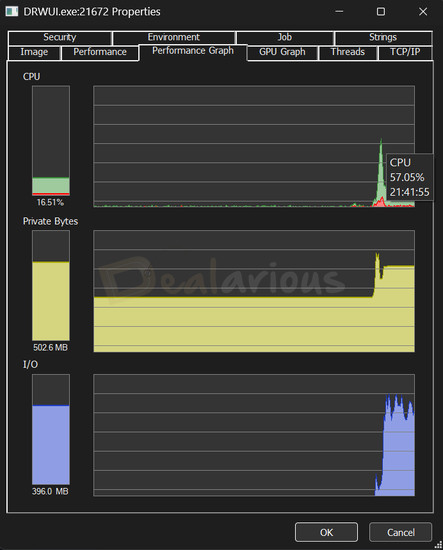
EaseUS Data Recovery Pro completed the scan within 2 minutes and 30 seconds, during which the CPU usage fluctuated between 12% and 20%, peaking at 57%. The RAM usage remained constant at 502.6MB throughout the scan.
Impression: During different scanning sessions, I bounced back and forth between apps and tabs while quietly working. Thankfully, EaseUS handled it well, with no slowdowns or unnecessary hiccups.
My Experience
Overall, EaseUS Data Recovery Wizard Pro delivered good recovery results. It returned a significant number of lost files, especially from my USB drive, which has already been tested multiple times. Besides its solid recovery performance, I would like to highlight a few things:
Firstly, the filter option. No doubt it sorts files effectively, but it can often be hit-or-miss. For instance, when I used the Lost Files Only option, I expected it to show only the deleted or missing files. Sometimes it worked perfectly, but other times it showed both existing and missing files.
According to official support, this happens in the Reconstructed folder, where files are recovered sector by sector, and the folder lists all the data, including existing files. The filter feature cannot be applied to that data.
But honestly, I still felt it kind of defeats the whole purpose of having the feature.
Second, the classic data recovery struggle. Most of the files and folders returned by EaseUS did not retain their original names. But it was not as bad as expected. Most files had generic names, but recently deleted files and folders retained their original names, which is quite remarkable. Yes, at the end, you have to dig through the files to find the one you need.
Third, when initiating a scan at a specific location, the program tends to scan the entire drive to recover more files. Yes, it improves recovery results, but it somewhat defeats the purpose of targeted scanning and also increases scan time.
EaseUS Data Recovery Wizard Pro Review: Performance
Now that you have a pretty good idea about its capabilities, let's dive a little deeper into how well it really performs in real-world tests in this EaseUS Data Recovery Wizard Pro review. I used two different test devices for recovery: A partition on my internal SSD and a USB drive. Here are the findings:
Device | Duration of Use | Device Size | Files Detected After Scan | Scan Speed | Recovery Speed | Number of Files Recovered |
|---|---|---|---|---|---|---|
Internal SSD Partition | 5 Years+ | 124 GB | 142.49GB | 2 Minutes and 30 Seconds | 3 Minutes and 26 Seconds | 8.84GB |
USB Drive | 2 Years | 32 GB | 29.22GB | 1 hour | 26 Minutes | 4.36GB |
For the most part, EaseUS Data Recovery Wizard returned a good number of files from both drives (a mix of recently deleted and older data). The scan was impressively fast, especially on an SSD. Nothing surprising there, as SSDs have faster read and write speeds.
My SSD has seen a lot of activity over the years, so I was not disappointed when it could not retrieve everything. However, for recently deleted files, it performed well, and most files it pulled back had their original file and folder names intact.
On the other hand, my USB had been through multiple test drives and stored a variety of files. On the bright side, it managed to find almost everything I had stored on it recently, along with older files that I thought were long gone.
Post-Recovery Challenges
The main issue showed up with older deleted or missing files, specifically with videos, documents, PDFs, AI, and PSD files. The result was quite inconsistent. Most of them came back corrupted and would not open, and even the File Repair option did not work on those files. Images, however, held up much better. Yes, some of them were still partially damaged, but many opened without issue.
When it came to recently deleted files, the tool brought back most of them, almost in their original format. I had stored various file formats for this test, including 15 AI, 5 PSD, 6 Doc, 3 MP4, a few MP3, and image files. It opened all the file formats without any fuss.
When Does EaseUS Data Recovery Wizard Pro Work Best?
After using EaseUS Data Recovery Pro for quite a while, I'd say the program performs reliably with recently lost files. Whether it's accidental deletion, format, or a missing partition, it handles these scenarios well. However, recovery from older files is less consistent.
Support
EaseUS offers help in multiple ways, from a knowledge base with FAQs and user guides to direct support via live chat and email.
Live chat is available 24*5 from Monday to Friday, with limited weekend hours from 9:00 AM to 11:00 AM UTC+8. The live chat connection is usually fast. However, my longest wait was around 15 minutes. Once you are in, responses are quick, and the support agents offer helpful guidance. In my case, the agent patiently resolved my queries and provided detailed assistance. Email support typically responds within 24 hours. Depending on the severity of your issue, the team also offers remote assistance.
Is EaseUS Data Recovery Wizard Pro Safe To Use?
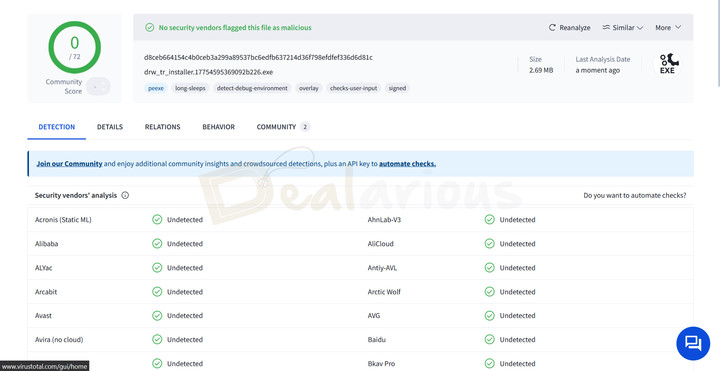
Based on my test, EaseUS Data Recovery Wizard looked safe to use. To check its safety, I ran the installer file through VirusTotal, and it came back completely clean, with no detections across 72 antivirus engines. Additionally, the program did not show any suspicious behavior during installation or use.
That said, you should always download files from official or trusted sources. It's a simple step in keeping your system secure. However, if you want to step up your overall digital security, it's always a good idea to stay up to date on effective internet safety practices.
EaseUS Data Recovery Wizard Pro Review: Overall Experience
Here's a quick outline of what I liked and disliked about the program.
What I Liked
Interface
I am really impressed with its sleek interface. It is neatly organized with clear icons, so navigating around the program feels effortless. The recovery process is as simple as it gets: pick a location, initiate a scan, find your file, and recover it. That's about it, and honestly, EaseUS has done a good job here in keeping things neat and simple.
Fast scanning
Besides the interface, EaseUS Data Recovery Wizard Pro's fast scanning process also caught my attention. It finished scanning my 124GB SSD partition in just a few minutes, while still fetching a good number of files. That's really impressive, especially considering it can save you a lot of time.
Extra tools
Includes additional tools such as Image Recovery, which allows you to clone drives; a bootable USB tool to help you recover files from a system that won't start; ChronoSnap for real-time file versioning; and partition recovery to fix lost partitions. So instead of being just a simple recovery tool, it acts more like a safety net for your data.
Retaining Original File Names For Recently Deleted Files
Most recovery tools I have used so far often struggle to retain original files and folder names during recovery. However, that is not the case with EaseUS. I was quite relieved to see when the program returned recently deleted files with original file names. Yes, it is not always perfect and sometimes fails to follow the same structure for older, deleted files. However, it still makes the whole recovery process feel slightly easier.
What I Disliked
Text clarity and Navigation
The interface is great, but it does have a few minute hiccups. While the feature labels are clear, their descriptions sound a little too technical. It could slow down first-time users. Additionally, the Save Scanning Session feature is in a very unusual spot, which can cause people to miss it entirely.
Minor glitches
While reviewing EaseUS Data Recovery Wizard Pro, I also encountered a few glitches. The Scanning progress percentage did not show up at times, the partition recovery option was missing, and the Filter behaved oddly. The good news is that these issues did not persist for long, and everything appeared normal after a quick restart of my system or the app. So, while nothing major, it is still worth a mention.
Struggle with older deleted/missing files
The program returned a solid number of files, but not everything came back perfectly. Recently deleted files across different formats were mostly intact and opened without issue. But when it came to older recovered files, EaseUS Data Recovery Wizard struggled and delivered mostly corrupted, unusable files.
Alternatives
Minitool Power Data Recovery
A solid data recovery program and a worthy alternative. MiniTool Power Data Recovery can easily handle a wide range of data loss situations, including formatted drives, lost or deleted partitions, and even a crashed OS. Both have user-friendly interfaces, but my personal preference is for EaseUS' modern, clean interface. It also has a richer tool collection, which is always nice to have. In contrast, MiniTool focuses more on targeted recovery by giving you control over what gets scanned (file types and file systems), which speeds up the process. Additionally, in my experience, MiniTool fetched more files after a scan than EaseUS Data Recovery Wizard Pro did.
In the end, it comes down to your preference. Since both programs offer free versions, you can test them before making a decision.
You can also read this MiniTool Power Data Recovery review for a deeper dive into the program's capabilities.
RecoveryFox AI
It is another decent alternative. It is easy to use, has an organized interface, and offers a straightforward recovery process, making it helpful for beginners. Unlike EaseUS Data Recovery Wizard Pro, RecoveryFox focuses more on AI-based recovery. That said, my experience with RecoveryFox was somewhat inconsistent, especially in complex data loss scenarios. Still, it got the basics right.
Read the RecoveryFox AI review for detailed insight into the program and decide whether it will meet your needs.
Recuva
Developed by Piriform, Recuva is a lightweight, portable recovery tool that serves as a good alternative. While it has fewer capabilities, it can still recover files from various file systems, including NTFS, FAT, and exFAT. In contrast to EaseUS, its free version also lets you recover unlimited data, which is helpful for people on a budget. In short, Recuva is a good option if your recovery needs are basic. However, if you want robustness, EaseUS Data Recovery Wizard will serve you better.
Tip: Data recovery is good, but you know what's even better? Keeping your system in peak condition from the Start. With the CCleaner Pro plus plan, you get both a top-notch PC optimization tool and Recuva. You can also use our CCleaner Pro coupons to get this plan at an affordable price.
Disk Drill
Another robust, feature-rich data recovery program. It has a clean, organized interface, but it also includes a few extra tools, such as Recovery Vault, byte-to-byte backup, and S.M.A.R.T. monitoring. Both programs have a free version, but EaseUS gives you a more generous limit by allowing up to 2GB of recovery, while Disk Drill for Windows currently caps free recovery at 100MB. Both have their own strength and weaknesses, so the choice comes down to your personal preference.
FAQs
Does EaseUS Data Recovery Wizard Pro work with BitLocker Drives?
Yes, EaseUS Data Recovery Wizard Pro lets you recover files from your BitLocker-protected drive as long as you remember its key/password.
Is EaseUS Data Recovery Wizard effective against Shift+Delete scenarios?
Yes, EaseUS is proficient in recovering files from a variety of data loss scenarios, including Shift+Delete.
Is EaseUS Data Recovery Wizard Free?
Yes, EaseUS Data Recovery Wizard offers a free version with limited features and a 2 GB data recovery limit.
Can EaseUS Data Recovery Wizard Pro fix missing partitions?
Yes, in many cases, the program can detect and repair missing partitions, allowing you to recover files from them. However, when a partition is severely damaged or corrupted, EaseUS might not be able to help fix it.
Can EaseUS Data Recovery Wizard Pro repair corrupt files?
Yes, it can repair corrupt files, but only to an extent. If the file you are trying to recover has all of its underlying data still intact, the program can fully reconstruct it, almost in a usable format. However, if parts of the file have already been overwritten, the recovery may yield an incomplete result, leaving the file partially repaired and unusable.
Is EaseUS Data Recovery Wizard Pro worth it?
Based on this EaseUS Data Recovery Wizard Pro review, I do recommend the tool for both basic and complex data recovery tasks. The interface is intuitive, and the recovery process is simple, so even inexperienced users can use the tool without much friction. When it comes to recovery performance, Wizard Pro's scanning is pretty fast. It also includes a good number of additional tools that help you do more than data recovery.
That said, yes, it can often return inconsistent results, especially when dealing with older deleted files. Still, I find EaseUS Data Recovery Wizard Pro a solid choice.

She reviews software at Dealarious, mostly recovery and productivity tools, which she tries out herself. Her goal is to keep things simple so readers don’t waste hours figuring out what works. Over the years, she has tested dozens of apps and learned that small details often make the biggest difference.
When she isn’t testing programs, you’ll usually find her hiking in the mountains or enjoying the rain. She believes good tech should quietly make life easier, not more complicated.