For this MyRecover review, I looked beyond whether the software could find lost documents or files from formatted drives. Recovering files is only half the story. A good recovery tool should restore files in a usable state.
That's exactly what I aimed to find out. MyRecover claims to retrieve deleted files without compromising their integrity, so I put it through a series of real-world recovery scenarios to see whether it lives up to those claims.
MyRecover: Overview

Pros
- Intuitive interface
- Preserves filenames and folder structure for many recently deleted files
- Helpful support assistance
- Reliable results in common data-loss scenarios
Cons
- Some features didn't work as expected
- Struggles to recover usable long-lost files
- Unusual approach to Recycle Bin recovery
overall
USD 59.95
Supported Platforms: Windows
Usability
4/5
Features
4/5
Recovery Rate
3.5/5
Scanning Speed
3.5/5
Developed by AOMEI, MyRecover is one of the company's newer utilities for recovering deleted and lost files.
MyRecover claims to support over 1,000 file formats—including documents, photos, videos, audio, and archives—across more than 500 types of storage devices. These range from HDDs, SSDs, and USB flash drives to cameras, drones, CCTV storage, and gaming consoles. The company also says it can handle scenarios such as accidental deletion, formatting, partition loss, system crashes, and virus attacks, all through a clean, intuitive interface.
One thing that stood out during this MyRecover review is its simplicity. It focuses only on the essentials: helping you recover lost files as quickly and as efficiently as possible, without cluttering the app with unnecessary features.
Tip: Avoid saving new data to the same drive you are recovering from, as it can cause data overwriting and make your data unrecoverable. Also, I'd suggest you learn more about the limitations of data recovery apps to help set the right expectations for using the software more effectively.
Minimum System Requirements
One thing I liked about MyRecover is its minimal system requirements. It runs on both modern and older computers. Here's a quick look at its minimum requirements.
Operating System: Windows Vista and later (including Windows Server editions)
File Systems: NTFS, ReFS, FAT16, FAT32, and exFAT
Processor: 500 MHz x86 or compatible CPU
Memory: 2 GB RAM
Disk Space: The program occupied approximately 271MB after installation during my test.
Full Disclosure: For this MyRecover review, I was provided with a Professional Edition license by the MyRecover support team. Everything you read here is based solely on my personal experience, with no influence or edits.
Pricing Plans
The Pro edition is available as a one-PC license with three plans:
- Monthly: $39.95
- Yearly: $59.95
- Lifetime: $99.95
The lifetime plan covers a single PC for life and includes free lifetime upgrades.
Note: The license is for one computer only. If you want to use it on another computer, you can contact MyRecover support to reset the license.
Free vs. Paid
I always appreciate software that offers a free or free trial version, even if it's limited. It lets you evaluate the program before committing to it.
MyRecover takes the same approach by offering a free version with a few limitations. It allows you to recover up to 500 MB of data at a decent speed, while extras like Bootable USB creation, File Preview, and Priority Support are locked behind the paywall. In my experience, it was enough to see whether the software meets my recovery needs.
MyRecover Review: Interface
MyRecover keeps its interface simple and organized.
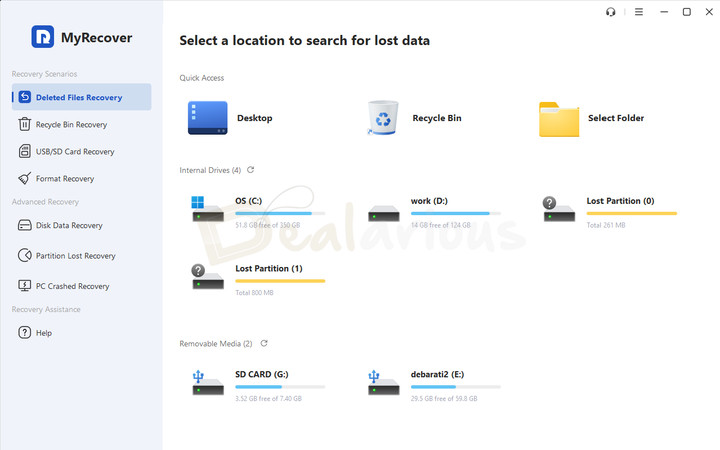
Main Window
When you launch the program, it displays a Quick Access section and all internal and external drives connected to your system, along with any detected lost partitions.
The Quick Access section lets you scan common locations such as:
- Desktop
- Recycle Bin
- Select Folder
Left Panel
It includes options for different data-loss scenarios:
- Deleted Files Recovery
- Recycle Bin Recovery
- USB/SD Card Recovery
- Format Recovery
- Disk Data Recovery
- Partition Lost Recovery
- PC Crashed Recovery
- Help
Clicking any option takes you to its respective panel. The labels are self-explanatory, as is the approach to recovery. Simply hover over the drive or location you want to recover from, then click Scan.
Overall, I found the whole experience neat and uncomplicated.
MyRecover: Key Features Review
Scanning
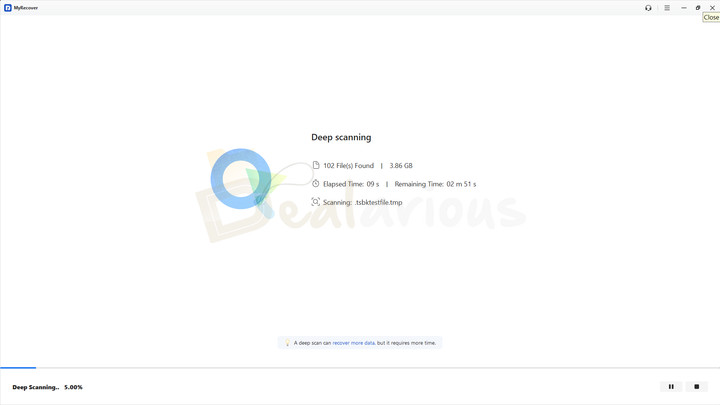
Like other standard data recovery tools, MyRecover provides both Quick Scan and Deep Scan modes. When you select a drive or a specific location to scan, MyRecover starts with a Quick Scan that typically looks for recently deleted items from the Recycle Bin and other locations and finishes quickly.
After the Quick Scan completes, the program usually switches automatically to a Deep Scan, which takes considerably longer. It performs a sector-by-sector scan using signature-based recovery techniques to bring back files that the Quick Scan could not detect.
During my test, I found the Quick Scan results to be quite impressive. It not only pulled up recently deleted files but also found several older lost files.
However, I did notice some minor inconsistency in the scanning behavior. When I initiated a scan on my SD card, it completed the Quick Scan, but didn't automatically proceed to the Deep Scan. In response to this issue, MyRecover support said:
"The program defaults to a Quick Scan. If it stops after the Quick Scan, it might be because there is too much data, causing it to freeze or hang. I recommend recovering the files that have already been scanned first, and then try scanning again."
Deleted File Recovery
To test MyRecover's ability to recover deleted files, I simulated a permanent deletion by using Shift+Delete to remove files from my 8GB SD card.
The program delivered surprisingly good results.
MyRecover completed the Quick Scan in approximately 3 minutes and 50 seconds and reported 5,564 files with a combined listed size of 171GB. I then manually initiated a Deep Scan, which took about 5 minutes and reported 8,931 files totaling 59.5GB.
Recycle Bin Recovery
I am not a big fan of MyRecover's approach to the Recycle Bin Recovery feature. Here's why:
When you try to use this feature, it's natural to expect the program to scan the Recycle Bin directly for lost files. But instead, MyRecover asks you to select the original location where the files were stored before they were moved to the Recycle Bin.
Although this makes technical sense because Windows stores Recycle Bin data separately on each drive, the workflow still feels less intuitive. It can be especially challenging for those who simply forgot where the files were originally saved, which adds to the confusion.
Partition Lost Recovery
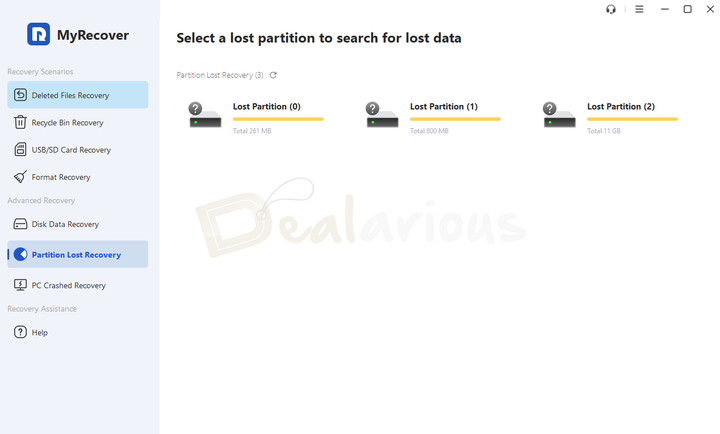
Partition loss, or accidentally deleting a partition, is one of the worst data-loss scenarios. Fortunately, recovery is often possible with the right data recovery tool. So, how well does MyRecover handle this data loss scenario?
Initially, my experience was a little underwhelming.
To test its capability, I simulated a partition loss by deleting a partition on my USB drive containing some data. When I opened MyRecover, it successfully detected the lost partition, and I then initiated a scan. The scan took about 50 minutes to complete and found all the existing files. While MyRecover successfully detected files from the deleted partition, it failed to save them to another location.
In response, the support team shared a patch that fixed the saving failure. However, MyRecover did not preserve the files' original folder organization. They appeared scattered throughout the scan results, so I had to search by file type and select them manually, which was time-consuming.
Format Recovery
While the Lost Partition Recovery added some friction while testing, the Format Recovery feature kind of compensated for the shortfall.
For the test, I formatted my 32GB USB drive, which contained 95 files totaling 3.86GB. The Quick Scan took about one hour and detected all 95 files. I then initiated a Deep Scan, which took another 1 hour and 10 minutes and reported 10,679 files totaling 30.5GB. Recovering the original test files took about eight minutes, and most retained their filenames.
PC Crash
Imagine turning on your PC only to encounter a blue screen or an endless boot loop, leaving you unable to access Windows and putting stored files at risk of loss.
While creating regular backups is part of good PC maintenance habits and an ideal way to cope with data loss, it's something many of us forget to do.
In such a situation, creating bootable media is a strong alternative for recovering files from a crashed PC. MyRecover claims to help you with two options:
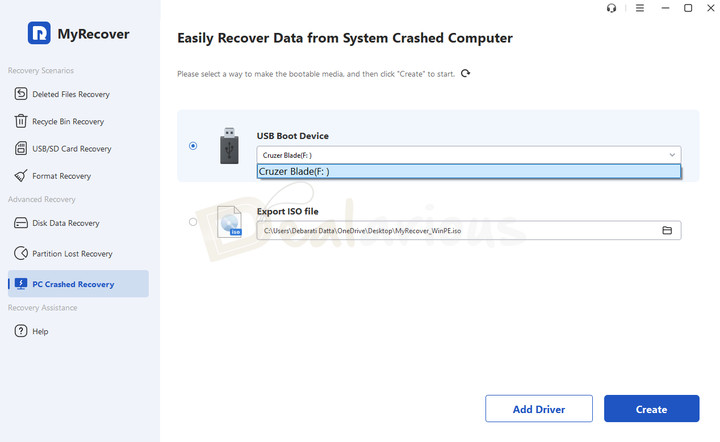
- Create USB Boot Device
- Export ISO File
For this test, I chose the USB Boot Device option. The option is designed to create a bootable recovery drive that runs a lightweight version of Windows (Windows PE). This lets MyRecover access the drive and recover files even when Windows will not start normally.
The process felt straightforward:
- Launch MyRecover
- Navigate to PC Crashed Recovery
- Select your USB drive from the dropdown menu of USB Boot Device
- Click Create
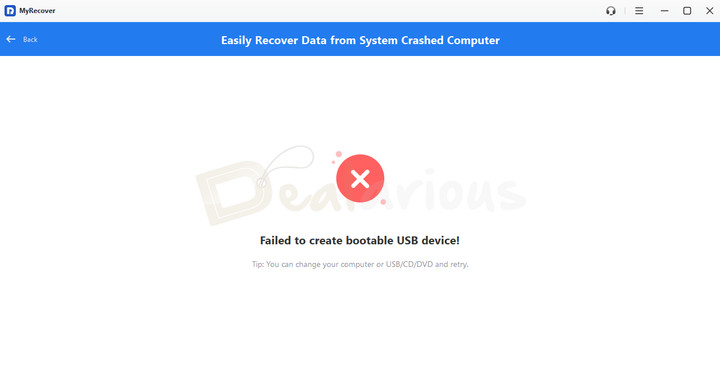
Unfortunately, this is where I encountered a problem. Despite multiple attempts, MyRecover consistently failed to create a bootable USB drive, so I could not continue testing the feature further.
Upon reaching out to support, they explained that the components MyRecover needed to create the Windows PE environment were missing on my test system. They suggested installing another tool as a workaround while they investigated the issue further.
Auto Save Scan Results
Regardless of which recovery tool I use, I usually look for the save scan results feature as soon as my first scan completes. It avoids repeating the time-consuming scan whenever I want to recover more files from the same drive. I did the same with MyRecover but was unable to find it.
However, after spending some time with the program, I discovered that MyRecover automatically saves each scan session. You can access them from the hamburger menu under Import Scan Results. This differs from traditional recovery tools, which require you to manually save scan results to a location other than the recovery drive.
It is a helpful addition that eliminates manual effort. Still, I prefer to have control over when, where, and which scan sessions are saved.
My Experience with MyRecover
Now that I have outlined MyRecover's capabilities, let's take a close look at how it works and how well it performed during my review.
How to Use MyRecover
The program follows the same data recovery approach as most traditional data recovery tools, starting with:
Step 1: Download and Installation
- Visit MyRecover's official website to download the executable file.
- Once downloaded, run the setup file to initiate the installation.
- Then follow the basic on-screen instructions.
- MyRecover will be installed and ready for use in a few minutes.
Step 2: Launch MyRecover
Once installed, launch MyRecover and start recovering files.
Step 3: Scanning
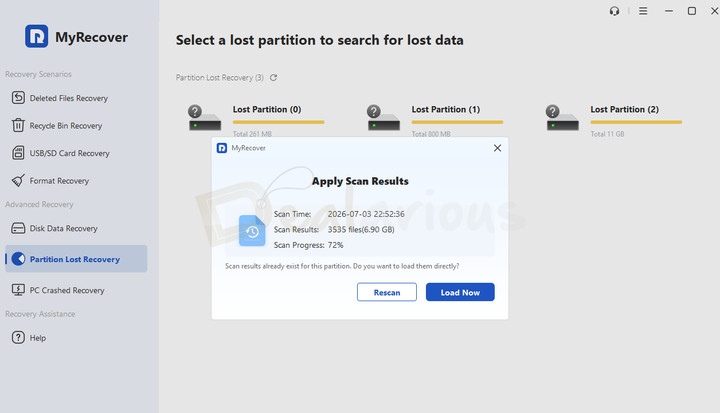
To scan the target drive, hover over it and click the Scan button.
One feature I found particularly helpful is that MyRecover recognizes previously scanned drives and prompts you to load the previous scan, continue an unfinished scan, or start fresh. This can save considerable time, especially with large drives.
Step 4: Filter
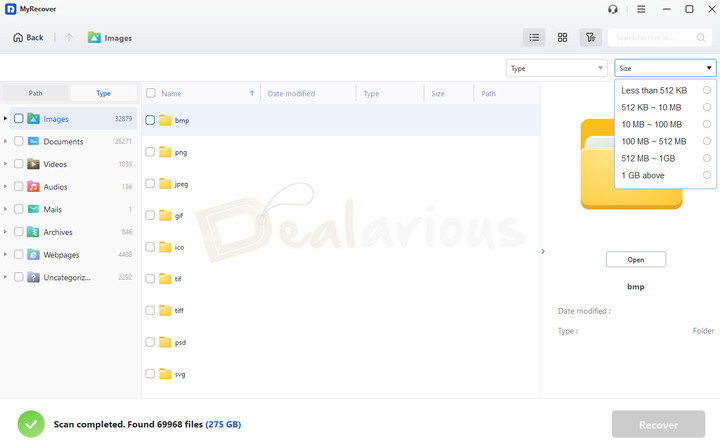
Once the scan is complete, MyRecover displays the results. You can narrow them using the Filter option in the top-right corner, which includes Type and Size. You can also search by filename or extension.
Step 5: Preview
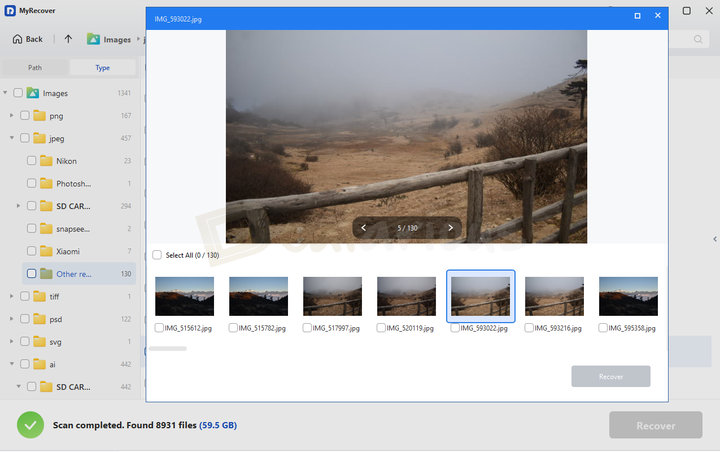
The quickest way to identify the files you need is to switch to Thumbnail view. If you need a closer look before recovery, you can use the Preview feature. MyRecover supports previews for 23 file formats, including .avi, .mov, .mkv, .docx, .jpg, .png, and .jpeg.
Step 6: Recovery
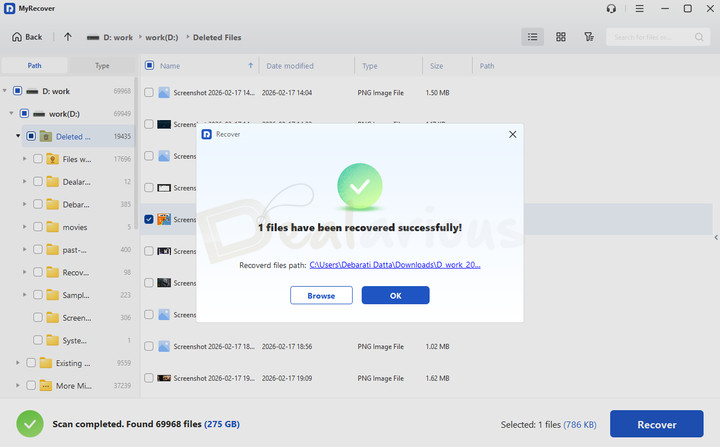
Now it's time to recover the files. Select the files you want, then click Recover in the bottom-right corner. When MyRecover asks where to save them, choose a different drive—not the drive being scanned—to avoid overwriting recoverable data.
The recovery time will depend on the size of the files selected for restoration.
Impact on the System
My system specifications during the test:
Processor: AMD Ryzen 5 3500U, 2100 MHz, 4 Core(s), 8 Logical Processor(s)
OS Version: Windows 11 Home Single Language
RAM: 12 GB
Disk: 512 GB SSD
Graphics: AMD Radeon Vega 8 (Integrated)
For this MyRecover review, I conducted a thorough scan on a 32 GB USB drive. I checked CPU usage during scanning to see if it strained the system. Below are my findings:
Idle State
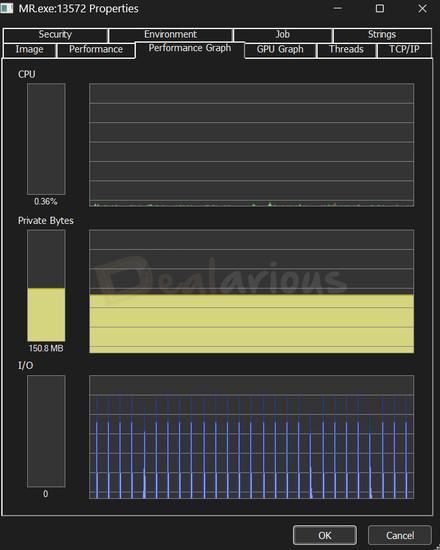
In its idle state, the program used little to no CPU resources, while RAM usage remained at 150.8 MB.
Deep Scan
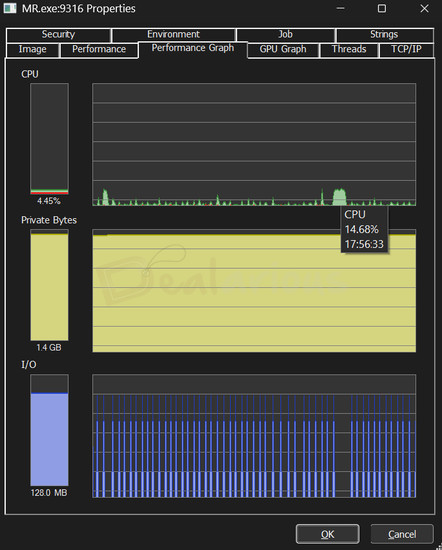
The Deep Scan took around 1 hour and 10 minutes to complete. CPU usage was low throughout the scan, while RAM usage rose to 1.4GB and remained there.
It is one of the highest RAM usage peaks I have encountered for a recovery tool. That said, it did not impact my day-to-day activities while the scanning was running in the background.
My Experience
Overall, I found MyRecover to be a decent data recovery solution, but nothing exceptional. It handles the basics well, such as recovering recently deleted files, Shift+Delete scenarios, and formatted files. In some cases, the Quick Scan even managed to find older deleted files, which was a pleasant surprise. When it comes to preserving original filenames and folder structure, the results can be hit-or-miss. However, during this MyRecover review, I noticed that recently deleted files were usually the ones that came back with their names and folder structure intact.
That said, my experience was not without a few flaws.
- During my test, MyRecover did not display results while the scan was running. I had to either stop the scan or wait for it to finish before viewing them. This was not a major issue, but it felt less convenient than other recovery tools I have tested.
- Another issue involved file selection. After choosing some files, I searched for others to add to the recovery list. However, selecting files from the search results cleared the files I had already selected, so I could not build a single recovery list and had to start over.
MyRecover Review: Performance
Here's a bird's-eye view of MyRecover's recovery performance, including what worked well during my test and where it fell short. I used two different test devices for recovery: A partition on my internal SSD and a USB drive.
Device | Duration of use | Device Size | Data detected after Deep Scan | Scan Time | Data Recovered | Recovery Time |
|---|---|---|---|---|---|---|
Internal SSD Partition | 5 Years+ | 124 GB | 275 GB (application-reported candidate files) | 26 Minutes | 3.18 GB (17,700 files) | 22 Minutes |
USB Drive | 2 Years | 32 GB | 30.5 GB | 1 hour 10 minutes | 3.86 GB (98 files: 95 test files + 3 older files) | 8 Minutes |
MyRecover delivered good results with recently deleted files on both my USB drive and SSD partition. It also found older files, although many were not usable after recovery. The SSD scan finished faster than the USB scan, likely helped by the SSD's higher read and write speeds.
My SSD is around five years old and has seen a lot of activity from regular use. Regardless, the program managed to pull up a good number of lost files while preserving much of their original folder structure and filenames, even for long-lost files.
The USB, on the other hand, is about two years old and is mainly used for testing recovery tools. MyRecover recovered all 95 files from the recent format. It also found several video files that had been deleted long before the test, but those older files did not retain their original filenames or folder structure.
Post Recovery Challenges
Most recently deleted files opened and worked normally, but most older recovered files were corrupted. Images were the main exception; PSD, AI, PDF, audio, and video files generally did not open correctly. I have seen many data recovery tools struggle with older deleted files, so MyRecover is not alone in this.
When Does MyRecover Work Best?
After thoroughly testing MyRecover, I found that the program produces reliable results for common data-loss scenarios such as accidental deletion, formatting, or Shift+Delete. However, it struggled with lost-partition recovery, and I could not test recovery from a crashed PC because the bootable USB creation failed.
Customer Support
MyRecover has limited but effective support options. For the knowledge base, they offer quick guides, sales, and technical FAQs; for direct assistance, they offer email support.
For this MyRecover review, I reached out to their email support. During their active hours, they usually responded within 15-30 minutes. The longest response delay I faced was about a day.
Is the program safe to use?
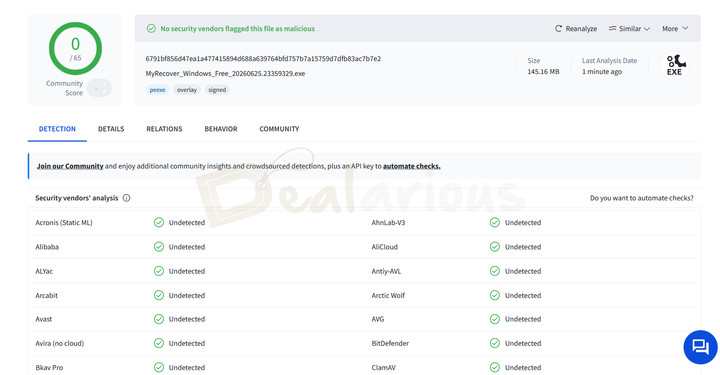
During my test, I found no signs of malicious behavior. I scanned the MyRecover installer file with VirusTotal, which reported no detections across 65 antivirus engines, and the program showed no suspicious behavior while I used it.
MyRecover Review: Overall Experience
Here's a quick outline of what I liked and disliked during my MyRecover review.
What I Liked
Interface
MyRecover has a clean, organized user interface that makes it easy to access the required features and recover files without unnecessary complexity.
Retaining original filenames for recently deleted files
Another aspect I like about MyRecover is its ability to preserve the original filenames and folder structure. While it can be a bit inconsistent with older deleted files, it worked well for most recently deleted files.
Helpful email support
I really appreciate MyRecover's email support team's prompt responses and patience in resolving most of my queries.
What I Disliked
Unusual Recycle Bin recovery approach
MyRecover's unconventional approach to the Recycle Bin Recovery feature caught me somewhat off guard during the test. Instead of scanning the Recycle Bin directly, MyRecover asks you to select the original location where the files were deleted. This approach felt less intuitive and defeats the purpose of having a dedicated Recycle Bin Recovery option.
Some features don't work as intended
MyRecover initially failed to save files recovered from a lost partition. A support patch fixed the saving failure, but the files were not kept in their original organization. Bootable USB creation also failed during my test.
Struggles with older deleted files
While MyRecover returned a good number of files, not everything was in a usable state. Even though recently deleted files were mostly intact and opened without issue, older recovered files mostly came back corrupted, except for some image files.
Alternatives
MiniTool Power Data Recovery
It is a powerful alternative to MyRecover. MiniTool Power Data Recovery effectively handles various data loss situations, including lost partition recovery and crashed PC recovery. While both have user-friendly interfaces, my preference leans slightly towards MyRecover for its clean, organized layout. That said, one thing that stands out about MiniTool is its customization capability. Unlike MyRecover, MiniTool lets you customize what gets scanned (file types and file systems), which speeds up the recovery process. If you prefer simplicity, MyRecover can be a good option for basic data recovery.
To learn more about MiniTool's recovery capabilities, read this MiniTool Power Data Recovery review.
Recuva
It is a lightweight, portable recovery tool that is a good alternative to MyRecover. While it has fewer features than MyRecover, it still covers the basics quite well. Its free version also lets you recover unlimited data, unlike MyRecover, which has a 500MB free data recovery limit. In short, Recuva is a good, reliable option for those looking for a decent recovery tool on a budget.
Note: While data recovery software can help retrieve lost files, regular backups offer more reliable protection against permanent data loss. PC maintenance tools can still help keep your system in good shape. The CCleaner Pro Plus plan includes a PC optimization tool and Recuva. You can also use our CCleaner Pro coupons to get this plan at an affordable price.
Disk Drill
It is another feature-rich alternative with a clean and organized interface. Unlike MyRecover, Disk Drill offers additional features such as Recovery Vault, byte-to-byte backup, and S.M.A.R.T. monitoring. In contrast, MyRecover offers a 500MB free data recovery limit, whereas Disk Drill provides only 100MB for Windows users.
As both have their strengths and weaknesses and provide trial versions, it's best to test them before committing.
EaseUS Data Recovery
If you find MyRecover basic and limited, EaseUS Data Recovery Wizard Pro can be a solid alternative. Based on my testing, the program delivers reliable results. It performs well across various data-loss scenarios, including missing-partition recovery. The interface is a breeze to use, and it offers multiple extras like file repair, chronosnap, NAS, and Linux recovery that MyRecover lacks.
You can read this EaseUS Data Recovery Wizard Pro review for an in-depth overview of the program's capabilities. If you decide to purchase, don't forget to use our EaseUS Data Recovery Wizard Pro coupons to get the best discount.
FAQs
Can the program recover files from BitLocker drives?
Yes, provided you can unlock the drive with its BitLocker password or recovery key. MyRecover cannot bypass BitLocker encryption, so the drive must be unlocked before scanning.
Is MyRecover free?
Yes, MyRecover offers a free version with some limitations. It allows you to recover up to 500 MB of data for basic data recovery tasks, such as recovering deleted files or data from formatted drives. To unlock extras like bootable USB creation, File Preview, and Priority Support, you have to upgrade to a paid plan.
Can MyRecover recover files from missing partitions?
Yes, but the results can be hit-or-miss. During my test, MyRecover found files from the lost partition but initially failed to save them. A support patch fixed the saving failure, although the recovered files were not kept in their original organization.
Can it repair corrupt files?
No. MyRecover does not have a dedicated file repair feature.
Conclusion
After thoroughly testing MyRecover, I found it to be a decent data recovery tool for common recovery tasks. Its intuitive interface makes the process approachable, especially for non-technical users. It performed well with recently deleted and formatted files, although filenames and folder structure were preserved more consistently for recent deletions.
That said, it does have a few shortcomings, such as inconsistent recovery of older files and some features that didn't work as expected during my testing. While the support team offers reliable assistance, I hope they resolve these issues in upcoming updates so people can use this program without external intervention.

She reviews software at Dealarious, mostly recovery and productivity tools, which she tries out herself. Her goal is to keep things simple so readers don’t waste hours figuring out what works. Over the years, she has tested dozens of apps and learned that small details often make the biggest difference.
When she isn’t testing programs, you’ll usually find her hiking in the mountains or enjoying the rain. She believes good tech should quietly make life easier, not more complicated.