Choosing the right screen recorder can be challenging. In this article, I have come up with a list of the best screen recorder programs. As a bonus, these recorders also include editing capabilities. You can go through the list of Screen Recorders with Editor and choose the one that fits your needs.
Why are High-definition videos important?
With the advent of advanced and easily available video equipment and high internet speeds, High-definition (HD) and Ultra-high-definition (UHD) videos have become mainstream! From common music videos to huge-budget 3D Movies, almost everything appears in full HD quality! Because of this, popular sharing platforms like YouTube give wide-ranging support for HD content.
So, make sure that your content is in HD quality, even when you're preparing a how-to video tutorial. To do so, however, you need a screen recorder with HD recording and rendering support.

Here comes the Screen recorder
Screen recorders are in huge demand now. Moreover, the pandemic forced many people to work from home, and screen recording tools have become the best remote working tools for business and personal use.
Screen recorders are useful in many ways. You can use them to record skype video calls, video meetings, presentations, live streams, conference calls, and demos, send video emails, and create how-to videos, among other things.
How do I record my screen in HD quality?
Want to create high-quality and professional-looking videos? You'll need a reliable screen recorder with HD recording capabilities that also supports basic editing after recording.
Screen Recorder + Editor
It's hard to find a solution that is not only a good screen recorder but also a state-of-the-art editing suite. There are many screen recorders with editors on the market; however, please note that only a few of them have HD support for rendering the output video files.
My List of Best Screen Recorders with Editor
Here, I have researched some of the best screen recorders with editing features.
Camtasia

Camtasia is a full-fledged screen recording solution from TechSmith. It is the most popular name among screen recorders with editors. It comes with an advanced editor. If you are a Camtasia user, you are undoubtedly using the best screen capture tool.
- Supported platforms: Windows & Mac
- Recording Limit: TechSmith recommends keeping the maximum time limit for recording to 4 hours or less.
- Frame rate: 60 FPS
- Supported Video File Formats: AVI, MP4, MPG, MPEG, WMV, MOV, MTS
Editing & Sharing Options
Using the built-in video editor, you will be able to edit videos you have recorded. You can also combine videos from other sources and apply almost all effects and transitions. By default, Camtasia recording projects are saved in TSCPROJ format. Once your editing is complete, you can render the final video in AVI, MP4, and other popular formats. The export options also include uploading directly to Screencast.com, Vimeo, YouTube, and Google Drive.
Is there a free trial of Camtasia?
If you are new to Camtasia, you can take advantage of its 30-day free trial. It is one of the most expensive all-in-one screen recorders on my list. If you are looking for alternatives, you can check out some of the best Camtasia Alternatives. Even though Camtasia is one of the most expensive mid-level Screen recorders with an editor, I have always had good experience with it. Go for it if you wish to have creative editing independence with complex scenarios.
Movavi Screen Recorder

A versatile, affordable HD screen recorder, Movavi Screen Recorder lets you capture the entire screen or a specific area. It records HD video at 1080p.
- Supported platforms: Windows & Mac
- Recording Limit: Unlimited
- Frame rate: 60 FPS
- Supported Video File Formats: MP4, AVI, GIF, MOV, MKV
With the program, you can record your screen, Webcam, and audio. You can record both system audio and microphone. Options are also available to record keystrokes and mouse movements. You can enable them in Recorder Preferences. For more information, see our Movavi Screen Recorder Review.
Editing & Sharing Options
This software has basic editing features, and you can even draw on video recordings. The best part is that you can schedule recordings and record for an unlimited time. By default, videos are recorded in MKV format. Export options include uploading the recorded files to YouTube and Google Drive and sharing them on WhatsApp and Telegram.
Is there a free trial of Movavi Screen Recorder?
Unlike most screen recorders with editor, it comes with a trial version for 7 days. The output videos will have a watermark, and you will not be able to add descriptions or tags before sharing them on YouTube.
Suppose your requirements are not just limited to recording and editing. In that case, try Movavi Video Suite, which also lets you convert files and even burn them in CD / DVD compatible format. Read more in this Movavi Video Suite Review.
Wondershare Filmora
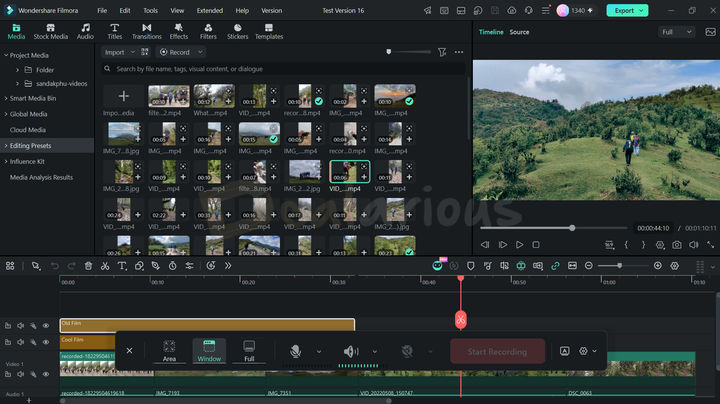
The built-in screen recorder in Wondershare Filmora allows you to capture the full screen or customize the recording area. Filmora also offers two preset area selection options: TikTok and YouTube. When you choose a preset, Filmora optimizes the recording frame to match the selected platform's aspect ratio.
- Supported platforms: Windows & Mac
- Recording Limit: Unlimited
- Frame rate: 60 FPS (upto 120 FPS during game recording)
- Supported Video File Formats: MP4, WMV, AVI, MOV, F4V, MKV, TS, 3GP, MPEG-2, WEBM, GIF, and MP3.
Filmora offers 4 recording options: PC screen, webcam, audio, and game. The program also supports 4K screen recording. So, if you are rocking a 4K display, maintaining high screen-recording quality won't be an issue. Filmora can also record your screen and webcam simultaneously, which is useful for tutorials or explanatory video content. There's also a handy teleprompter option that displays your script on screen as you record your video.
Tip: Enable Camera Screen split mode from the settings menu when recording both screen and webcam. It creates two separate tracks within the timeline, allowing for a more flexible editing workflow.
Editing & Sharing Options
Wondershare Filmora is a robust video editing tool that also supports 4K editing. You can trim, crop, apply visual effects, and more. Amidst all the advanced features Filmora packs, two tools can be especially helpful during your editing session. The Speech-to-Text feature automatically generates subtitles, and the AI Smart Short Clips feature breaks your lengthy video into shorter clips for social media.
Rest assured, Filmora's vast basic, advanced, and AI editing features won't disappoint. Export options include uploading the recorded files to TikTok, YouTube, and Vimeo. You can learn more about Filmora's robust capabilities in this Wondershare Filmora review.
Does Wondershare Filmora have a free trial?
Wondershare Filmora offers a free trial version with full functionality, except for watermarks on the output files.
AVS Video Editor

With AVS Video Editor, you can record your Windows PC screen. It is designed specifically with Windows users in mind. You can capture the screen or any selected area and draw in real time by choosing the required drawing tools from the Drawing section.
- Supported platform: Windows
- Frame Rate: 30 FPS
- Supported Video File Formats: MP4, AVI, MOV, VOB, WMV, MKV, WEBM
Editing & Sharing Options
AVS Video Editor can process videos in 4K and offers basic and advanced editing tools and features. You can apply effects and transitions, stabilize shaky video footage, trim, rotate, and more. The recordings can be saved in FLV, WMV, or AVI formats. Export options include uploading the recordings to YouTube, Vimeo, and social media platforms like Facebook and Flickr.
AVS Video Editor is one of the 5 programs available in the AVS4YOU Unlimited subscription package, offering great value at an affordable price. The unlimited pack includes a lifetime license, which means you get free upgrades and support for a lifetime. Among the screen recorders with editor, AVS Video Editor has the most basic interface.
Interested in learning more about the unlimited subscription pack? Check out this AVS4YOU Review for more details.
Is AVS Video Editor / AVS4YOU Free?
Yes. You can download and install the AVS programs for free and use them without any time limitations. You also get access to all the features. The only limitation is that the exported videos will have a watermark. Activation is required to remove the watermark on output files.
Wondershare UniConverter

If you have used other Wondershare products, you'll know the powerful impact of its software.
Wondershare Uniconverter is another dynamic, multi-featured video conversion tool with a built-in screen recorder feature. It lets you easily capture your high-definition live screen activity.
- Supported platforms: Windows & Mac
- Recording Limit: Unlimited
- Frame rate: 60 FPS
- Supported Video File Formats: MP4, AVI, FLV.
Like Movavi and Filmora, Wondershare UniConverter allows you to easily record separate audio and webcam recordings. But unlike other screen recorders with editor, UniConverter lets you record selective applications. You can also add a mosaic and logo while recording your screen activities, saving a small amount of hassle in the editing process. To learn more, read our in-depth Wondershare UniConverter Review.
Editing & Sharing Options
With Wondershare UniConverter, you can draw, add text of your required size, and use shapes while recording your screen for better illustration. After recording, the software takes you to the folder where your screen recordings are saved. Next, select the video you want to edit and make basic edits.
You can trim and crop the video, add effects, enhance video quality, tweak adjustments, change video resolution, adjust speed and audio, add subtitles, and insert a watermark. Once you are done editing your video, you can save the file to your local disk and share it with your friends.
UniConverter also includes a Game Recorder under the Screen Recorder section. It lets you record gameplay in high quality up to 120 FPS, with mic and webcam support.
Does Wondershare UniConverter provide a free trial?
Yes, Wondershare UniConverter offers a free trial but with limited features. A free trial of Uniconverter lets you process 1/3 of the length of many tools available. To enjoy the full benefits of their amazing featured tools, you should consider buying Wondershare UniConverter.
Icecream Screen Recorder

Icecream Screen Recorder is another HD screen recording app available on Windows, Mac, and Android. Recording options include full-screen recording or recording a particular area. You can also record system audio and microphone. It works best as a webcam recorder and game recorder.
- Supported platforms: Windows, Mac & Android
- Recording Limit: Unlimited for Pro Users
- Frame rate: 60 FPS
- Supported Video File Formats: MP4, FLV, AVI, MPG, M4V, MKV, WEBM
Editing & Sharing Options
Editing capabilities include adding text, arrows, and shapes to the video recording or screenshots. You can also add your watermark to the recordings. The recordings are saved in WebM, MP4, AVI, and MOV formats. You can share your recordings on YouTube, Dropbox, and Google Drive. Most features are available on Windows PCs.
Is Icecream Screen Recorder with Editor Free?
Icecream Screen Recorder offers a free version with limitations. The free version allows only 5 minutes of recording and supports only WEBM as an output video format. The only output video codec available for free version users is VP8.
Snagit
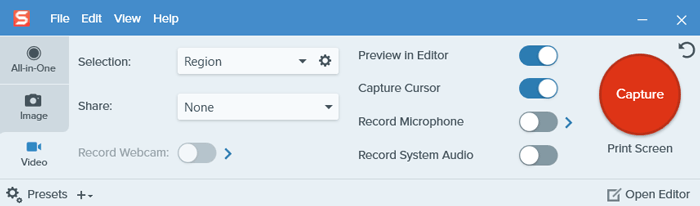
Snagit from TechSmith is an effective screen recording tool for Windows & Mac. It works as a screen recorder, Webcam recorder, and Audio recorder. Snagit supports 4K recording resolutions.
A cool feature is scrolling screen capture, which captures the screen horizontally and vertically, plus panoramic scrolling capture.
- Supported platforms: Windows & Mac
- Recording Limit: Keeping the maximum time limit for recording to 1 hour or less is advised.
- Frame rate: 30 FPS
- Supported Video File Formats: MP4
Editing & Sharing Options
After the recording or screenshot capture is done, you will be redirected to the editing area. With Snagit, you can trim the videos, cut them, and add annotations. You can also save your recorded file as MP4 or animated GIF. Export options include uploading the recordings to Screencast.com, Dropbox, YouTube, Twitter, Google Drive, and more. For easy sharing, you can even convert your video recording to animated GIFs. Of all the screen recorders with editors, Snagit is the most limited in editing features.
How long is the Snagit free trial?
Snagit does provide a free trial version of the program for 15 days, with all functionalities included during the trial period.
ActivePresenter

ActivePresenter is last on my list of best Screen recorder apps. With this high-quality screen recorder, you can record your screen, webcam, and audio. You can record the content in 720p HD or 1080p Full HD.
- Supported platforms: Windows & Mac
- Recording Limit: Unlimited
- Frame rate: 30 FPS
- Supported Video File Formats: MP4, AVI, WMV, WebM, and MKV
Editing & Sharing Options
The built-in editor includes options like Cut, Copy, Delete, Crop, Split and Join Videos, Change Playback Speed, Insert Blur Area, and more. Also, you can add annotations, animation effects, and closed captions. Advanced video editing features include green screen effects, blur effects, noise reduction, etc.
ActivePresenter lets you save videos to MP4 and MKV with many other output formats. It also provides many options to export video files to different formats like images, videos, PDFs, or HTML5 files. However, this recorder does not allow me to upload and share videos directly to YouTube or other platforms. Also, there is no option to schedule the recordings.
Does ActivePresenter have a free version?
ActivePresenter includes a free version of the program with limited recording and editing features.
Choosing the Right Screen Recorder with Editor
Choosing the right screen recorder depends on your requirements. There are many aspects to consider. Here are a few questions you should ask yourself before making the final call.
- Is the recorder user-friendly & budget-friendly?
- Does it provide different recording modes?
- Will it let you edit the screen recording?
- Does it support the popular output file formats and output video codecs (H.264 or H.265)?
Frequently Asked Questions
Does Windows 10/11 have an inbuilt screen recorder?
Yes. Windows 10 and 11 come with a built-in screen recorder, Xbox Game Bar, designed mainly for gamers and to improve the gaming experience. It can also be used as an MP4 recorder. However, the main drawback is that it can record only one app at a time. You cannot record your Windows desktop, specific areas of the screen, or File Explorer. To record the full screen or a specific area, you have to look for third-party screen recorder apps.
Conclusion
I have described some of the best HD screen recorders with editors, which have varied screen recording options and editing features. Hence, you can choose the one that best suits your needs. Depending on the recording capabilities, user-friendliness, features, and supported files/formats, you can choose the recorder of your choice.
Changelog

Sourojit is the Executive Editor at Dealarious and has been writing reviews, tips, and how-tos since 2008. A Computer Science Engineer by degree, he enjoys turning complex tech into simple, useful insights.
Outside of work, he’s a DIY enthusiast who enjoys gardening, long drives, and building custom PCs, often experimenting with water-cooled setups. Over the years, he has played the roles of reviewer, storyteller, experimenter, and teacher.