Images that once took hours to retouch can now be transformed in seconds with AI. But the real breakthrough isn't just speed, it's the ability to experiment with new ideas without requiring advanced skills.
AI photo editors make this possible, helping you achieve professional-level results quickly without long learning curves.
With that in mind, let's explore the best AI photo editors for Windows and Mac that go beyond typical edits and express your creativity.
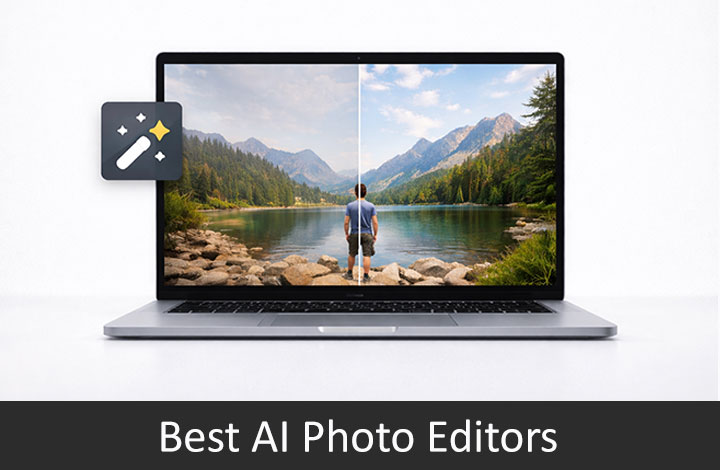
How Does AI Help in Photo Editing?
I have been into photography for years now. While I enjoy capturing moments, the thought of post-production always felt overwhelming. The same old repetitive task of adjusting exposure, tweaking contrast, and retouching to keep the visuals consistent.
That's where AI photo editors change the game. Using advanced AI algorithms, these tools automatically refine and enhance your photos with just a few clicks.
Let's explore how AI can help you in different areas:
- Auto Enhancement - AI photo editors can efficiently analyze key elements of an image, like exposure, contrast, color balance, noise, and sharpness, to apply smart adjustments in a single click.
- Consistency - Maintain a consistent look and feel across a series of images.
- Advanced Object Removal - Automatically detect and quickly remove objects.
- Easy to use - AI automation simplifies complex editing tasks. It helps you create high-quality results without a steep learning curve.
- Enhanced Creativity - As AI handles most of the technical workload, you have more time to focus on creative decisions such as ideas, effects, moods, and aesthetics.
Quick Comparison of AI Photo Editors
Feature comparisons reflect the full versions of each software.
Product | AI Enhancement | Portrait Retouching | Background Removal | Object Removal | AI Old Photo Recovery | RAW File Support |
|---|---|---|---|---|---|---|
Luminar Neo | Yes | Yes | Yes | Yes | Yes | Yes |
Movavi Photo Editor | Yes | Yes | Yes | Yes | Yes | Yes |
HitPaw FotorPea | Yes | Yes (partial) | Yes | Yes | Yes | Partial |
Evoto AI | Yes | Yes | Yes (through the Distraction Removal tool) | Yes (includes healing brush and clone tool) | No | Yes |
CyberLink PhotoDirector | Yes | Yes | Yes | Yes | No | Yes |
PhotoWorks | Yes | Yes | Yes | Yes (through healing Brush and clone tool) | No | Yes |
InPixio Photo Studio | Yes | No | Yes | Yes | No | Yes |
Leawo PhotoIns | Yes | No | Yes | No | No | No |
Note: Some of the AI Photo Editors in this list are resource-intensive. I have included system requirements only for those heavier apps to help you make a concise decision.
My List of Best AI Photo Editors in 2026
1. Luminar Neo
Supported OS: Windows and macOS
System Requirements: 8GB+ RAM (16GB recommended), 10GB of free drive space, SSD for best performance. Check full Luminar Neo's system requirements.
Free/Free Trial: 7 Days Fully Functional Free Trial
Testing Note: I tested Luminar Neo using the free trial to explore its AI features and overall workflow.
My Rating:
Switching to Luminar Neo felt seamless after years of using Adobe Photoshop and Lightroom. Its deep AI integration, combined with slider-based editing controls, helped me achieve professional-quality results faster than traditional software. The program also includes Generative AI tools for easy image transformations, often with text-guided prompts.
That said, using AI, advanced features, and a multi-layer editing workflow can require more processing power than basic edits.
AI Features in Luminar Neo
GenErase - Remove unwanted objects with AI
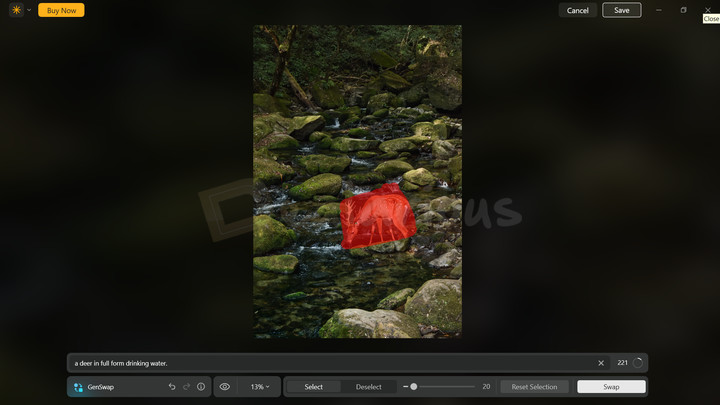
Select and remove unwanted objects from an image. Luminar Neo uses content-aware technology to smartly fill the space, creating a natural-looking blend.
GenSwap - Replace objects using text prompts
The feature works quite effectively. However, for better results, you can mask an area slightly larger than the object and provide a clear, detailed prompt to generate more accurate replacements.
GenExpand - Extend image borders
Extend the borders of your image to increase the canvas size and provide more breathing room. You can also use text prompts to guide the AI and expand the scene with additional elements.
Noiseless AI - Reduce noise in night shots
Night photography often requires higher ISO settings, which can add significant visible noise to your photo. Luminar Neo's AI Noiseless feature helps you with that. It quickly analyzes your image and recommends the ideal preset — Low, Middle, or High — for quick noise reduction. You can apply the recommended preset or fine-tune the results using the sliders for more control.
Supersharp AI - Sharpen blurry images
Fix slightly blurry images caused by subject movement, camera shakes, or missed focus. The AI analyses the depth, perspective, environment, and blur intensity using two modes: Universal and Motion Blur to provide a stabilized and sharp image without affecting the main subject.
Restoration
Luminar Neo's Restoration feature uses AI to recover old or damaged photos. It can efficiently remove scratches, fill cracks, smooth textures, and restore skin tone and color. In my experience, the program delivered reliable and ready-to-use results. It effectively removed the damaged areas, improved clarity, and smoothened the textures, achieving a natural finish without over-processing.
Sky AI - Replace and enhance skies
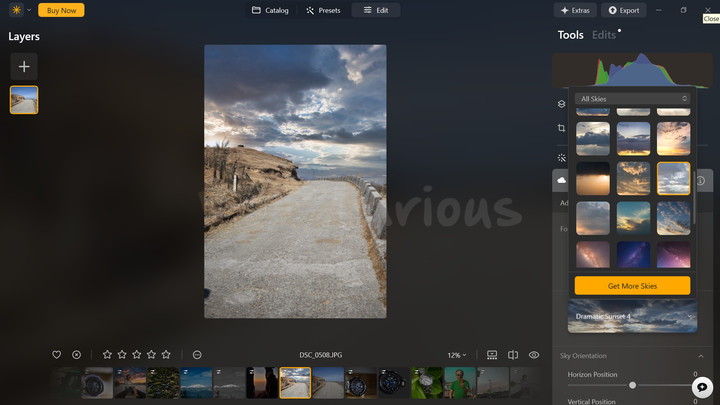
It is one of my favorite features of Luminar Neo, which instantly transforms a dull sky into something creative without complex manual editing. The tool offers smart sky recommendations along with adjustment controls that naturally complement your image. Luminar Neo does not just swap the sky; it ensures the whole image looks realistic by adjusting colors and lighting across the scene.
Pros
- Intuitive interface
- Easy-to-use AI features
- Slider-based adjustments
- Works with Adobe Photoshop & Lightroom Plugin
- Supports layers
Cons
- Resource intensive
- Limited presets
- Limited layers capability
Who is Luminar Neo best suited for?
Luminar Neo is ideal for home users looking to enhance photos, portrait photographers, hobbyists, or anyone who finds Lightroom or Photoshop too complex.
I found Luminar Neo to be one of the best AI photo editors, not just for its AI features but also for its flexible controls, advanced adjustments, and surprisingly easy-to-use interface, despite its feature-rich nature. Just keep in mind that Luminar Neo will work best on a solid PC setup, as the program can be resource-intensive.
To get a full picture of Luminar Neo's AI features in detail, check out this in-depth Luminar Neo Review.
2. Movavi Photo Editor
Supported Platforms: Windows and macOS
Free/Free Trial: Free trial with limitations (no time limit)
Free Trial Limitations:
- Save upto 10 photos with the Movavi watermark
- Watermark on copied image parts
My Rating:
While some photo editing apps are too basic, others can feel overly complex. Movavi Photo Editor hits the sweet spot; it's intuitive enough for beginners and packed with AI features and creative editing options to create high-quality results. It boasts tools like auto-enhance, old photo restoration, object and background removal, and more, to speed up your editing process. It also has a clean, organized interface for a distraction-free workflow.
AI Features in Movavi Photo Editor
Auto Enhance
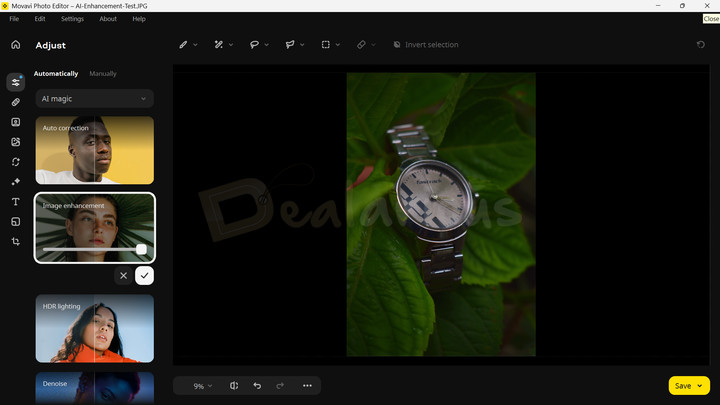
Enhance your photos automatically and manually. While the manual mode lets you fine-tune the details yourself, the automatic mode groups presets, including AI presets (e.g., Auto Correction, Imahhe Enhancement, HDR Lighting, and Denoise). Unlike regular presets, AI analyzes your photo and adjusts lighting, color, clarity, and details accordingly. The result! Well, you can turn a poorly lit image into a vibrant one with just a single click.
AI Restoration of old photos
Revive old and damaged photos with AI. Movavi can automatically remove visible creases, stains, and scratches, and even turn a black-and-white image into a colored one. However, the feature can often over-smooth a picture, making it look slightly flat. Nonetheless, it's useful for anyone who wants to preserve old memories with a fresh look without spending hours on manual editing.
Precise Object Removal
Removing unwanted elements is a breeze with the Erasing objects tool. Just brush over the object, and the AI automatically removes it and fills the area. However, sometimes the stitching might not come out perfectly; in that case, you can make manual adjustments to refine the image.
Quick Photo Background Removal
Remove and change the background with just a single click. With the help of AI, the program can automatically detect the main subject and separate it from the background, deleting everything else. You can then replace the background with images from Movavi Photo Editor's built-in collection or from your local drive.
AI Retouch
The Retouching feature is one of my favorite tools in Movai Photo Editor. It goes beyond basic filters and offers both automatic and manual options. While the automatic mode enhances the overall tone of the image with a single click, the manual mode offers 17 touch-up options to refine your subject's details. You can apply makeup, change face shape, enlarge eyes, and more.
The best part is that the entire AI-powered retouching process is effortless, making it easy to create pro-level results in minutes.
Pros
- Intuitive interface
- Easy to learn and use
- Restore old photos
- Value for money
Cons
- Free trial has limitations
- AI tools can be improved
- Limited advanced controls
Who is it best suited for?
Movavi Photo Editor is designed for beginners and hobbyists, not to replace professional software. Its intuitive user interface, combined with AI features and adjustment options, makes it a good choice for those who want results without a steep learning curve.
If you are curious about what it can do beyond AI-powered features, read this Movavi Photo Editor review. For the best deals, check out our Movavi Photo Editor Coupon Codes.
3. HitPaw FotorPea
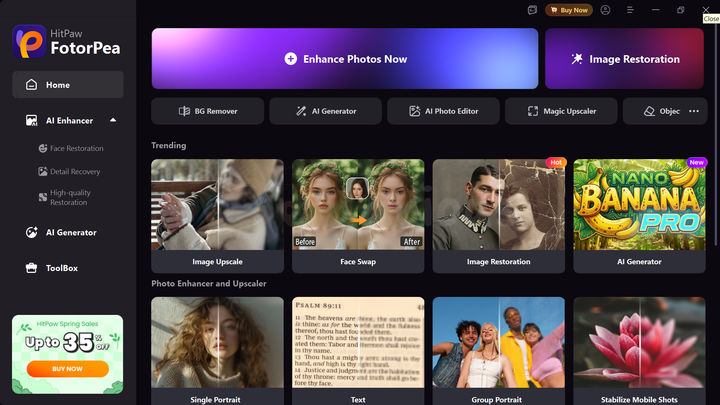
Supported OS: Windows and macOS
System Requirements: 8GB or more RAM, 2 GB+ free drive space. Check HitPaw's System requirements.
Free Trial/Free: Free Trial with limitations (No time limit)
Free Trial Limitations
- Watermark on preview
- Can't export images
- Limited AI credits
- Screenshot feature locked behind paid plan
Testing Note: My experience is based on the free trial version of FotorPea. Some features, like screenshot capture, were restricted during the trial.
My Rating:
After testing Luminar Neo and Movavi Photo Editor, HitPaw FotorPea came out as one of the best AI photo editors I have used so far. It comes with a ton of AI features that deliver crisp, detailed results.
That said, the program can require significant processing power, potentially affecting other background apps. Still, it remains a tough competitor in quick enhancements, cleanups, photo recovery, and AI image generation.
AI Features in HitPaw FotorPea
AI Photo Editor
The AI Photo Editor in FotorPea clubs all AI and basic editing options in one place, making image refinement more convenient. While AI enhancement tools simplify complex edits such as noise removal, facial corrections, and image enhancement, the adjustment controls let you refine the results further. You can tweak sharpness, color, contrast, brightness, and even change the aspect ratio.
AI Replace
Replace objects or elements using a text prompt. Simply upload your image, provide a clear prompt specifying what you want to change, and the AI will handle the rest to generate a new result. This feature is especially useful for changing product color and modifying outfits without requiring a reshoot.
Remove Object
I genuinely like FotorPea's quick object removal options, such as AI Box Selection and the Brush tool, which make the process fast and efficient. They work well for small, simple objects, but sometimes struggle with larger or more complex areas. For example, when removing a person or multiple objects from a detailed background, the program can leave some visible patches, making the edits look slightly unnatural.
Magic Upscaler
Enlarge an image while preserving quality. Add your image to the Magic Upscale module, and the AI will automatically select the best model to upscale and enhance details. You can also later adjust the parameters if required. During my test, FotorPea automatically upscaled an image up to 4X while preserving the details.
Image Restoration
Compared to other apps I have tested on this best AI photo editors list, FotorPea's Image Restoration feature stood out the most. With a single click, FotorPea not only effectively removed common issues such as scratches, creases, and dust spots from my image but also preserved its colors and details, without overprocessing. If you are looking for a decent AI photo editing tool specifically to recover old photos, FotorPea won't disappoint.
Additional AI Features
HitPaw FotorPea includes several other AI editing tools, such as an AI Generator with leading models like Flux, GPT, and Nano Banana, an AI background changer, a photo merger, an ID photo editor, and more.
Pros
- Leading AI model inclusion, like Nano Banana, Flux, GPT
- Effective AI features
- Old Image Restoration provides detailed results
Cons
- Resource intensive
- Photo Editor workspace can be improved
- Basic adjustment controls
Note: HitPaw handled Canon (.CR2, .CR3) and Sony (.ARW) files without an issue during testing, but it completely failed to open Adobe .DNG files. If your workflow relies heavily on DNG, you'll definitely want to keep this in mind.
Who is HitPaw FotorPea best for?
HitPaw FotorPea uses a simple workflow, making it especially suitable for beginners who want quick results without advanced editing skills. It can also help to create fast e-commerce visuals using generative tools like AI Generator and AI Replace. However, the software is quite resource-intensive, so if you're using a lower-spec system, it's a good idea to try the trial version before deciding to purchase.
4. Evoto AI
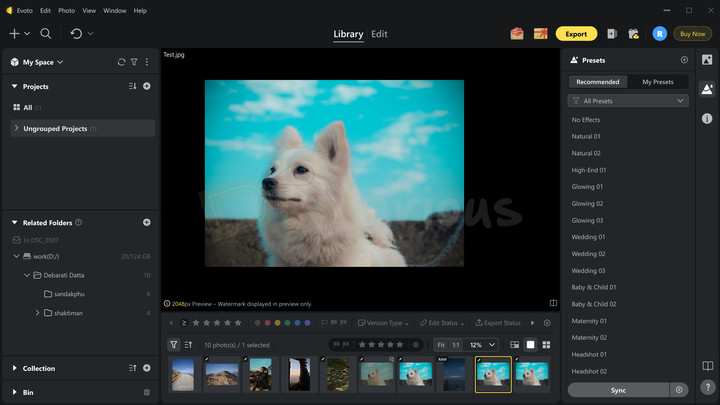
Supported platforms: Windows, macOS, iOS, and Android
System Requirements: At least 8GB of RAM and 3GB of free drive space. Check out Evoto's system requirements.
Free/Free Trial: Free version available with limitations.
Free Version Limitations
- Exporting edited images requires credit.
- Watermark on preview
My Rating:
Note: In the free version, you can get 15 free Credits by completing Evoto's survey and connecting your account to Meta.
Testing Note: I tested the free version to evaluate its features.
Evoto AI photo editor is a reliable and versatile AI-powered tool that simplifies complex photo retouching. Instead of relying on manual adjustments, Evoto AI automates advanced edits with smart, slider-based controls and one-click tools. Its main strength lies in quickly enhancing portraits, backgrounds, and color adjustments. What I liked is that the program includes manual adjustment tools like HSL, Curves, Color Grading wheel, grain, and color calibration, which can help further refine the automated results.
AI Features in Evoto
Portrait Retouching
The tool intelligently targets different areas of the face to enhance overall appearance. You can remove blemishes, smooth and retouch skin, reshape facial features, fix imperfections in teeth, remove glare from glasses, and more using simple sliders.
Pet Retouching
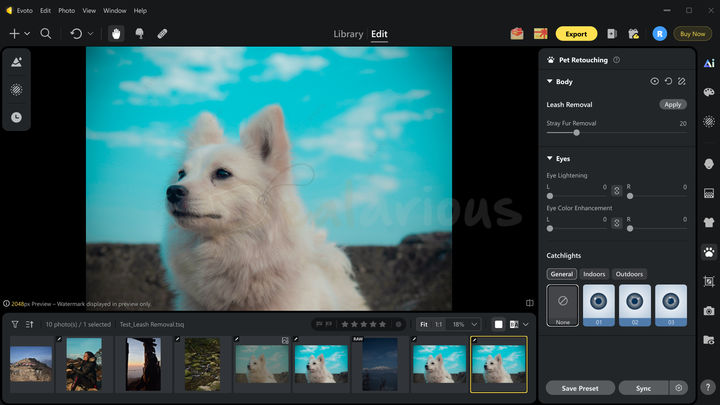
If you're a pet owner who takes lots of photos of your furry friend, this feature can help enhance their overall appearance effortlessly. It includes tools like leash removal, eye adjustments, eye color enhancement, and eye lighting correction to make your pet look more lively and expressive.
AI Color Tools
Evoto includes two color-enhancement modules: Auto Color Correction and Multi-Image Color Consistency.
Auto Color Correction uses AI to automatically adjust white balance and exposure, improving image clarity and color accuracy. The Multi-Image Color Consistency tool analyzes selected photos. It matches their color tone and basic grading, helping create a more consistent look across multiple images. It is especially useful for batch edits or photos from the same shoot.
Color Match
This useful feature can save significant time on editing. It uses AI to analyze the mood and color grading of a reference image and automatically apply a similar color style to your selected photos. You can choose from built-in reference options or import your own image, allowing you to create a consistent visual style across multiple photos.
Exra Features
In addition to the features mentioned above, Evoto includes Sky Replacement, Clothing Adjustment, and Backdrop Changer.
Pros
- Powerful Portrait retouching features
- One-click AI and a slider-based controls
- Short learning curve
- Advanced editing adjustments
- Quick customer support via email
Cons
- Not ideal for all photography styles
- Limited layer-based editing
- Watermark remains visible while editing and can only be removed when exporting images.
- Credit-based export may feel limiting
Who is Evoto AI best suited for?
Evoto AI excels at automating portrait edits, making it a solid choice for photographers working with fashion, studio portraits, and headshots. Also, intermediate users will love its manual editing adjustment controls.
5. CyberLink PhotoDirector
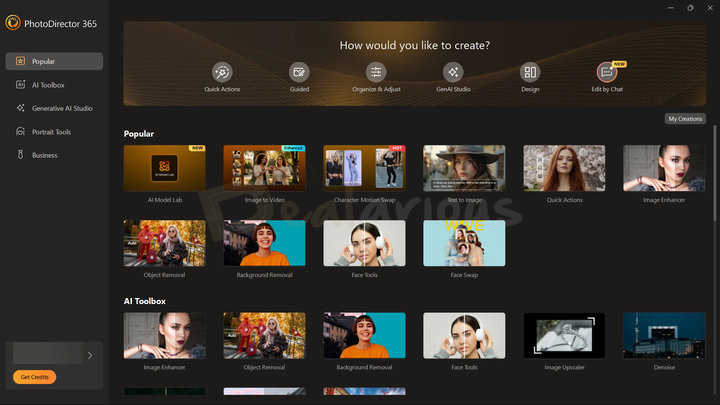
Supported Platforms: Windows and macOS
Free Trial/Free: Free version available with limitations
System Requirements: 4GB+ RAM recommended with 10GB of free drive space. Check out CyberLink PhotoDirector's system requirements.
Free Version Limitations
- Watermark on the preview when using premium features
- Cannot export photos if you use AI or Premium tools (standard exports are limited to 2 per day)
- Generative AI features are highly limited
Testing Note: I tested the free version of CyberLink PhotoDirector, which allowed me to try the core AI and GenAI features but offered only a limited number of credits, limiting deeper evaluation.
My Rating:
CyberLink PhotoDirector is another powerful and feature-rich option for anyone looking for the best AI photo editor. It packs traditional photo editing tools (e.g., layers, masks, adjustment sliders, library mode) along with AI-powered and Generative AI features. The slider-based controls are super useful, making adjustments easy. However, some AI tools can sometimes produce generic results.
AI Features in CyberLink PhotoDirector
Image Enhancer
Includes three AI-powered tools: Auto Tone, Auto Color Enhancement, and Face Enhancement. You can toggle them on as needed, and PhotoDirector will automatically adjust exposure, brightness, color, saturation, and remove facial imperfections.
During my testing, the feature worked well in luminating low-exposure images. Still, sometimes it overprocessed the smoothness when a subject was in focus. Fortunately, the slider helps somewhat control the effects, but the detailed texture often gets lost.
GenAI Object Removal
Remove objects precisely with three selection options: box for large areas, lasso for detailed shapes, and click for quick single-object removal. For more precise selection, you can also use the brush tool or the eraser tool. Once the AI analyzes the image, PhotoDirector seamlessly removes the object and applies content-aware fill to naturally blend the area with the surroundings.
Portrait Tools
Includes a plethora of AI-powered tools, including one-click face retouch and sliders for face shaping, smoothing, blemish removal, spot removal, etc. The results are decent overall, but I feel the one-click face retouch can be improved.
Denoise
With a single click, the Denoise feature effectively removes image noise, and you can adjust its strength with a slider. In my testing, the feature provided quite satisfactory results, without oversmoothing my photo.
Sky Replacement
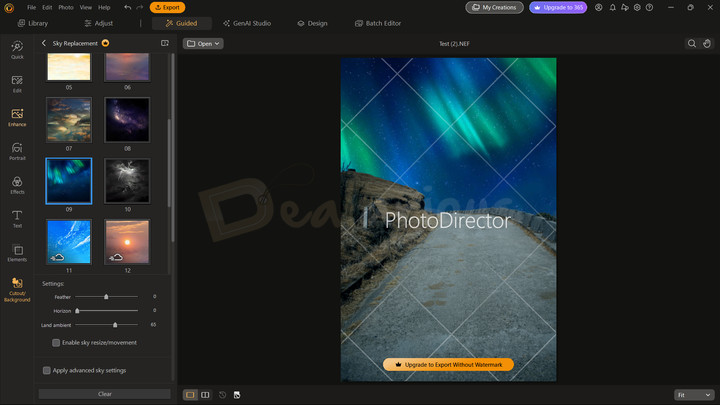
If I had to pick a tool specifically for sky enhancement, this would be it, right after Luminar Neo. The Sky Replacement tool in PhotoDirector comes with a good selection of preloaded skies, and you can import your own from your drive.
Some even have moving clouds, making it helpful for GIFs or videos. You can adjust the feather, horizon, and land ambient, along with other parameters, to get the perfect result.
Additional AI Tools
In addition to the features mentioned above, PhotoDirector also includes Professional Headshot, Photo to Sketch, Image Fusion, AI Extend, Upscale, Wire Removal, and more.
Pros
- Packs multiple AI features
- Slider-based controls
- Generative AI capabilities (including Nano Banana, GPT, and Flux)
- Good Sky Replacement
Cons
- The interface can be improved
- Free version is very limited (no export + watermark)
- Credit-based Generative AI feature can feel limiting
- AI features sometimes produce poor results
Who is CyberLink PhotoDirector Best Suited For?
CyberLink PhotoDirector is best suited for intermediate users looking for the comfort of traditional tools (organizing capabilities, adjustment layers, masking, etc.) coupled with Generative AI and AI-powered features to speed up the editing process.
6. PhotoWorks
Supported Platforms: Windows and macOS
Free/Free Trial: 5 Days Free Trial with Limitations
Free Trial Limitations
- Some pro features (e.g., Skin Defects Removal, Sky Replacement, a few effects collections, etc) are locked.
- Can't export image.
Testing Note: My evaluation was conducted using the trial version of PhotoWorks, in which I tested both AI-powered and manual editing workflows.
My Rating:
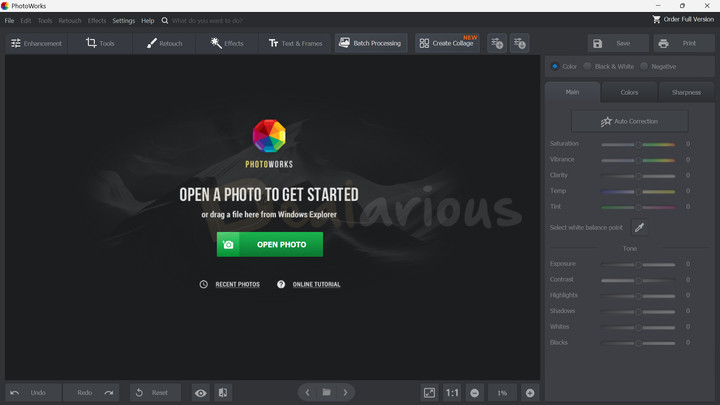
If you are looking for a decent yet lightweight AI photo editing app, PhotoWorks can serve you well. It can efficiently analyze and detect elements (e.g., sky, people, and objects) in your photo and automatically apply corrections. What stood out to me about this program is its interface, which feels like a traditional photo editor but with clear icons and labels that help speed up the workflow.
AI Features in PhotoWorks
Auto Correction
Quickly analyzes your images and applies necessary adjustments for exposure, contrast, dynamic range, and vibrance. Sometimes this tool can boost colors and exposure too aggressively. While the slider helps reduce the strength, you might still have to make manual adjustments to further refine the results.
Portrait Magic
Detects faces in both individual and group photos. It offers a wide selection of ready-made presets for quick skin and tone enhancement. I really liked the variety available, which noticeably improved my subject's skin tone. Beyond presets, the adjustment controls also help refine specific areas such as smoothing skin, reducing glare, enhancing lips, eyes, and eyebrows, and more.
Body Sculpt
Lets you target different body areas and reshape them using sliders. You can make your legs appear longer and your body and arms slimmer with minimal effort. However, this tool works with subjects on a clean background, as the adjustments also affect the surrounding areas.
Object Removal
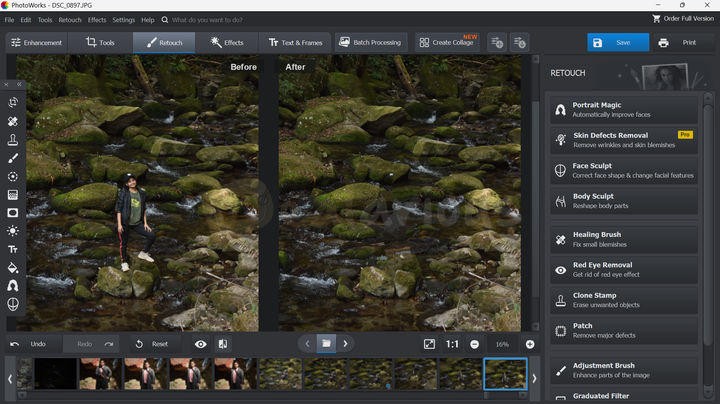
For object removal, PhotoWorks includes the Healing Brush tool. You can change the brush size, feather, and opacity, and mask the area you want to remove. Once masked, the program will automatically replace the object with surrounding pixels.
Other Features in PhotoWorks
PhotoWorks includes a handful of other tools to simplify photo editing, such as Face Sculpt, Skin Defects Removal, Sky Replacement, Dehaze, and Change Background.
Pros
- Decent portrait retouching presets
- Intuitive interface
- AI Tools simplify workflow
Cons
- Quick enhancement can often overprocess the image
- Basic AI tools
Who is PhotoWorks Best Suited For?
PhotoWorks blends a decent collection of AI-integrated features and flexible manual controls, making it a good option for beginners with limited skill and intermediates who like control over their editing workflow.
7. InPixio Photo Studio
Supported platforms: Windows
Free Trial/Free Version: Free version available with limitations.
Free Version Limitations:
- Watermark on exported images
- Limited access to most functionalities.
Testing Note: I tested the free version to understand how the AI tools perform and their usability.
My Rating:
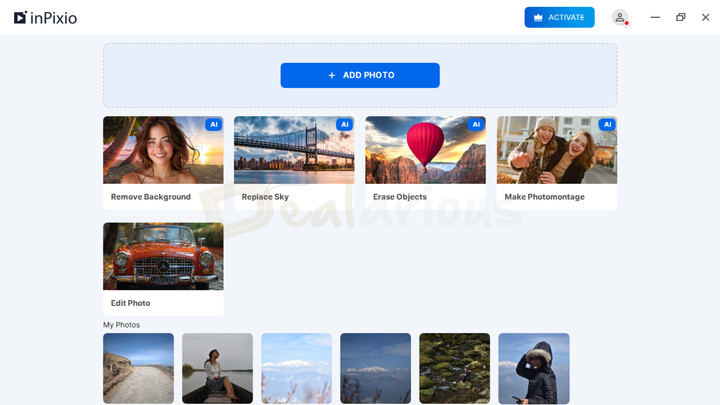
InPixio Photo Studio is a simple yet effective AI Photo Editor that lets you easily swap skies, remove backgrounds, edit photos, erase objects, and create photo montages. The interface is clean, with all essential tools displayed on the dashboard, and the editing panel is well organized, making the overall experience easy.
AI Features in InPixio
Remove Background
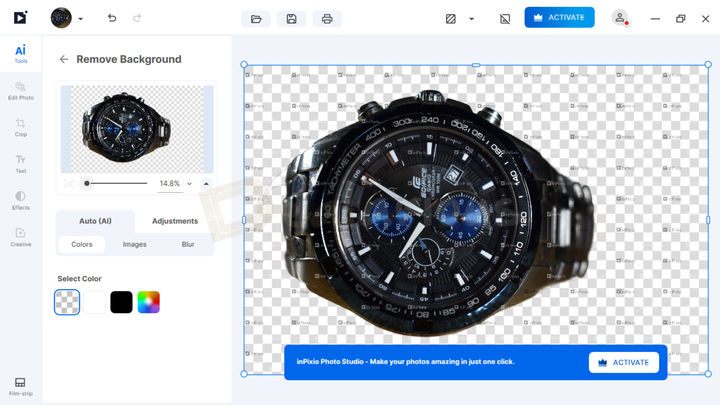
By utilizing AI, InPixio seamlessly removes the background from an image with a single click. In complex or element-heavy images, the AI may struggle to deliver perfect results. After removing the background, you can further customize the image by changing the background color, refining edges, or replacing it with another image.
Replace Sky
Offers several built-in sky presets and the option to import a custom sky from local storage. It also offers flexible adjustment controls to fine-tune the results after the replacement is done.
However, it sometimes struggles to maintain a proper color and lighting balance with the original scene, unlike Luminar Neo and PhotoDirector.
Erase Objects
It offers two ways to remove unwanted objects: manual brushing and one-click auto-detection and removal. Once the object is removed, InPixio uses AI to fill the space. However, the tool is not perfect; it can sometimes leave noticeable blending inconsistencies.
Make Photomontage
The Photomontage feature in InPixio Photo Studio lets you add text and graphic elements, or place your image into ready-made templates like magazine covers, greeting cards, and memes, to create creative photo designs.
One-Click Auto Correction
Enhances low-light images into a well-lit one with just a single click. You can then manually adjust a few parameters, such as contrast, sharpness, noise, temperature, and shadow, to refine the result further.
Pros
- User-friendly interface
- Easy-to-use tools
- Works with RAW files
- Online version available
Cons
- Basic AI photo editing app
- Lacks advanced photo editing features
Who is InPixio Photo Studio for?
InPixio Photo Studio offers a decent collection of AI-powered features but it is more basic compared to other AI photo editors on this list. It can still serve as a solid option for those who want quick background and object cleanup and basic photo enhancement with a limited editing skill set.
8. Leawo PhotoIns
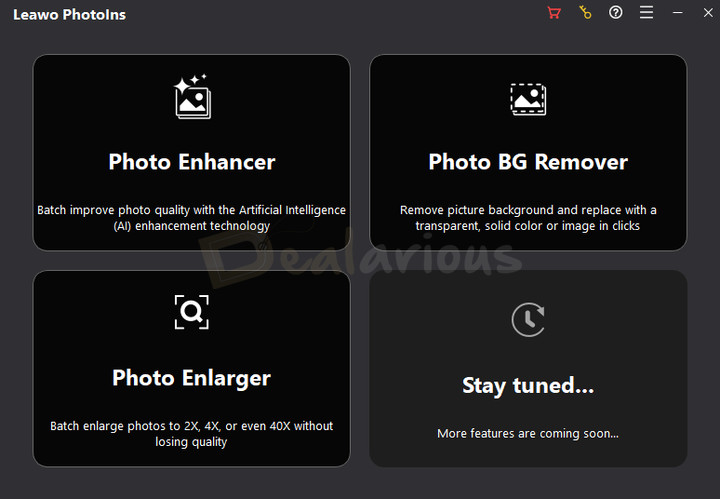
Supported Platforms: Windows and Mac
Free/Free Trial: Free trial with no time limitations
Free Trial Limitations:
- No batch processing
- Watermark on the output
- Promotion pop-ups
Testing Note: Since I used the Free trial of Leawo PhotoIns, I was unable to evaluate the batch processing feature.
My Rating:
Leawo PhotoIns primarily focuses on simplicity with one-click AI enhancements, image upscaling, background removal, and batch processing. It supports several image formats (e.g., JPEG, BMP, TIFF, PNG, and WEBP).
AI Features in Leawo PhotoIns
Photo Enhancer
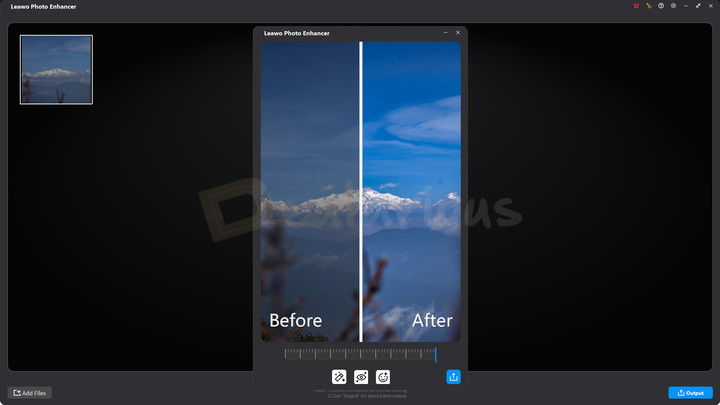
Quickly improve your image quality by automatically analyzing and optimizing your photos. It can enhance facial details, correct colors, and apply lens correction to refine overall clarity and visual appeal.
Photo BG Remover
Automatically detects the subject and removes the background by analyzing image edges and creating accurate cutouts, enabling you to quickly separate the subject. For better precision, the tool also includes basic manual controls for refining the selection when needed.
Photo Enlarger
Upscales an image upto 8X while preserving quality. To fine-tune the image further, the feature also lets you adjust denoise, brightness, deblur, saturation, and contrast.
Pros
- Simple and easy to use
- Three quick AI modules
- Good for batch processing images
Cons
- Limited features
- Limited refinement options
Who is Leawo PhotoIns best suited for?
Given its limited feature set, Leawo PhotoIns fits well for those who want quick image enhancement and bulk cleanup rather than detailed editing. Batch processing is available in the full version, making it easier to improve multiple images at once.
Quick Verdict
After comparing the features, performance, and effectiveness of each app, here's my recommendation to give you a quick head start.
Beginner
If you are just starting your editing journey and want simple ways to enhance photos with helpful AI tools while still retaining some manual control, try Movavi Photo Editor and HitPaw FotorPea.
Intermediate/Pro
If you want more creative control and want to use AI to speed up your workflow, Luminar Neo, CyberLink PhotoDirector, Evoto AI, and PhotoWorks are great options. They offer a plethora of AI features and advanced adjustment tools to further refine your edits. Most support layers, masking, and photo organization, giving you full creative flexibility.
Rapid Results
If your focus is on quick background cleanup, batch processing, photo enhancement, and upscaling, then Leawo PhotoIns and InPixio Photo Studio can help you achieve that.
AI Features in Adobe Photoshop and Lightroom
This list of best AI photo editors would be incomplete without mentioning two prominent names in the photo editing industry: Adobe Photoshop and Lightroom. With the growing adoption of AI, both applications have deeply integrated it into their editing workflows.
Photoshop's AI features include one-click subject selection and background removal, Generative Fill and Generative Expand (via text-based prompts), Neural Filters for retouching and adjustments, sky replacement, and much more. These capabilities streamline complex edits that once took hours to master.
Lightroom AI features include AI Denoise to quickly remove digital noise, adaptive presets that dynamically adjust to your content, AI-powered masking, lens blur for depth effects, generative remove, etc. These tools not only help improve image quality but also speed up large editing workflows.
While these AI integrations across both platforms do not reduce the learning curve, they have certainly made professional editing more accessible and efficient.
Choosing the best AI Photo Editor
Knowing what you need makes it easier to select the right AI photo editor.
Identifying your editing needs
Start by understanding what goals you are trying to achieve using AI photo editors. Do you want to perform basic tasks like quick fixes, background removal, portrait retouch, or a feature-rich AI tool with both basic and advanced controls? Being clear about what you want can help you choose the best AI photo editing software.
Check Compatibility
Once you've understood your editing needs, check whether the software is compatible with your device. Check your system configuration and match it with the software's system requirements.
Affordability
Cost is an important factor. Most AI photo editors offer a free version or a free trial (some with full functionality and others with limitations). Regardless, it's best to test the software first to assess its effectiveness before purchasing.
Capability
During your trial run, pay attention to both the interface and the features' performance. Is the interface easy to navigate? Does it match your skill level? Then check how well the AI tools perform in practice. Are you getting quality results? Do the AI-produced results (background removal, image enhancement, etc.) require a lot of rework? Testing the software will give you a clear idea of the program's capabilities and whether it's the right fit for you.
FAQs
Does AI Photo Editor slow down your system?
Not necessarily. Most AI photo editors run smoothly on modern laptops and desktops. However, heavier programs like Luminar Neo or HitPaw FotorPea can strain your system during intensive edits or when using generative AI features.
Can AI editors accurately remove unwanted objects or backgrounds?
AI is helpful, but not perfect. Many AI photo editing tools can remove unwanted objects and backgrounds, especially from images with minimal detail. However, they can often miss details when dealing with complex images.
Do AI editors work with RAW files?
Yes. Most editors like Luminar Neo, PhotoWorks, Evoto AI, and Movavi Photo Editor support RAW files.
Are AI photo editors suitable for professional work?
Yes. Photo editors such as Luminar Neo, CyberLink PhotoDirector, and Evoto AI are strong enough for handling professional workflows.
Conclusion
In the end, choosing the best AI photo editor comes down to what matches your needs and workflow. If I had to pick, these would be my top choices:
Luminar Neo: For advanced AI tools that speed up my workflow, help organize folders and photos, and offer advanced editing controls to refine the results.
Movavi Photo Editor: For quick AI enhancements, portrait retouching, and removing background, along with basic manual adjustments.
HitPaw FotorPea: For fast AI-powered restoration, upscaling, batch editing, and strong generative AI capabilities.
She reviews software at Dealarious, mostly recovery and productivity tools, which she tries out herself. Her goal is to keep things simple so readers don’t waste hours figuring out what works. Over the years, she has tested dozens of apps and learned that small details often make the biggest difference.
When she isn’t testing programs, you’ll usually find her hiking in the mountains or enjoying the rain. She believes good tech should quietly make life easier, not more complicated.