Many creators nowadays turn to online video editors because of their simple approach. No downloads, no setup, open a browser and start editing, and Veed is one of such tools. It aims to make video editing faster and more efficient with a host of AI-powered tools.
But how good is it? Whom is it suited for? And most importantly, is it worth your time?
In this Veed review, I will cover everything you need to know about this platform to help you decide whether it is worth your consideration.
Veed Review: Overview

Pros
- Clean and organized Interface
- AI-powered tools speed up workflow
- Color grading presets add mood to the video
- Rich stock media collection
- AI Voice Cloning works well
Cons
- Playback buffering
- Limited drag and drop functionality
- No folder upload option
- Left panel occupies space during edits.
overall
USD 288.00
Supported Platforms: Web Browser
Interface
4/5
Features
4/5
Usability
3/5
Support
2.5/5
Veed is an AI-powered online video editor that intends to make your video editing easier and faster. It includes a good collection of stock media and elements, as well as editing features such as splitting, transitions, animations, and color adjustments. It also has efficient AI tools that let you create subtitles, translate them into another language, remove background noise, generate an AI voice clone, and more.
In essence, Veed focuses more on what most people actually need: a quick way to produce social media clips, daily vlogs, webinars, and podcast videos without the lean learning curve.
Full Disclosure: For this Veed review, I was provided with a 3-month Pro Trial Plan (without additional AI Credits). Everything you will read here is based on my personal experience using the Veed Pro plan, with no influence or edits.
Pricing Plans
Both free and paid plans are available. The paid plans are divided into Creator, Pro, and Studio plans.
Below are the yearly official prices.
- Creator: USD 144/year
- Pro: USD 288/year
- Studio: USD 468/year
The Creator plan lets you export videos in 1080p and comes with 5GB of storage. The Pro plan is recommended, offering unlimited video length, 50GB storage, and support for 4K exports. With the Studio plan, you get unlimited storage, 4K export support, and much more.
There is also an Enterprise plan, but you have to contact their sales team for pricing details. You can check their pricing plans to find what works for you. If you want to try the platform first, VEED provides a free version with limited features.
AI Credits
As part of this Veed review, it's worth noting that AI credits are not included in standard plans like Pro. If you want to use AI-powered features, you will need to purchase credits separately based on your usage.
Veed Review: Interface
Similar to any other online video editing platform, Veed has kept its interface simple and organized.
Dashboard
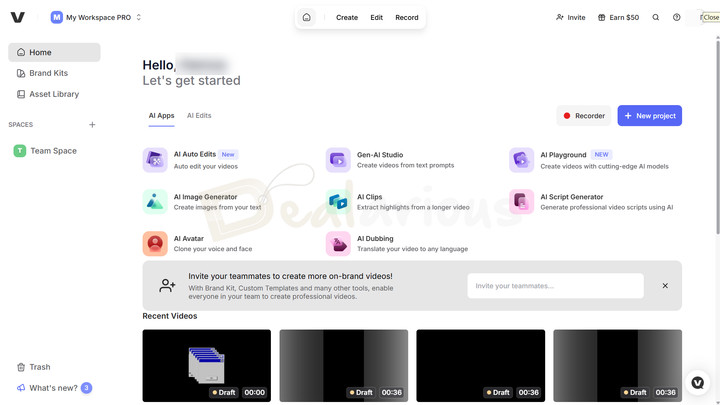
On the left panel of the dashboard, you will find options such as Home, Brand Kits, Asset Library, Spaces, Trash, and What's New.
The right side, on the other hand, is more action-centered. At the top, you will find three main options:
- Create: From here, you can access AI tools to generate videos quickly.
- Edit: Opens up the editing window, allowing you to edit videos from scratch.
- Record: You can record webcam, screen, or audio directly from the platform.
Just below that, Veed lists its AI tools into two organized sections: AI Apps and AI Edits. It makes finding tools easy without having to dig through menus.
At the bottom of the dashboard, the Recent Videos section lets you quickly jump back into your ongoing project.
Editing Window
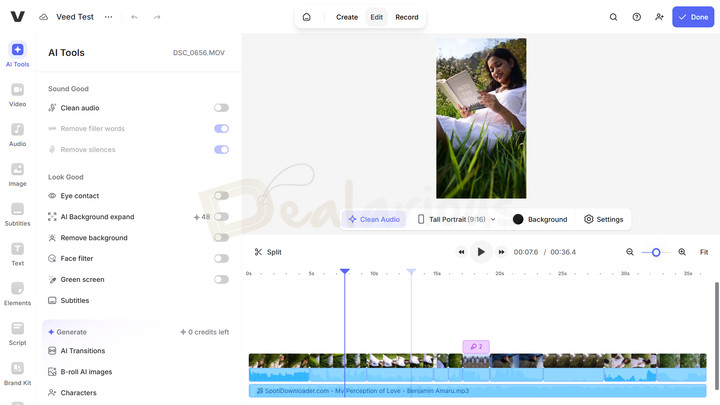
By clicking on Edit > New Project, you are directed to the editing workspace.
Veed offers several ways to upload files: simple drag-and-drop, scanning a QR code to import files from your phone, recording directly, or even starting with AI tools. During my Veed review, I found that when you load files directly into the platform, it tends to place all your files randomly on the timeline. It can quickly clutter your timeline and make it harder to manage, especially when working on larger projects.
But here's what I suggest you do. Instead of dropping files directly into the timeline, upload everything to the Asset Library first, then add them to the timeline as needed. This way, you retain some control over file organization.
As for the editing workspace, if you have used an online video editor before, you will find the platform familiar. It has a sidebar on the left containing all the tools you need (AI Tools, Video, Audio, Image, Subtitles, Text, and Elements), followed by the preview panel on the right, which is the core focus, and a timeline at the bottom of the screen. You can easily resize the timeline height and expand the clip view inside it by pressing Ctrl and scrolling the mouse wheel.
Overall, while the interface is clean and organized, I felt that this minor drawback can break the workflow.
Tip: Creating quality video with less effort sounds like a dream, but learning quick video editing tips and tricks can help you improve your workflow. These tips focus on both video editing software and online editors like VEED.
Veed: Key Features Review
Now let's take a closer look at the key features of Veed and how much they help you out during edits.
Basic Editing Features
Trimming
Trim your videos to remove unwanted sections from the main footage. For that, you can either use the Split tool, which lets you cut a clip at the exact spot where your playhead is, or simply drag the edges of a clip in the timeline to set its start and end points.
Transitions
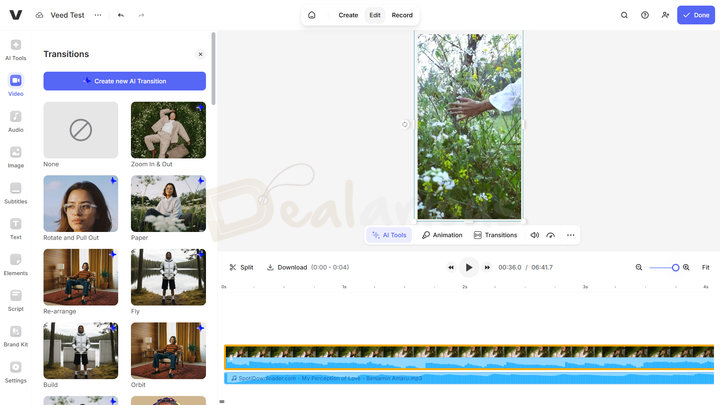
Veed has a decent collection of transitions that help create a smooth flow during scene changes. You can easily place a transition between two clips by clicking the transition effect you want. That said, there are a few limitations to this tool:
- First, the transition can only be applied between clips and not independently. It means you can't freely add transitions at the start or end of a clip, which restricts creative control.
- Second, you can't customize the transition effect as needed; there's no option to adjust its intensity, style, or duration. You pretty much get what you see. If you want control, it's best to use animation effects rather than relying on transitions.
- Third, using the "Apply to all" option trimmed the overall video duration. In my case, a 36-second video was reduced to 30 seconds. It surely blended the clips, but also trimmed them to make space. Even after undoing the action, the original clip length was not fully restored. Upon reaching out to support, they clarified that this behavior appears to be a bug and have forwarded the issue to the developers for further investigation.
Animations
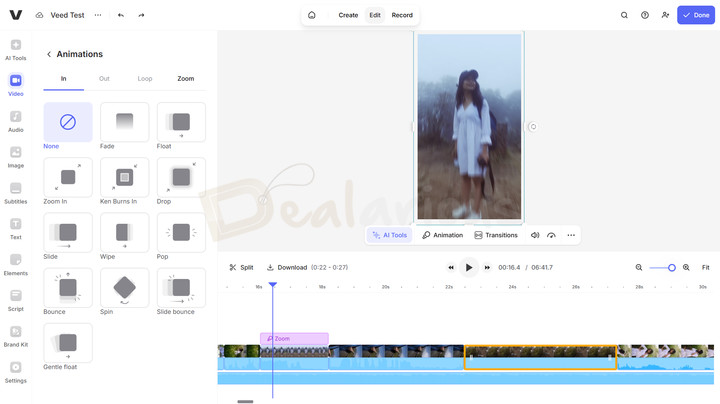
So far, Animation is one of my favorite features in Veed. The platform has a good collection of built-in animation styles categorized into: In, Out, Loop, and Zoom.
You can adjust the duration of each animation, but the Zoom animation provides somewhat creative control. It allows you to set the focus to a specific area of the frame, which is very helpful for highlighting a subject. You can also adjust how strong the zoom feels with options like Shallow, Moderate, and Deep. You can even control the speed and levels independently.
Effects/Color Grading
To elevate the overall feel of your videos, Veed also offers built-in effects and color grading presets. Even though these effects are fairly basic and lack detailed depth, they can get the job done.
Nonetheless, the color grading section offers a few cinematic preset options that can be useful if you want to add mood to your video without the tedious manual work.
Adjust
If you want more hands-on control over the visual appearance, you can use Veed's Adjust tool. From here, you can fine-tune things like brightness, contrast, exposure, saturation, noise, etc.
Yes, the options are quite basic, but they do help you clean up your footage to some extent.
Stock Media Files
Instead of just importing local files, you can also use files from Veed's stock library. It has a rich collection of audio, video, and images that you can add straight into your project.
Text
It is another useful feature in Veed. As the name suggests, the Text tool lets you add text to your videos, either from its built-in presets or by creating your own. You can adjust the style and even apply animations.
Another useful addition to the Text tool is the Text Behind Person option. After selecting the required clip, Veed automatically places the text behind the in-focus subject. Depending on your clip's length, the feature may take time to process. Also, for the best results, make sure your subject is relatively static, and there's not too much movement; otherwise, the text can behave inconsistently.
Veed AI Features
Remove Background Noise
In the AI Tools section, the Clean audio feature helps you reduce background noise, making your voice sound clearer. This tool does a decent job. In an environment with minimal background noise, it worked pretty well for me.
However, when it comes to loud noises, the results can be hit-or-miss. And since there is no option to tweak parameters, you are kind of stuck with whatever result it provides.
Remove Filler Words and Silence
Another strong aspect of Veed is its ability to remove filler words such as "like" and "umm" from audio with just a single click. In my experience, the tool worked well, but it is not perfect. It does miss a few instances here and there, but it does a good job overall.
When removing filler words, you can also use the Remove silences feature. It lets you cut out long pauses from your clip, making the overall flow feel smooth and natural. Once the feature detects silence, it automatically splits those sections. You can remove the gaps later and make the edit sound seamless. On my end, the feature mostly worked well with clean silence; when there was even a bit of background noise, like me murmuring something, it failed to detect those sections properly.
Green Screen
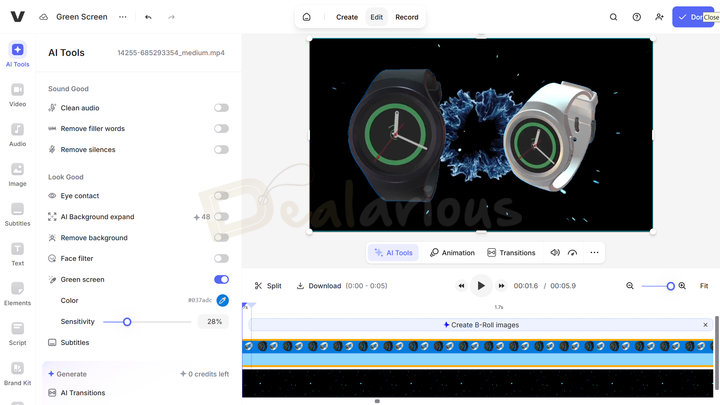
The Green Screen feature, found under the AI Tools section, lets you do more than just remove green backgrounds. You can use the color picker tool to remove a specific color from a clip and then use the sensitivity slider to fine-tune the result.
Although useful, it did not yield exceptional results. It's more like a simple one-click solution, something that most modern online and offline video editors already offer.
AI Voice Cloning
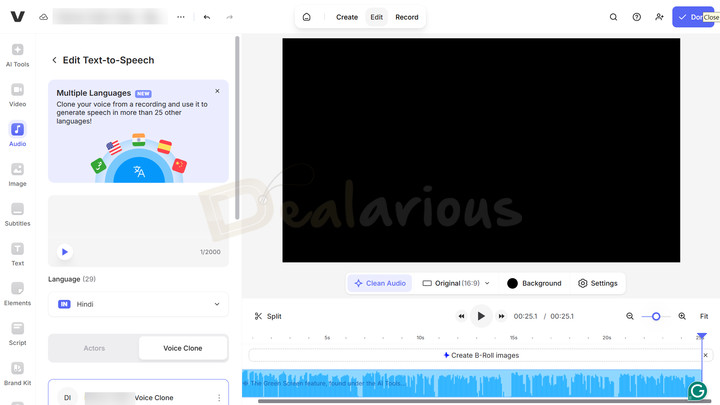
It is an interesting feature I came across while testing Veed. Using AI voice-cloning tools, I was able to clone my own voice and generate a speech in over 25 languages. When I say "languages," I mean accent, which I found pretty impressive. In addition to cloning my own voice, I could work with other recordings or choose from Veed's built-in voice actor models.
That said, when I listened to the recording, I could feel the rushed pacing and the weird pauses in the speech, which clearly suggested AI behavior. Nonetheless, I feel like it's a real time-saver, especially when you need a voiceover but don't have the time or setup, or feel hesitant to record it manually.
AI Dubbing
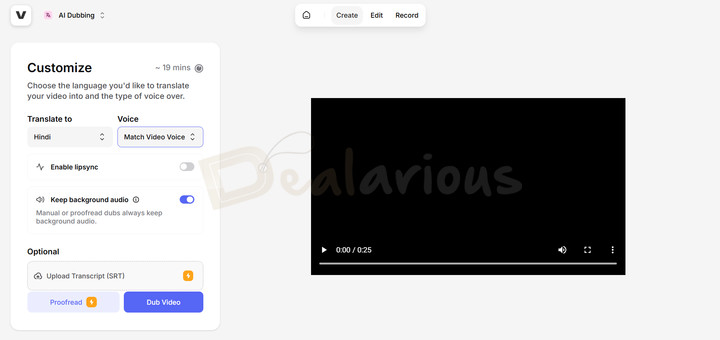
This feature in Veed helped me translate and dub my voice into a target language of my choice. I could also choose from different voice options, including built-in voice presets and AI-generated voices. I went ahead and matched the video's voice, which sounded quite natural.
There's also a lip-syncing option. Once enabled, Veed will automatically sync the dubbed audio with the speaker's lip movement in the video.
However, it can increase processing time, and lip-syncing can struggle in certain situations (e.g., if the subject moves too much or brings an object, such as a hand, in front of their mouth), leading to weird overlaps.
AI Subtitles
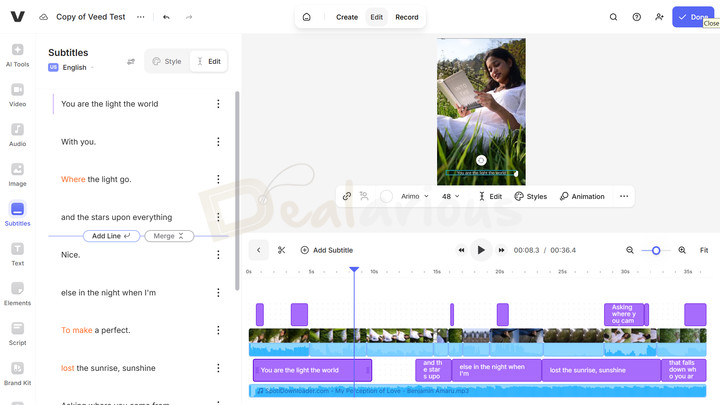
Veed's AI Subtitle makes the subtitle generation process effortless. With just a few clicks, you can generate subtitles by selecting the video's main language. Additionally, if you want to translate the subtitle into another language, you can do so by just picking the target language from the available options and hitting generate. In a few moments, your subtitles will be ready and displayed on the title track.
One feature that I found quite useful is the Speaker Detection. Once enabled, in a multi-speaker situation, this feature automatically assigns different styles to each speaker's subtitles, creating clear differentiation. Furthermore, if you already have subtitles, you can upload them too, so you are not locked into using AI only.
Other Noteworthy Features
Besides all the mentioned tools, Veed also has several other helpful video editing features, such as:
- Eye Contact AI
- Remove Background
- Face Filter
- Collaborative feature, etc.
Veed Editing Experience
When it comes to video editing, Veed follows a similar approach to any other video editing tool; import your media files, add them to the timeline, and trim the unwanted parts. As for my experience, basic editing went as expected, but there are a few limitations that I'd like to mention:
1. Non intuitive media handling
Most modern video editing programs offer robust drag-and-drop functionality, letting you place clips or elements freely on the timeline wherever you want. Unfortunately, Veed lacks this level of control and limits drag-and-drop primarily for uploading files.
2. No folder uploads
Veed does not support uploading folders, so you have to select individual files and add them, which can make organization difficult.
While reviewing Veed, I faced issues when uploading multiple files at once in the Asset Library. The upload process would halt after every 1 or 2 successful file uploads.
Upon contacting the support, they suggested that "things like VPNs, firewalls, ad blockers, or antivirus software can sometimes interfere with uploads."
I uploaded the files individually, and it worked fine, but the process was time-consuming.
3. Disruptive left panel popup
Navigating the features and implementations went smoothly for me, but the experience was not without drawbacks.
For instance, I did not like how the left panel behaved during editing. I prefer a clean workspace when editing so that I can focus on the timeline and make precise adjustments. However, in Veed, even after closing the left panel for a clearer view, it tends to reappear with a single click on a clip.
I understand that it's trying to be helpful by bringing up controls just when I need them, but in practice, it felt a little disruptive. A better approach would have been to keep these media functions in a separate window next to the preview section, rather than having everything take over the entire left panel.
4. Buffering
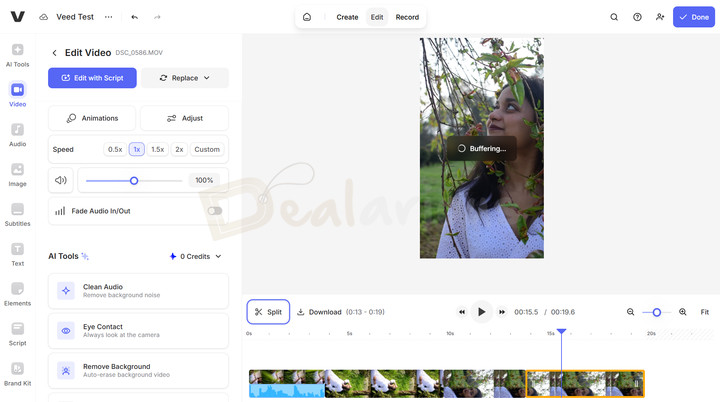
I hardly encountered a smooth playback when using Veed. Every time I previewed my video, it buffered even during replays, which made the editing experience somewhat underwhelming.
Now, besides the stated limitations, using Veed was fairly easy. Every feature was clearly labeled, so navigation did not pose a challenge for me. Basic edits worked well; AI features simplified and automated complex tasks, minus the processing wait time. The platform even handled a 2K HEVC (H. 265) file well with minimal editing, which many desktop applications often struggle with.
Veed Review: Performance
Editing videos on a low-spec device with resource-intensive software is a nightmare, and this is where Veed stands out. Its cloud-based processing helps users edit videos without overloading their devices.
I opted to use Google Chrome to run Veed, and it worked without much issue, except when multiple tabs were open.
For testing, I used around 8 video clips in MOV and MP4 formats, along with an MP3 file. I kept the edits minimal, with trimming, subtitles, animations, and transitions, basic color adjustments, and, at times, filters.
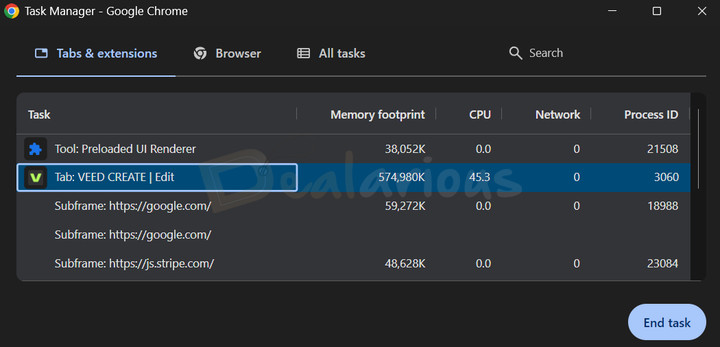
During editing, Veed alone used upto 45.3% of the browser's CPU and around 575 MB of RAM.
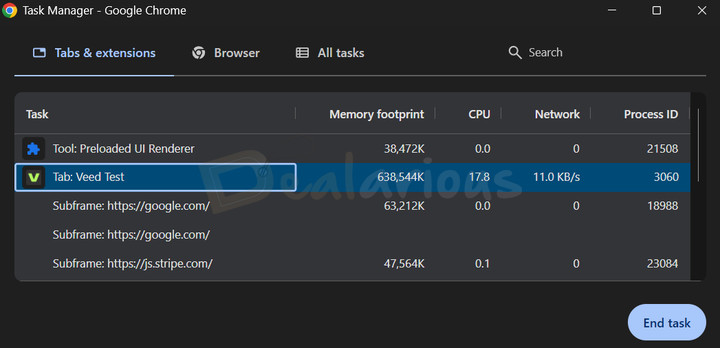
In contrast, during export, CPU usage dropped to 17.8%, while memory usage increased slightly to around 638 MB.
Note: Before opting for Chrome, I also tried running Veed in Mozilla Firefox. The browser struggled, and Veed often glitched, with no sound and slowdowns. Based on my experience, I suggest running Veed using Chrome for a stable workflow.
Export
Once you are satisfied with your edits, hit "Done" in the top-right corner to open the export panel. Veed lets you adjust your export settings to best suit your needs, including frame rate, resolution, and compression. You can also burn the subtitles or use AI dubbing. After you select Export, Veed starts rendering your video file. Once it's ready, you can either download it or share it on social media platforms such as Facebook, X, or LinkedIn.
In short, I found the exporting process straightforward without unnecessary complexity.
Customer Support Options
Veed offers multiple support options. For human assistance, you can reach out via live chat or email support, or use their knowledge base, which covers FAQs, guides, getting started, and account-related queries, among others. Here's how to contact VEED.
For my test, I reached out to their live chat support. The live chat response time usually depends on the agent's availability, indicated by a green status dot on the agent's profile. In my case, the longest wait time was around 2-3 hours. As for the quality of the support, well! It was acceptable for basic queries with clear answers. However, when things got a little more technical, their response started to feel a little unclear and not always fully satisfactory.
Overall, the support is helpful, but there's room for improvement in consistency and clarity.
Veed Review: Overall Experience
What I Liked
Basic editing was smooth.
Since the interface is clean and the features are clearly labeled and organized, finding tools and performing basic edits felt smooth. In other words, Veed is beginner-friendly, so editing videos won't pose the same difficulties as with traditional tools, which have a steep learning curve.
Good color grading options
Yes, the built-in color grading presets are pretty limited. However, they are quite cinematic and, when applied, can set the mood in your video. You can also adjust the intensity of these presets with a slider, adding some level of flexibility.
AI tools automate the complex tasks
The AI features in Veed helped me automate multiple complex editing tasks. For instance, it helped me generate subtitles with just a few clicks, translate them, and even handle voice cloning and dubbing. There's also a Prompter tool in the Recording panel that functions like a teleprompter. There, you can write your script or generate one with AI, and it will be displayed on the screen during recording, making it easier to speak without memorizing.
What I disliked
The editing window can be improved
No doubt, Veed has an intuitive and easy-to-use interface. But during my editing session, the left panel's frequent activation upon a single click on the clip on the timeline disrupted my workflow. It nearly occupied 30% of the screen with no options for adjustment. On a 14-inch display, it felt like taking over most of my editing window.
No drag and drop
I really like the drag-and-drop feature; it helps me move elements freely and place them wherever I want. The lack of this functionality in Veed felt quite limiting during my editing session.
Decent AI Tools
Yes, Veed's AI does a lot of the heavy lifting for complex tasks. However, they are nothing exceptional. These tools aren't always 100% accurate and may require manual adjustments later.
AI Avatar feature locked behind upgrade
As mentioned earlier, for my Veed review, I was given a 3-month Pro subscription plan, which lists AI Avatar as one of its features. Naturally, I expected it to be included, so I went to test the feature. But to my surprise, I found that the tool was locked behind an additional upgrade, specifically the Pro + Personal Avatar plan. It felt a bit misleading, and I hope they make this distinction clear on their pages to avoid confusion.
Quick Verdict
To be honest, I have mixed thoughts about Veed.
On one hand, Veed makes video editing very accessible and easy. The tools are easy to use and don't require advanced skills. The AI features also help automate tasks, saving you time and effort. In short, it works well for quick projects such as social media reels, webinars, and simple vlog edits.
Some limitations of Veed can affect the workflow. For instance, the absence of folder support and drag-and-drop functionality, issues with multiple-file uploads in the asset library, and buffering during playback, to name a few.
Tip: If you want a beginner-friendly video editor with advanced editing tools without internet access, you can try software like Wondershare Filmora, AVS4YOU, or Movavi Video Editor.
Veed Alternatives
Flixier
Flixier is a strong alternative to Veed. Whereas Veed is known for its simple, intuitive approach to video editing combined with AI-powered features, Flixier leans more towards slightly more advanced editing with keyframing, color grading, motion tracking, etc. Based on my experience, Veed is great if you are looking for a fast and AI-assisted workflow. In contrast, if you want a bit of control over your editing, Flixier can help.
To get a better understanding of Flixier's capabilities, you can read our Flixier review.
Flexclip
Flexclip is another potent alternative to Veed. Its creative and customizable template collection helps you create videos quickly. It also has a clean, well-organized editing workspace, which I found more intuitive than Veed. In contrast, Veed stands out with its richer set of AI tools, which speeds up the editing process.
Bottom line: Both tools have their own pros and cons. You can read this FlexClip review for a more detailed look and decide which online video editor best suits you.
WeVideo
If you are looking for more than basic video-editing controls, WeVideo can be a good alternative to Veed. Besides its simple, template-based video-editing approach (which can feel a little outdated by modern standards), WeVideo has a well-designed editing workspace. It also offers semi-advanced features such as animation tools, speed ramping, and more, giving you greater control over your edits. Conversely, Veed offers a simplified video editing experience, primarily through its AI-driven features, making the editing process faster and more efficient.
To learn more about the platform's abilities, check out this WeVideo review.
FAQs
Does Veed support HEVC?
Yes, Veed supports HEVC (H. 265) as input only.
Is Veed free to use?
Yes, Veed has a free version that you can use to explore the platform. However, the free plan comes with several limitations, which are just enough for evaluation. To unlock its full potential, you need to upgrade to a paid plan.
Is Veed suitable for beginners?
Yes, Veed is especially suitable for beginners. It has a clean, well-organized interface, and basic editing tasks are easy to perform. The AI tools help further simplify editing, making it easy for beginners to get started.
How good is Veed for content creation?
Veed works well for creating simple content, including social media reels, webinars, podcast edits, etc. Its AI features not only speed up workflows but also add new capabilities, such as AI dubbing and a prompter.
Conclusion: Is Veed worth it?
I found Veed to be a decent online video editing tool. Its clean, intuitive interface, combined with a rich collection of stock media and AI-powered tools, speeds up your workflow. However, it might not be the best choice if you are looking for advanced editing capabilities.
Overall, this Veed review shows that it is a good tool for quick, casual content creation.

She reviews software at Dealarious, mostly recovery and productivity tools, which she tries out herself. Her goal is to keep things simple so readers don’t waste hours figuring out what works. Over the years, she has tested dozens of apps and learned that small details often make the biggest difference.
When she isn’t testing programs, you’ll usually find her hiking in the mountains or enjoying the rain. She believes good tech should quietly make life easier, not more complicated.