
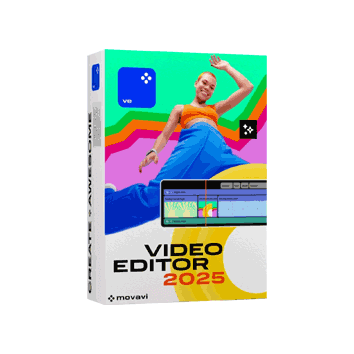
Movavi Video Editor 2025
$99.95 $35.99
Movavi Video Editor 2025 is a comprehensive solution that lets you create, edit, and enhance your dream video content. The tool will help you manage both audio and video sectors, regardless of the type of output you need.
It brings ways to boost the quality of video content, such as sharpness customization and stabilization. In short, it has everything you need for video editing. Check System Requirements: Windows | Mac.
Region: Global | Download Only | No Auto-renewal
Description
Movavi Video Editor 2025 has every option you need for perfect video content. It is suitable for amateur, intermediate, and professional video editing projects. Let that be a simple video slideshow or a full-fledged short film project. In Movavi Video Editor 2025, we find different areas for managing various aspects of the movie.
For instance, you get different sections to control the audio and video quality. Overall, customization and ease of use are important factors. We compared it with Wondershare Filmora. Though they are at distinct professional levels, we got close results with Movavi. That speaks about how good the Movavi Editor is.
Special Sale: Grab the best online discount with our exclusive Movavi Video Editor coupon codes, available for both Windows & Mac.
System Requirements
Before you decide to purchase the program, it is ideal to check if your system meets the requirements for smoothly operating it.
OS: Windows 7 and above
Processors: Intel, AMD, or dual-core processor with a minimum speed of 1.5GHz.
RAM: A minimum of 2GB RAM.
Hard Disk Space: A minimum of 400MB Hard disk space for installation.
For further details, check out Movavi’s System Requirements page.
Interface
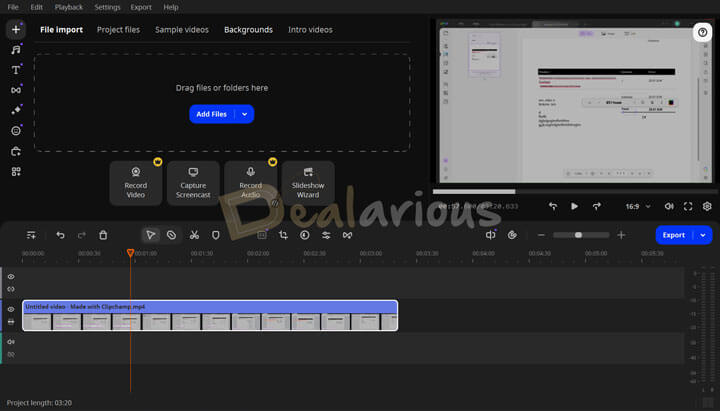
The interface resembles standard editing apps, making it easy to grasp quickly. Hence, it is user-friendly. The editing window is separated into three sections.
Left Panel
The left panel has all the options for adding background, effects, text, stickers, animation, video stabilization, etc. You can also import your media files for editing.
Right Panel
Movavi Video Editor 2025 allows you to see a quick glimpse of videos on the left panel by hovering over content cards. Furthermore, the right panel shows the live preview of edited tracks. You can detach this panel from the editor screen. Separating the preview window helps if you have multiple monitors.
Bottom Panel
It has a dedicated sector to add audio, video, transitions, effects, etc. This section is called your editing workspace and occupies the whole bottom part. You can always zoom in and out while working on your tracks.
Editing Options
In the Editing part, different sets of actions are available. You have basic operations such as slicing, rotating, and cropping to get a video to the desired length. For precise cuts, you can utilize the Blade tool, and then you can use the Editor’s stunning Transitions to unite these fragments. There are a lot of Transitions available. Also, different video effects are possible, including Filters, Overlay effects, and LUTs. You can use these to enhance the creative part of the video output.
In short, with Movavi Video Editor, you can create excellent video content in the shortest time possible.
Tip: To unlock full features, you can use our special Movavi Video Editor promo codes.
Movavi Video Editor 2025: Key Features
Basic Video Editing Features
With Movavi Video Editor, it is easy to cut, trim, and add effects, as well as transitions to a video without any hassle.
Advanced Video Editing Features
Movavi Video Editor offers different advanced editing features to control your audio and video files and create stunning output results.
Video Editing Tools
Color Adjustments
To enhance the overall look and tone of your video, you can either manually adjust the colors or use a preset from Movavi’s inbuilt collection.
Stabilization
This feature removes unwanted camera shakes from your video. Using AI, Movavi allows you to stabilize shaky video footage and produce well-stabilized video output.
Chroma Key
If you are into green-screen videos and want to add various kinds of effects to your video, then the Chroma Key feature can come in handy.
AI Background removal
As the name suggests, this feature uses AI to remove a background from your video footage without any hassle.
AI Motion Tracking
With the help of AI, Movavi Video Editor makes it easy to allow objects like stickers, titles, etc., to track selected subjects in movement in the video.
Audio Editing Tools
Synchronization
With this tool, you can synchronize two different audio clips automatically.
AI Noise Removal
This feature allows you to easily remove unwanted noise from your audio clip without affecting the quality of your audio.
AI Auto Subtitles
It is a new feature offered in the latest version, i.e., Movavi Video Editor 2025. This tool allows the creation of auto-generated subtitles without manual effort. Using AI, Movavi recognizes speech and creates and syncs subtitles to your video.
Sound Auto Correct
This tool removes unwanted noise with one click using three different presets: Enhanced Voice Recording, Noisy Place, and Recording Studio.
Beat Detection
This feature allows you to detect audio beats in your video and display them on your timeline in the form of waves. Then, you can make precise cuts and adjustments to further enhance your video project.
You can visit the official Product page to learn more about all the features offered by Movavi.
Tip: To learn more about Movavi Video Editor’s amazing editing capabilities, we recommend that you read our Movavi Video Editor Review.
Input Options
When it comes to input files, it gives you enough freedom! There are many ways to enter content. You can directly transfer the footage from your video camera or choose the files stored on your PC. Likewise, recording webcam footage and digitizing the content from VHS tape or TV tuners is possible.
If you want to create a simple slideshow, you can add photographs from your device. You can also use Movavi’s built-in collection of sample videos, Intro videos, and background images. Regardless of your choice, the Editor supports many media file formats, such as AVI, MOV, MP4, WMV, etc. Make the most of our limited-time offers and enjoy premium features at a discounted rate.
Export Options
As easy as it is to edit your videos with Movavi Video Editor, it is much simpler to export them into different formats.
Video Formats
- MP4
- AVI
- MOV
- MPEG-1
- WMV
- MKV
- FLV
- DVD (NTSC)
- DVD (PAL)
- GIF, etc.
Audio Formats
- MP3
- WAV
- AAC
- FLAC
- OGG
- WMA.
Export Videos by Devices
- iPhone
- iPad
- Android
- PlayStation
- Xbox 360
- Apple TV
- LG 4K
- Samsung 4K
- Sony 4K
- Philips 4K, etc.
Share your video via Social Media
Apart from saving your videos on your computer, you can also share them directly using different social media platforms like YouTube, Vimeo, and TikTok. You can also upload your video directly to your Google Drive if needed. However, before sharing your videos on the mentioned platforms, you need to sign in to your respective accounts first.
Video Editor Premium 2024 vs. 2025 Edition
Significant additions exist between the previous Video Editor Premium and the latest Video Editor 2025 edition.
The latest version adds a few timeline additions to the quick tools section. It also supports auto subtitle generation in the 2025 version and a hovering preview on the right panel of the screen. Furthermore, Movavi Video Editor has included the latest sets of effects and transitions to enhance your video output.
Note: Both the 2024 and the Video Editor 2025 versions do not have the option to switch between Dark and Light modes. By default, the editor interface is in dark mode.
Support
Movavi offers exceptional support options to help you when you need it. You can benefit from knowledge-based materials like User manuals, FAQs, how-to guides, and more. However, if you require human assistance, you can reach out to their mail or live chat services.
Exclusive Movavi Video Editor Coupon Codes
At Dealarious, we always offer the latest Movavi Video Editor coupon codes. You do not need to enter the coupon separately; we apply discounts directly to your cart. Simply add the product to your cart, and the discount will be automatically applied at checkout.
Movavi Video Editor Discount Coupon FAQs
What is the latest version of Movavi Video Editor?
The latest major version of Video Editor is 25, i.e., Movavi Video Editor 2025.
How do I get the best discounts on Movavi Video Editor?
By purchasing Movavi Video Editor from the Dealarious Store, you will receive special discounts on the lifetime subscription. Hence, you get the best value for your money.
How often does Movavi Video Editor go on sale?
Movavi Video Editor goes on sale during major holidays like Black Friday and Cyber Monday and during the back-to-school season. Occasionally, we also have flash sales and exclusive offers for our subscribers. It’s a good idea to check our website to catch up on these limited-time sales.
Is Movavi Video Editor a lifetime subscription?
You can purchase Movavi Video Editor as a yearly Subscription or as a Lifetime license from the Official Movavi Website.
However, at Dealarious, you get lifetime subscriptions at an affordable price using the Movavi Video Editor Coupon.
Note: All Movavi Lifetime licenses are for the version you have purchased. It means that if you buy the 2025 version, you can use the same version for a lifetime but will not receive upgrades to the next major version.
How to get an Activation Key for Movavi Video Editor?
When you purchase the Video Editor subscription from the Dealarious Store, the Movavi Video Editor activation key is sent to your email shortly.
How do I activate Movavi Video Editor?
Launch Movavi Video Editor. Go to the Help section and click on Activate Software. Enter the Movavi Video Editor license keys that you purchased from Dealarious. The product is activated as soon as you enter a valid activation code.
Can I get a refund?
Yes. We offer a refund within 60 days of the purchase date on license issues. If you encounter any issues while activating your subscription, you can claim your refund from the Dealarious Store.
Learn more about our refund policy.
Do I get Customer Service on the purchase?
You can contact Dealarious for 24×7 customer support on purchase-related issues or Movavi for product-related issues at their official support page.
Why Choose Movavi Video Editor 2025?
To conclude, Movavi Video Editor 2025 is a great choice if you are looking for an easy-to-use video editor with advanced video editing features. Regardless of your experience with video editing programs, using Movavi Video Editor allows you to create videos from scratch without any hassle. However, if you are looking for alternatives to Movavi Video Editor, we recommend you check out Wondershare Filmora or Adobe alternatives.
Sage –
Movavi makes editing easy and fun and the best part is the affordable lifetime deal!
Floyd –
Great bargain here. License key received and worked for me. I consider it a nice Christmas gift :-)
Paul –
The video editor is pretty good value, considering it’s a lifetime license. It has all the features I need for video editing, and the new auto subtitles feature is worth mentioning. Paid through PayPal!
Robertas –
I bought the 2024 version last year, and now I will buy the 2025 version. It’s a reliable store, and Movavi is a good video editing program.
Mark –
The editor has been a good option for me over the past couple of years, and I love it for its simplicity. Upgraded to the latest version with this deal.