
Wondershare Filmora 14
$99.99 $79.99
Filmora is an easy-to-use video editor for Windows and Mac. You can quickly add your clips and create stunning videos in minutes.
The predefined profiles and templates make it super easy to create professional-quality videos. You can also edit and create videos in 4K at 60 fps. The coupons are already present within the purchase links. Hence, there is no need to apply coupons separately.
Limited Time Offer On the latest version! Check the Latest Official Filmora Offers.
1 Device – Lifetime | Official Purchase | 30 Days Refund
Description
Wondershare Filmora is an elegant video editor that is suitable for both beginner and intermediate video editors. With a small learning curve, anyone can learn to use this software, whether they are skilled at editing or not. It supports both Windows and macOS.
If you want to create a video on Filmora, You don’t need to worry. It’s only a four-step process:
- Import your media files into the program
- Drag and drop them into the timeline
- Cut, trim, and add effects to media files
- Export and share the video.
The videos’ results look and sound fantastic. Furthermore, the latest integration of AI into Filmora makes video editing seamless and easy.
You can also get good discounts by using our Wondershare Filmora coupon codes. We also feature the best Wondershare UniConverter Pro coupons.
System Requirements
Before purchasing Filmora, we would suggest you look into the system requirements to operate the program swiftly on your device.
OS: Windows 7 and later, and macOS 10.15 and later.
Processor: Intel i3 or higher and AMD Ryzen 3 1300X or better multicore processor with a speed of 2GHz or more.
RAM: 8GB (Minimum, however for 4K video edits, 16GB is preferred)
Graphics: Intel HD Graphics 5000 or later; NVIDIA GeForce GTX 700 or later; AMD Radeon R5 or later.
Disk Space: A minimum of 774MB of free hard disk space for installation.
Tip: For a smooth editing HD and 4K video editing experience, we recommend using an SSD (Solid-State Drive) instead of an HDD.
Note: Before purchasing, please check out Filmora’s system requirements page to get a detailed view of the system specifications needed to operate the program without any struggle.
Wondershare Filmora: Interface
Wondershare Filmora has an easy-to-use interface that can be navigated by any user, regardless of their experience as a video editor.
Dashboard
The dashboard itself is well-organized; anyone with little to no knowledge of video editing programs can easily start creating projects without any hassle.
On the left side of the dashboard, you will find four options to start your video editing journey.
- Create Project,
- Filmora Cloud,
- Creator Hub, and
- Toolbox.
To start creating projects from scratch, click the ‘New Project’ tab in the Create Project panel. Below the New Project tab, you will find different options like Smart Short Clips, Smart Scene Cut, Smart BGM Generation, Auto Reframe, Filmora Copilot, etc, to create videos with the help of Filmora’s AI tools.
Editing Window
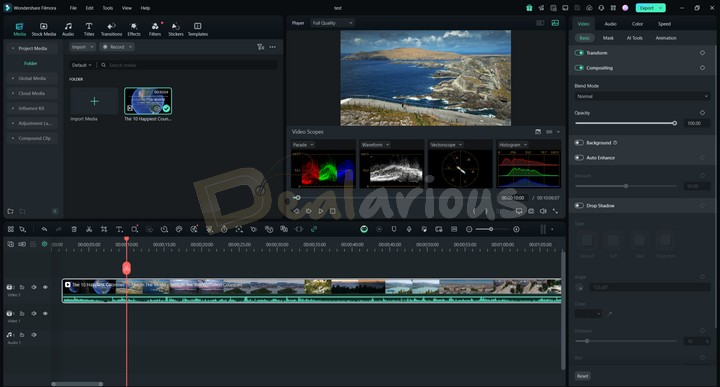
When you click the ‘New Project’ tab, Filmora opens the editing window to start editing your videos. If you have used editing programs before, you will find the layout somewhat similar to any other video editing applications; however, Filmora has some advanced editing options that basic video editors lack. To learn more about Filmora’s editing capabilities, consider reading our Wondershare Filmora review.
You can start editing videos by importing your files into the program and then easily dropping them into the timeline, then making necessary cuts, trims, and edits. You can also use Filmora’s AI functions to quickly enhance the overall quality of your video without manual labor, which we have mentioned below in the Key Features section.
Wondershare Filmora 14: Key Features
Basic Video Editing Features
With Wondershare Filmora, you can easily make basic adjustments to your video, like using different layout modes for convenient editing, cutting, trimming, adding effects and transitions, using a color grading wheel, using a green screen feature, and more.
Advanced Video Editing Features
Apart from Filmora’s basic video editing features, it offers several efficient advanced video editing features that go beyond what basic video editing programs provide.
Draw Mask
The pen tool allows you to easily outline shapes or objects in videos, apply effects, and enhance specific elements. It gives you control, flexibility, and captivating results.
Adjustment Layer
This layer efficiently streamlines the video editing process by applying the same effects to multiple clips or the entire timeline.
Speed Ramping
This feature allows you to enhance the visual impact of specific scenes in your video by smoothly adjusting the playback speed (either speeding it up or slowing it down) in certain parts.
Motion Tracking
This feature allows objects like stickers, titles, etc., to move along with a selected subject in the video.
Keyframing
Filmora’s Keyframing feature allows you to easily create smooth animations in video with just a few tweaks.
AI Features
The most fascinating aspect of Wondershare Filmora 14 is its AI features, like
Smart Short Clips
This feature allows you to create short-form content from long-form videos using AI, saving you the hassle of manually editing videos.
AI Video Enhancer
As the name suggests, this feature helps users transform a blurry or low-quality video into something better and more enhanced.
AI Translation
This tool can effectively translate audio and subtitles from 23 different source languages into 14 languages with over 95% accuracy.
AI Sound Effect
Are you tired of looking for sound effects on the web? To make the job easy for you, you can instantly generate various sound effects using Filmora’s AI Sound Effect feature based on your mood, style, and energy level.
Planar Tracking
Using this feature, you can create cool visual effects in your video by allowing objects to track the movement of a flat surface within a video, like Billboards, laptop screens, etc.
Other AI Tools
Apart from the above-mentioned tools, you can benefit from further AI tools offered by Filmora.
- Smart BGM Generation
- Auto Reframe
- Filmora Copilot
- Multi-Camera Editing
- AI Portrait Cutout
- Smart Search
- Path Curve, etc.
You can check all the features on their official website.
Wondershare Filmora Video Output Options
Filmora offers you different options to save your projects.
Export to your local computer
Filmora no doubt supports almost all video formats. You can save it in a specific format. Just click on the Export button, and after that, choose the Local tab and choose the Format you want.
Currently, Filmora supports exporting in many different formats:
- MP4
- HEVC
- AVI
- MOV
- GoPro Cineform
- MKV
- 3GP
- MPEG-2
- WEBM
- GIF etc.
The exported video quality is set to the ‘Match to project settings’ preset by default. You can also adjust the output settings to achieve the best video quality. Once you are done with the quality settings, click Apply and Save settings.
There is also an option to back up your videos to the cloud with Filmora Workspace.
Export by devices
If you want to have output on an available mobile device like:
- iPhone
- iPad
- Apple TV
- Apple TV 4K
- PlayStation 4
- Google Pixel
- Samsung Galaxy
- Smart TV etc.
The Device tab under Preset contains predefined mobile brands. You can select your mobile brand and customize the output settings. The mobile output option is beneficial if you want to watch the video on your mobile device. Since the video output is made specific to your mobile device, the output size is bound to be smaller.
Directly upload the video to different sharing platforms
Filmora offers an option to directly upload 4k videos to video-sharing websites like Vimeo, TikTok, and YouTube. However, you will first need to log in to your respective social media accounts to upload the edited video.
Burn a DVD
Filmora allows you to burn a DVD in minutes easily. All you need to do is select the DVD tab and enter some other settings on the panel. Once that is complete, click Export. You can either burn a disc or save the output video in a .iso image file.
Wondershare Filmora Coupon Codes
At Dealarious, we always keep the latest Filmora discount coupons. Using these coupons, you are buying Filmora directly from the Wondershare website. We provide Wondershare Filmora coupon codes integrated into the purchase links. Hence, you will not have to enter the coupon code separately.
FAQs
Q. Can I use Wondershare Filmora for free?
There is a free version of Wondershare Filmora that can be used forever but with limitations.
Q. How do you activate Wondershare Filmora?
After launching Wondershare Filmora on your system, a startup window will appear. Click on the Login button in the lower-left corner of the window. Enter your Wondershare ID (the license email) and password to activate your account.
Q. How do I use the Wondershare Filmora coupon code?
The Wondershare filmora discount code is applied directly to your original purchase price. To use it, click on the Buy Now link in the Wondershare filmora coupon section above. At Dealarious, we regularly update Filmora coupon codes.
Q. How do I get a refund from Filmora?
Wondershare offers a 30-day money-back guarantee. Check out their refund policy for further details.
Support
As an efficient video editing platform and a company with strong values, Wondershare Filmora offers different ways to seek help in times of need. You can use their Live Chat Support, Phone Call assistance, Useful Guides, YouTube Tutorials, and informative FAQs.
Conclusion
Wondershare Filmora 14 is a very easy-to-use video editor. Filmora does not consist of difficult options to handle. Hence, as a new user, you won’t find much trouble learning how to use this software. Many tutorials on Filmora’s official website can help you understand this tool better. Wondershare Filmora also offers advanced video editing options as well as AI functionalities to enhance your overall video work and minimize manual stress.
If you are a video editing enthusiast, we recommend that you give Wondershare Filmora a try. If you are looking for alternative options, try out Movavi Video Editor and AVS Video Editor. Furthermore, if you have decided to purchase Filmora 14, consider using our Wondershare Filmora Discount Coupon Codes to get a huge discount.
0 reviews with a 2-star rating
There are no reviews with a 2-star rating yet